

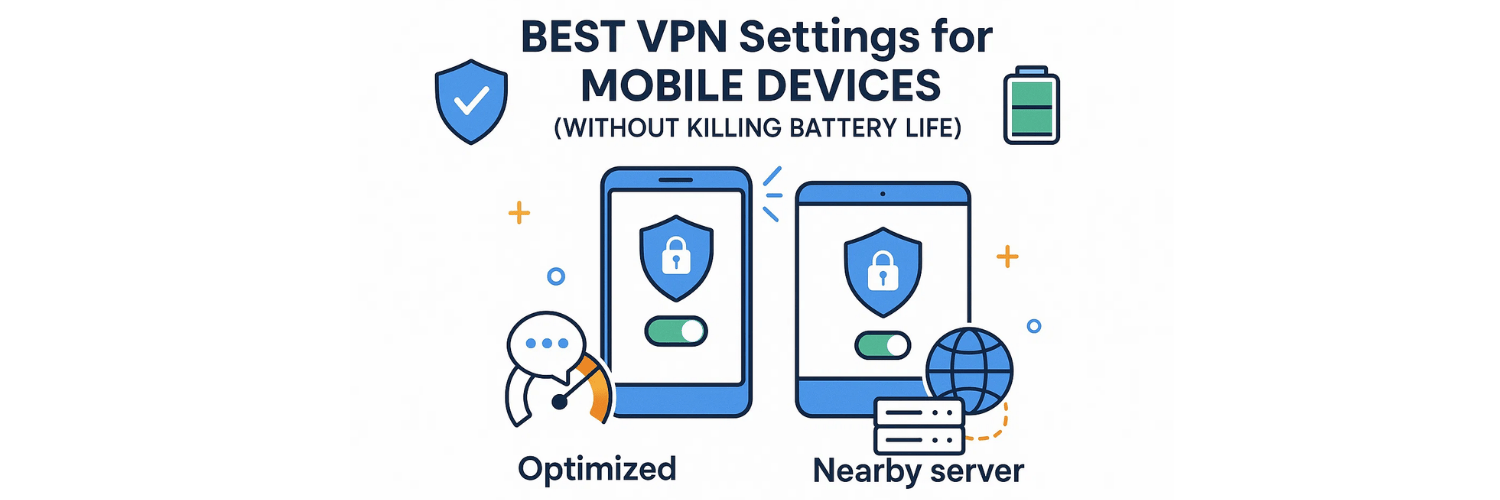
When you install a VPN on your smartphone or tablet, you’re not just encrypting your data — you’re also adding an extra process that constantly runs in the background.
While that’s great for security, it can also drain your battery faster if not configured properly.
Mobile operating systems like Android and iOS are optimized for power efficiency, but when a VPN app forces constant encryption or pings a distant server, your device consumes more energy.
That’s why fine-tuning your VPN settings can make a big difference — keeping you protected without sacrificing battery life or performance.
If you haven’t set up your VPN yet, check this detailed guide onhow to configure VPNs on Windows, macOS, Android, and iOS before continuing.
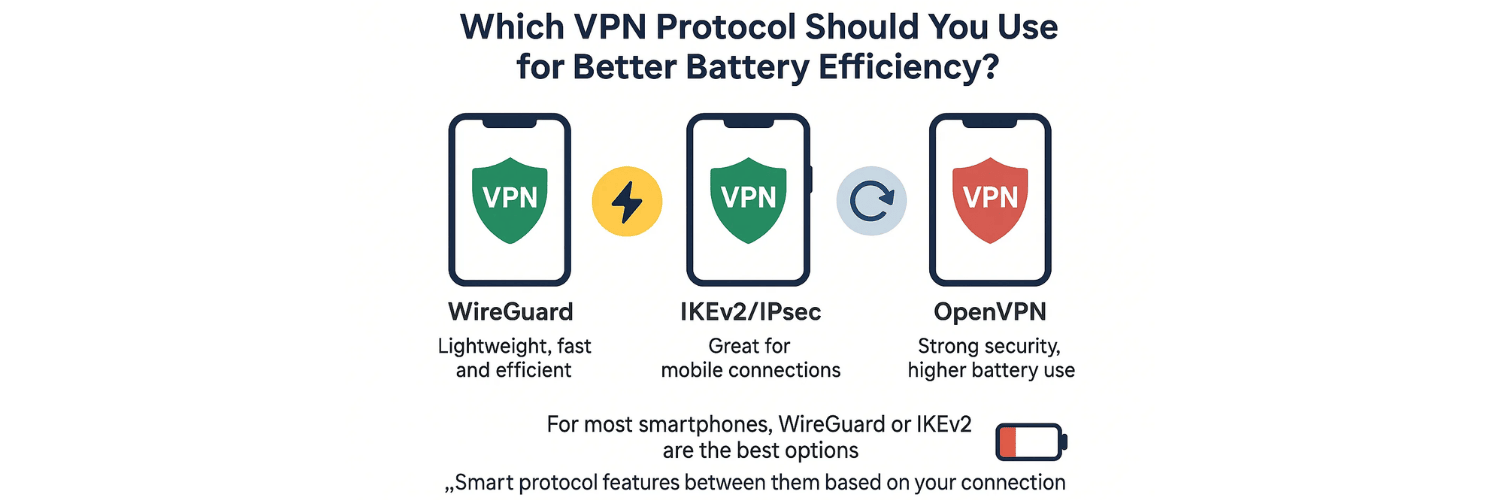
Which VPN Protocol Should You Use for Better Battery Efficiency?
The VPN protocol you choose directly affects both security and battery usage.
Here’s how the main ones compare:
WireGuard: Lightweight, fast, and highly efficient — ideal for mobile users who want speed without draining power.
IKEv2/IPsec: Excellent for mobile connections because it automatically reconnects when you switch between Wi-Fi and cellular data.
OpenVPN: Strong security but heavier on CPU usage; it can consume more battery, especially in UDP mode.
For most smartphones, WireGuard or IKEv2 are the best options. Many premium VPN apps now offer an automatic “smart protocol” feature that switches between them based on your connection.
Should You Use ‘Always-On VPN’ Mode on Mobile?
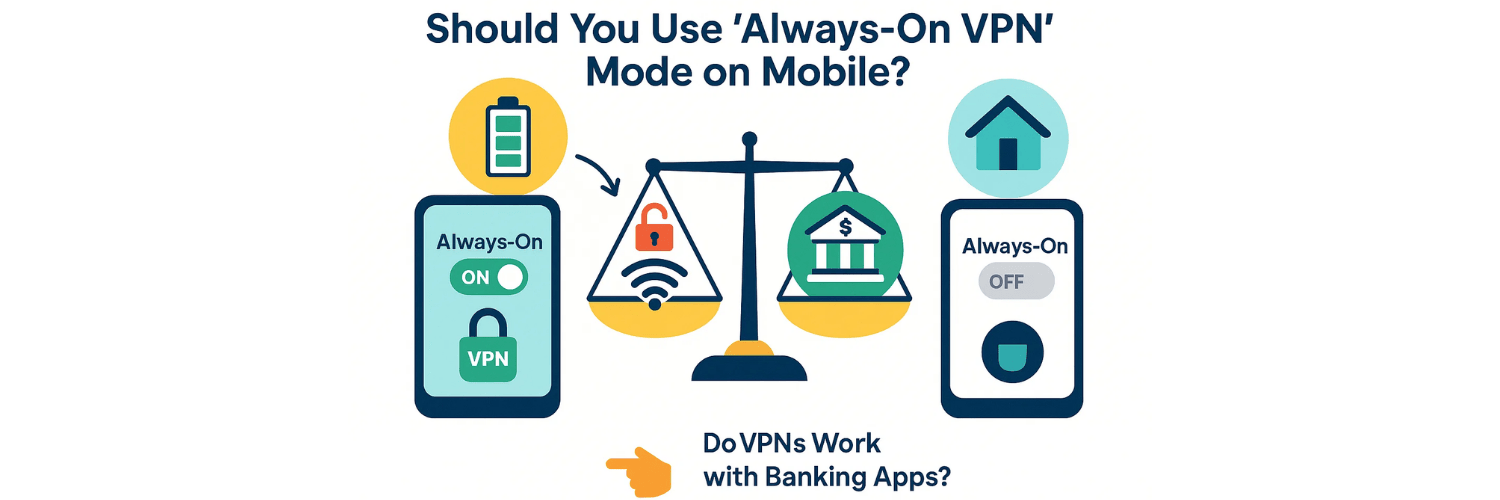
The “Always-On” VPN feature (available in both Android and iOS) keeps your VPN active at all times — even after reboots.
While it ensures continuous protection, it can also slightly increase battery drain, especially if your VPN server is far away or unstable.
If you mainly use public Wi-Fi or banking apps, keeping this feature on is worth it.
However, if you’re on a trusted home network, you can disable “Always-On” and manually connect only when needed.
You can read more about VPN security in mobile banking apps here:
👉Do VPNs Work with Banking Apps?
Can You Optimize VPN Server Location to Save Power?
Yes — the closer your VPN server is to your physical location, the less battery power your device uses.
This is because encryption and routing require less processing when data doesn’t need to travel long distances.
Choose a local or regional VPN server for routine browsing.
Use distant servers (like the U.S. or Europe) only when accessing geo-restricted content.
Avoid frequently switching between servers; each reconnection restarts encryption cycles and consumes extra power.
Can You Optimize VPN Server Location to Save Power?
Yes — the closer your VPN server is to your physical location, the less battery power your device uses.
This is because encryption and routing require less processing when data doesn’t need to travel long distances.
Choose a local or regional VPN server for routine browsing.
Use distant servers (like the U.S. or Europe) only when accessing geo-restricted content.
Avoid frequently switching between servers; each reconnection restarts encryption cycles and consumes extra power.
How Can You Prevent App Conflicts While Using a VPN?
Some apps — especially banking, payment, or corporate tools — may reject VPN connections, leading to login errors or connectivity issues.
These conflicts can also cause your VPN to constantly retry connections, draining your battery further.
For example, banking apps often block shared or foreign IP addresses for security reasons.
If you face login problems, check this article:
👉 Can VPNs Cause App Login Issues? Here’s How to Troubleshoot.
To minimize conflicts:
Enable split tunneling in your VPN app so sensitive apps (like banking or payments) bypass the VPN.
Keep your VPN’s DNS leak protection active to maintain privacy for all other traffic.
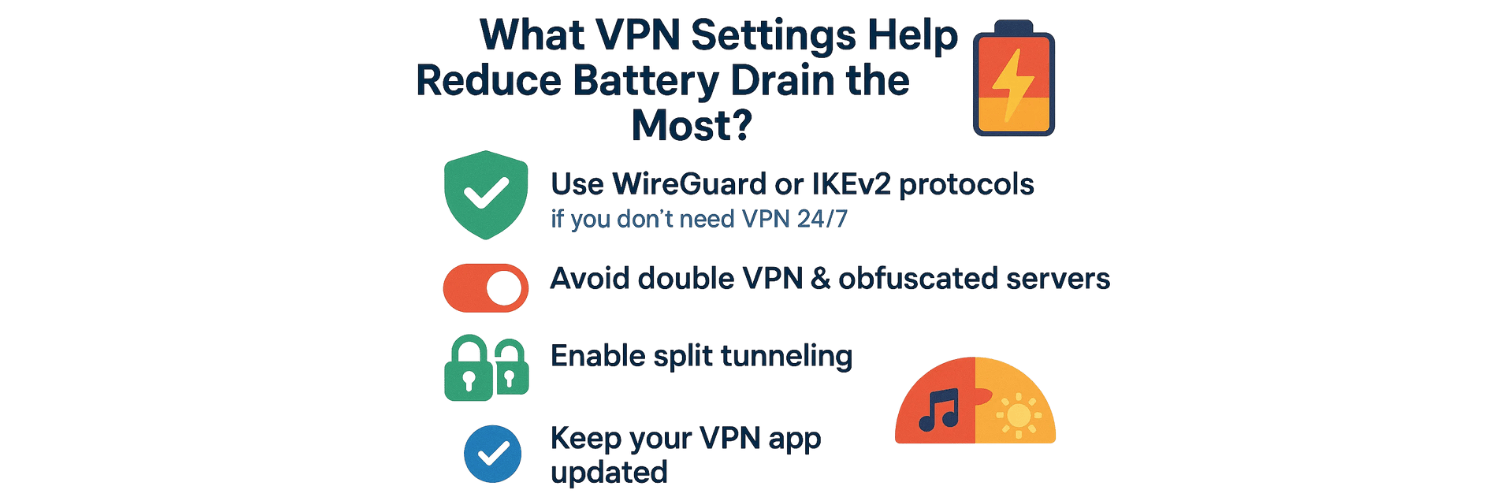
What VPN Settings Help Reduce Battery Drain the Most?
Here are some practical settings that balance protection and performance:
Use WireGuard or IKEv2 protocols.
Both offer efficient encryption with minimal CPU load.Turn off “Auto-Connect on Startup” if you don’t need VPN 24/7.
Instead, enable it only for public or untrusted networks.Avoid using double VPN or obfuscated servers unless necessary; these use extra encryption layers that consume power.
Enable split tunneling to exclude low-risk apps (e.g., music or weather apps).
Keep your VPN app updated — newer versions often include power-saving optimizations.
How Do You Know If Your VPN Is Working Properly Without Leaks?
Even with power-saving settings, your VPN must still protect your privacy.
That’s why it’s crucial to check if your VPN leaks IP, DNS, or WebRTC data after adjusting its settings.
Use this free tool to verify your VPN’s integrity:
👉 How to Test for VPN Leaks on Mobile Devices
If you notice that your real IP or DNS information is visible, re-enable full encryption or switch to a different VPN protocol.
🔹 Best VPN Settings for Android
Android gives users more flexibility and control over their VPN configurations. Here’s how to fine-tune it for the best performance:
Use the WireGuard protocol (if available)
Most top VPN apps like NordVPN, ProtonVPN, and Surfshark now include WireGuard.
It’s faster, lighter, and consumes less CPU than OpenVPN.
In your VPN app → go to Settings > Protocol > WireGuard.
Enable Split Tunneling
Found under Settings > Split Tunneling.
Exclude low-risk apps (music, weather, maps) to save battery and bandwidth.
Keep sensitive apps (browsers, messengers, email) under VPN protection.
Turn Off Auto-Connect on Trusted Networks
Many VPN apps let you define “Trusted Wi-Fi networks.”
Disable auto-connection for home Wi-Fi to reduce constant background encryption.
Disable Battery Optimization for Your VPN App
Go to Settings > Battery > Battery Optimization → select your VPN app → choose “Don’t optimize.”
Prevents Android from killing the VPN connection when the screen is off.
Use Local or Regional Servers
Avoid distant countries unless you need to bypass geo-restrictions.
Nearby servers reduce latency and power usage.
Test for IP/DNS Leaks Regularly
Visit VPNTest.pro/test or see the full guide:
👉 How to Test for VPN Leaks on Mobile Devices.
These settings ensure Android users get high security + extended battery life, especially if they use VPN all day on mobile data or public Wi-Fi.
🔹 Best VPN Settings for iOS (iPhone & iPad)
Apple’s iOS system handles background connections differently. While it’s more restrictive, it’s also optimized for stability and privacy. Here’s how to configure your VPN effectively:
Choose the IKEv2 Protocol
iOS natively supports IKEv2, which provides a balance of speed, stability, and low power usage.
It automatically reconnects when switching between Wi-Fi and cellular data — ideal for mobile users.
Go to Settings > General > VPN & Device Management > Add VPN Configuration → choose IKEv2.
Enable On-Demand Connection
In your VPN settings, turn on “Connect on Demand.”
It ensures the VPN activates automatically when connecting to insecure Wi-Fi or mobile data.
Turn Off VPN for Trusted Networks
In many VPN apps (like ExpressVPN or ProtonVPN), you can exclude specific networks.
This reduces unnecessary encryption when you’re on a safe private Wi-Fi connection.
Use Split Tunneling (if supported by the app)
Some iOS VPNs like NordVPN now offer per-app VPN routing.
Route only sensitive apps (e.g., browsers, email, messaging) through VPN.
Check for DNS and WebRTC Leaks
Safari and some browsers may reveal IP info through WebRTC.
Test using VPNTest.pro/test to confirm your VPN is properly masking your identity.
Keep VPN App Updated & Use Light Encryption (If Possible)
AES-128 encryption is secure enough for mobile use and lighter on CPU compared to AES-256.
Always keep the VPN app updated — Apple limits background access, and updates often include optimizations for battery use.
🧠 Pro Tip: Combine Smart Connection with Leak Testing
Once you’ve optimized these settings, test your VPN for leaks and stability using the VPN leak checker from VPNTest.pro/test.
This tool shows if your IP, DNS, or WebRTC is exposed while your VPN is active — ensuring your privacy isn’t compromised.If you use mobile banking or finance apps, make sure your VPN doesn’t trigger login blocks.
Check: 👉Do VPNs Work with Banking Apps?
and 👉Can VPNs Cause App Login Issues?
🧩 Final Thoughts
Setting up a VPN correctly on your Android or iOS device doesn’t just improve your privacy — it ensures that your device stays fast, stable, and power-efficient. The best VPN setup balances encryption strength, protocol choice, and battery optimization.
For Android, the WireGuard protocol and features like Split Tunneling and Battery Optimization Exclusion deliver the best combination of speed and endurance.
For iOS, the IKEv2 protocol, Connect on Demand, and light encryption modes help maintain seamless security while minimizing background drain.
No matter which system you use, it’s crucial to test your VPN regularly for IP, DNS, and WebRTC leaks using VPNTest.pro/test. You can also read:
By using the right protocols and server options, you can protect your data, keep your apps running smoothly, and extend your phone’s battery life — all while staying private online.
❓ 10 Most Asked FAQs about VPN Settings on Mobile Devices
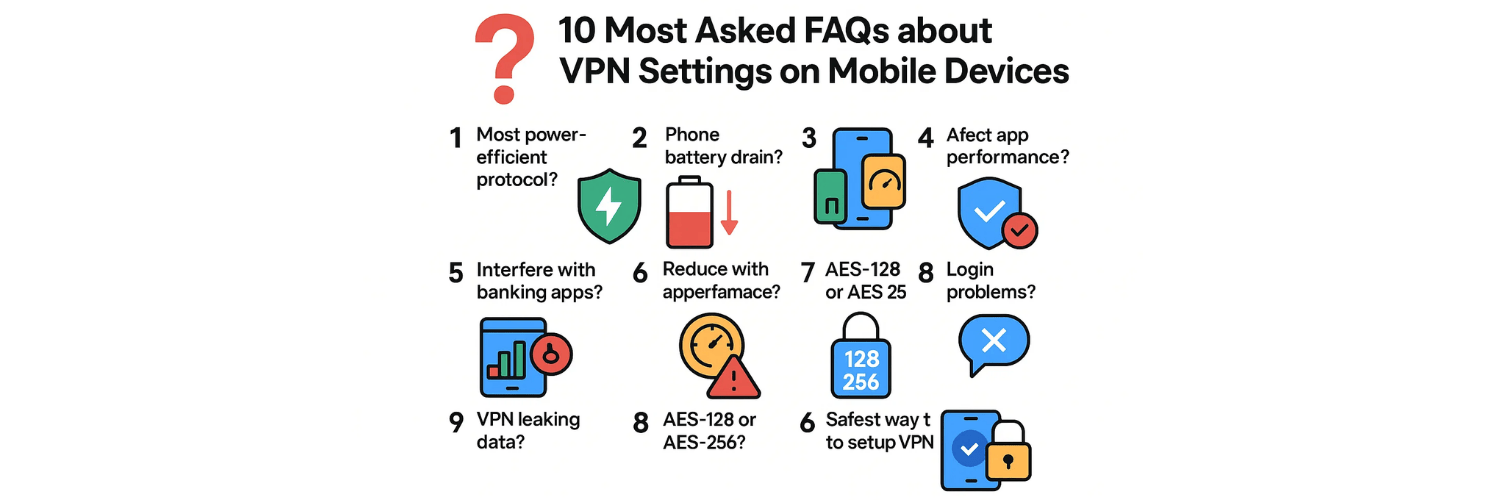
1. Which VPN protocol uses the least battery on Android and iOS?
WireGuard (Android) and IKEv2 (iOS) are the most power-efficient and stable VPN protocols for mobile devices.
2. Why does my phone battery drain faster when using a VPN?
Heavy encryption, constant background activity, and long-distance server connections increase CPU and network usage, causing faster battery drain.
3. How can I reduce VPN battery consumption on Android?
Use nearby servers, enable split tunneling, and disable battery optimization for your VPN app.
4. Does VPN affect app performance on iPhone or Android?
Yes, slightly — especially with slower protocols like OpenVPN. Newer protocols (WireGuard, IKEv2) minimize delays.
5. Should I keep my VPN always on?
Yes, but configure it to auto-connect only on unsecured or public Wi-Fi networks for better balance between security and power.
6. Can VPNs interfere with mobile banking apps?
Some banking apps block VPN connections. Learn more here: Do VPNs Work with Banking Apps?.
7. How do I test if my VPN is leaking data?
Use VPNTest.pro/test to detect IP, DNS, and WebRTC leaks instantly.
8. Is it better to use AES-128 or AES-256 encryption on mobile?
AES-128 is faster and secure enough for everyday mobile use; AES-256 is stronger but consumes slightly more battery.
9. Can a VPN cause login problems on mobile apps?
Yes, some apps detect VPN traffic and block authentication. See: Can VPNs Cause App Login Issues?.
10. What’s the safest way to set up a VPN on my phone?
Follow your OS-specific guide here:How to Set Up a VPN on Windows, macOS, Android, and iOS.
Tags

About VPNTest
Content Specialist with expertise in cybersecurity and online privacy. Sarah has been testing and reviewing VPN services for over 5 years and regularly contributes to leading tech publications.
View all articles by VPNTest →




Never Miss an Article
Subscribe to our newsletter to receive the latest VPN guides, security tips, and industry news directly in your inbox.