

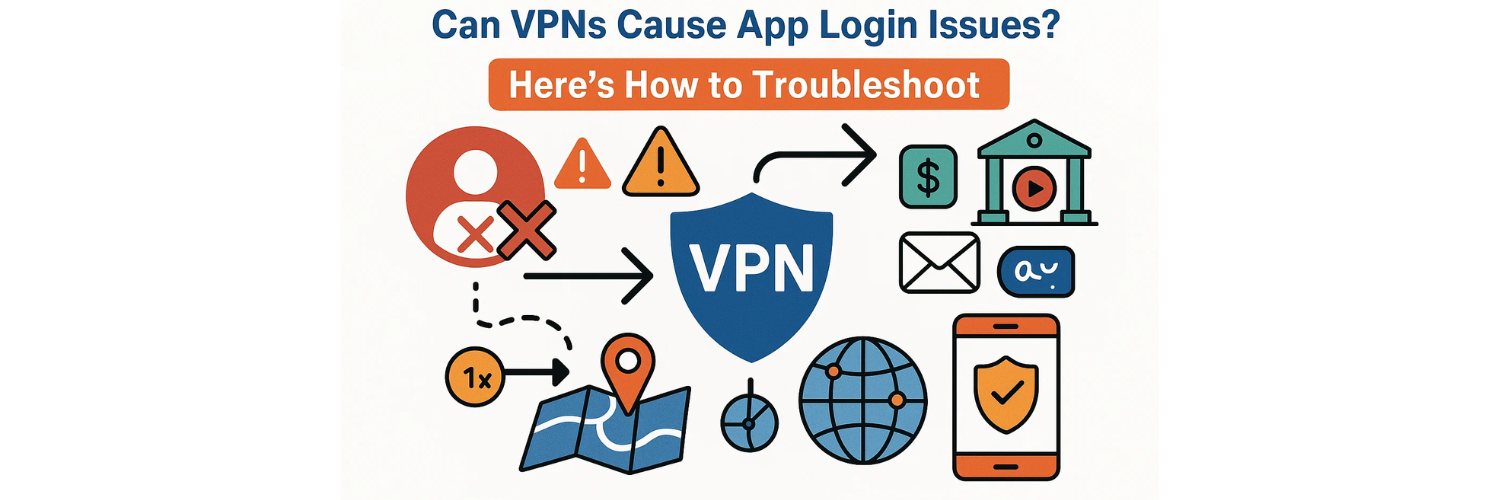
Yes — VPNs can sometimes interfere with how certain apps connect to their servers, leading to login errors, timeouts, or security verification issues.
This usually happens because VPNs change your IP address, server location, or network routing, which some apps interpret as suspicious behavior.
For example, banking apps, streaming services, and even email clients might reject a login attempt if they detect multiple IPs in a short period — a situation that often occurs when switching VPN servers.
So while VPNs are meant to protect your privacy, they can unintentionally make logging in harder, especially on mobile devices or when using stricter authentication systems.
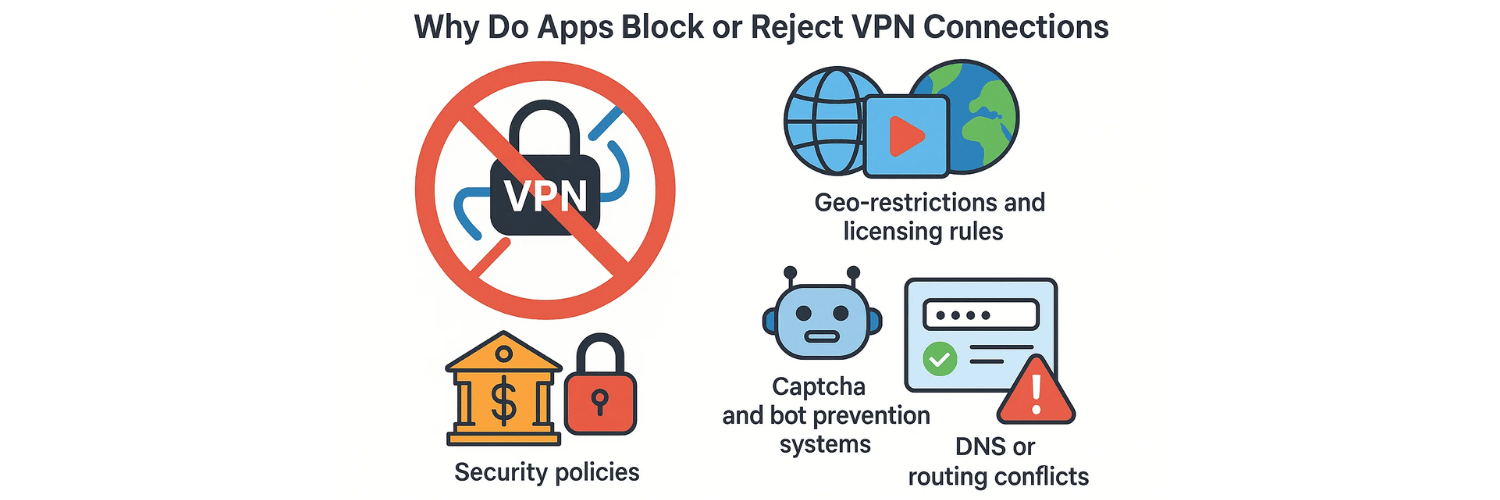
Why Do Apps Block or Reject VPN Connections?
Apps can block VPN traffic for several reasons:
Geo-restrictions and licensing rules:
Streaming or regional apps (like Netflix or BBC iPlayer) may deny access if your IP doesn’t match the country of your account.Security policies:
Financial apps (banks, payment gateways, etc.) use strict IP-based checks to detect fraud. If your VPN routes through another country, they may flag or block your session.Captcha and bot prevention systems:
Some VPN IP ranges are shared among many users. When too many people connect from the same IP, login systems may assume automated or suspicious behavior.
DNS or routing conflicts:
Misconfigured VPNs can route DNS requests incorrectly, preventing the app from reaching its authentication server.
(If you suspect this, you cantest your VPN for leaks here).
What Are the Most Common Symptoms of VPN-Related Login Issues?
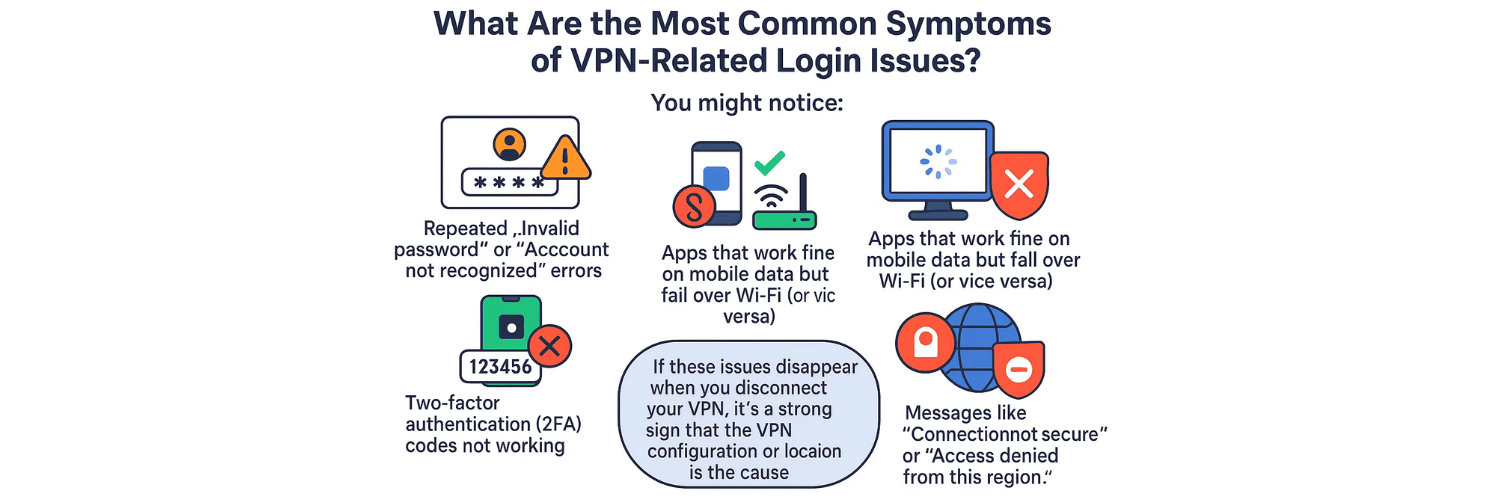
You might notice:
Repeated “Invalid password” or “Account not recognized” errors (even when details are correct).
Login pages that don’t load or timeout.
Two-factor authentication (2FA) codes not working.
Apps that work fine on mobile data but fail over Wi-Fi (or vice versa).
Messages like “Connection not secure” or “Access denied from this region.”
If these issues disappear when you disconnect your VPN, it’s a strong sign that the VPN configuration or location is the cause.
How Can You Troubleshoot App Login Problems Caused by VPNs?
If you’re facing these issues, don’t worry — here’s a step-by-step guide to fixing them:
1. Switch VPN Servers or Locations
Choose a server closer to your real location. Many apps verify region consistency for security reasons, so connecting through a nearby VPN node often solves the problem.
2. Try a Different VPN Protocol
If your VPN allows protocol switching (e.g., from OpenVPN to WireGuard or IKEv2), change it.
Some protocols handle DNS and encryption differently, which can resolve connectivity issues.
3. Exclude Specific Apps from VPN Routing
Most premium VPNs have a “Split Tunneling” feature. Use it to bypass the VPN for certain apps (like your bank or email).
This ensures those apps connect directly, avoiding IP conflicts.
4. Clear App Cache and DNS
Cached data might still point to your old IP or region.
On Android/iOS: clear the app’s cache or reinstall it.
Restart your device to flush DNS.
5. Disable Kill Switch Temporarily
Some kill switch configurations may prevent apps from reconnecting when the VPN connection drops momentarily. Turn it off briefly to test.
6. Test Your VPN for Leaks and Routing Errors
DNS or IP leaks might reveal your real IP to apps, creating mismatched region data.
Run a complete mobile VPN leak test here to make sure all traffic is properly tunneled.
7. Update or Reinstall Your VPN App
Outdated VPN clients can have bugs that interfere with connections or break authentication. Always use the latest version from the official store.
8. Reconfigure Your VPN Manually
If nothing works, you can manually reset your VPN connection. Follow this detailed guide:
👉How to Set Up a VPN on Windows, macOS, Android, and iOS.
Doing a clean setup ensures all routes and DNS settings are refreshed.
When Should You Contact VPN or App Support?
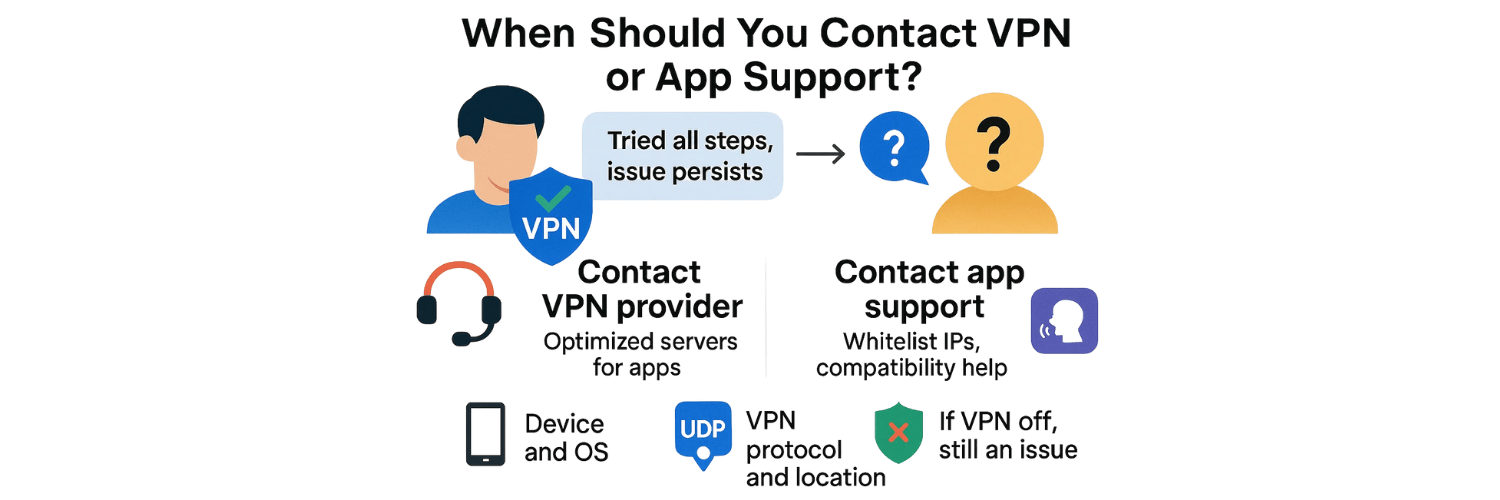
If you’ve tried all troubleshooting steps and the issue persists, the problem might be server-level or account-specific.
Contact your VPN provider: They can tell you which servers are optimized for specific apps.
Contact the app’s support team: They may whitelist VPN IP ranges or guide you on compatibility settings.
When reaching out, mention:
Your device type and OS version
The VPN protocol and location you used
Whether the issue persists when the VPN is off
This helps them pinpoint whether the cause is network, configuration, or policy related.
Which Types of VPNs Cause Fewer Login Issues?
Not all VPNs behave the same when it comes to app compatibility and login stability. The type of VPN you use — including its protocol, configuration, and provider — has a direct impact on how smoothly apps can authenticate your connection.
Here’s what generally makes a VPN less likely to cause login issues:
VPNs with Dedicated IP Addresses
A dedicated IP means you have a unique address that only you use — unlike shared servers used by hundreds of users.
Because login systems see a consistent IP, you’re far less likely to be flagged for suspicious logins or account sharing.
Many top-tier providers (e.g., NordVPN, ProtonVPN, PureVPN) offer this feature for a small extra fee.VPNs That Support Modern Protocols (WireGuard or IKEv2)
These protocols are faster, more stable, and better at handling sudden network changes.WireGuard: Lightweight, efficient, and ideal for mobile devices.
IKEv2/IPSec: Automatically reconnects when switching between Wi-Fi and cellular — perfect for iOS and Android users.
VPNs that rely on older protocols like PPTP or L2TP are more prone to authentication errors and DNS leaks.
VPNs With Smart DNS and Leak Protection Built In
Some premium VPNs offer automatic DNS management, IPv6 blocking, and WebRTC leak prevention.
These ensure your app always connects through a consistent route, avoiding mismatched DNS or IP information that can trigger login errors.Reputable, Audited VPN Providers
Free or unverified VPNs often use blacklisted IPs and weak encryption. Trusted providers undergo third-party audits, ensuring their routing and tunneling remain consistent with app security requirements.
So, if login reliability is important for you — especially when using financial or business apps — opt for a premium VPN with a dedicated IP option, WireGuard support, and built-in leak protection.
How to Test Your VPN for Stability and Leaks Using vpntest.pro
Before assuming your VPN is the problem, it’s smart to test its connection quality and privacy performance.
You can quickly do this using the free tool at https://vpntest.pro/test — it checks for IP, DNS, WebRTC, and IPv6 leaks, ensuring your VPN tunnel is working correctly.
Here’s How to Run the Test:
Connect to your VPN on your device (mobile or desktop).
Open your browser and visit 👉 https://vpntest.pro/test.
Wait a few seconds while the tool automatically scans your connection.
Review the results:
IP Address: Should show your VPN’s IP, not your real one.
DNS Servers: Must belong to your VPN provider, not your ISP.
WebRTC Results: Should not reveal your local or public IP.
IPv6 Status: Should be disabled or routed through the VPN.
If any of these fields expose your real IP or ISP DNS, your VPN is leaking traffic — which can trigger login rejections or region mismatches in apps.
Next Steps If a Leak Is Detected:
Change your VPN protocol (try WireGuard or IKEv2).
Reconnect to a different server or location.
Reinstall or reconfigure your VPN following this guide:
👉 How to Set Up a VPN on Windows, macOS, Android, and iOS.Retest at vpntest.pro/test until all results show only VPN data.
Regularly testing your VPN ensures you’re not just connected — but protected and consistent, reducing the risk of app login failures due to mismatched IP or DNS routing.
Final Thoughts
VPNs are powerful privacy tools, but their encrypted routing and shared IP systems can occasionally confuse app authentication systems.
Understanding why these conflicts happen — and how to fix them — lets you enjoy both security and seamless access to your favorite apps.
For best results, keep your VPN app updated, test it regularly for leaks with vpntest.pro, and reconfigure your setup when switching devices or networks.
That way, you’ll maintain strong privacy without sacrificing app functionality or login reliability.
❓ 10 Most Common FAQs About VPN-Related App Login Issues
1. Why can’t I log into my app while using a VPN?
Many apps detect VPN IPs as unusual activity, especially if they’re from different countries. This triggers login protection systems and temporary blocks.
2. Which types of apps are most affected by VPN connections?
Banking, payment, streaming, and government apps are most likely to reject VPN-based connections for security or regional compliance reasons.
3. Can VPNs cause incorrect password or timeout errors?
Yes. Some authentication systems use IP-based session validation. A sudden IP change (caused by the VPN) can make your credentials appear invalid.
4. How can I quickly tell if my VPN is the cause?
Try logging in after disconnecting the VPN. If it works instantly, your VPN configuration, IP, or DNS routing is the cause.
5. What’s the best way to fix app login issues caused by VPNs?
Switch to a nearby VPN server, change VPN protocols, or exclude specific apps using split tunneling. Clearing cache or reinstalling can also help.
6. Can DNS leaks cause app login problems?
Yes — if your DNS requests bypass the VPN tunnel, apps may detect mismatched locations. You can test your VPN for leaks here.
7. Should I disable my VPN kill switch during troubleshooting?
Briefly — yes. Some strict kill switch settings can block traffic if the VPN momentarily disconnects, interrupting logins.
8. How do I fix VPN login issues permanently?
Perform a clean setup based on this guide: How to Set Up a VPN on Windows, macOS, Android, and iOS, then retest your connection.
9. Do free VPNs cause more login issues than paid ones?
Definitely. Free VPNs often share public IPs that are already flagged by apps or services, leading to more frequent login blocks.
10. Will switching VPN protocols help with login errors?
Yes. Switching between protocols like WireGuard, IKEv2, or OpenVPN can resolve compatibility issues and improve stability during logins.
Tags

About VPNTest
Content Specialist with expertise in cybersecurity and online privacy. Sarah has been testing and reviewing VPN services for over 5 years and regularly contributes to leading tech publications.
View all articles by VPNTest →Related VPNs





Never Miss an Article
Subscribe to our newsletter to receive the latest VPN guides, security tips, and industry news directly in your inbox.