

Enabling VPN auto-connect on your mobile device is one of the simplest ways to maintain continuous online privacy and prevent accidental exposure. When your VPN reconnects automatically after network changes, you stay protected on public Wi-Fi, avoid IP leaks, and reduce login issues across sensitive apps. This guide explains how auto-connect works on Android and iOS — and how to configure it properly.
🔒 Why Should You Enable VPN Auto-Connect on Mobile?
Mobile devices frequently switch between Wi-Fi, mobile data, and different access points. This raises the risk of privacy leaks, especially when:
Moving between networks
Connecting to untrusted Wi-Fi
Using apps that reveal your IP during authentication
Leak behavior and vulnerabilities are fully explained in
👉 How to Test for VPN Leaks on Mobile Devices.
Enabling auto-connect helps you:
Maintain an encrypted tunnel at all times
Avoid exposures during network transitions
Stay safe on public hotspots
Reduce IP-based login issues (more in
👉Can VPNs Cause App Login Issues?)
📱 How Does VPN Auto-Connect Work on Android Devices?

Android offers robust VPN automation tools at both the OS and app levels. These include:
Always-On VPN
Auto-connect on Wi-Fi or mobile data
Blocking traffic without VPN (kill switch)
App-based auto-connect rules
For a full breakdown of Android VPN configuration, see
👉How to Set Up a VPN on Windows, macOS, Android, and iOS.
📲 How Do You Enable VPN Auto-Connect on Android?
Go to Settings → Network & Internet → VPN
Select your VPN
Enable Always-On VPN
Enable Block connections without VPN (optional but recommended)
Open your VPN app and turn on Auto-Connect
Advanced apps may also support:
Auto-connect on unsecured Wi-Fi
Auto-connect only on certain networks
Per-app connection rules
After setup, confirm your protection using
👉VPN Leak Test Tool.
🍎 How Does VPN Auto-Connect Work on iPhone (iOS)?
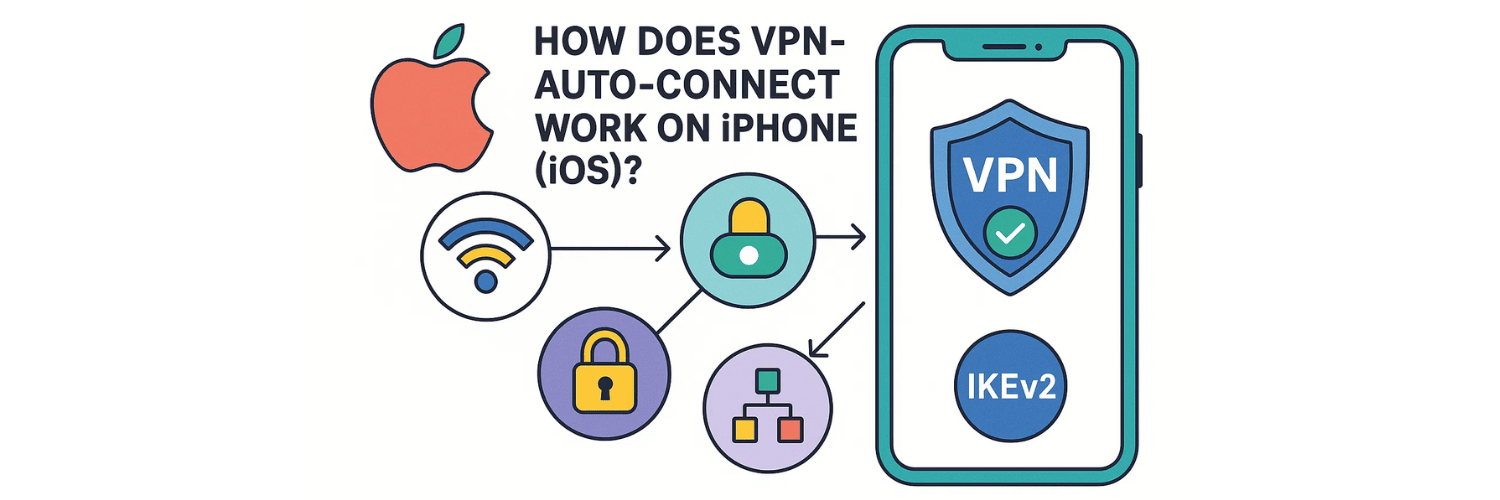
iOS uses a system feature called Connect On Demand, which automatically activates the VPN when the device:
Switches networks
Wakes from sleep
Opens apps that require encryption
Sends DNS requests matching your rules
Because iOS manages connections differently from Android, the IKEv2 protocol is often the most stable choice.
📳 How Do You Enable VPN Auto-Connect on iPhone?
Open Settings → VPN & Device Management → VPN
Select your installed VPN profile
Enable Connect On Demand
Save the configuration
Open your VPN app and enable Auto-Connect or Always-On
Once enabled, check for IP, DNS, and WebRTC leaks using
👉VPN Leak Test Tool.
🌐 What Are the Best Auto-Connect Settings for Privacy and Stability?
For Android:
Protocol: WireGuard
Always-On VPN: Enabled
Kill switch: Enabled
Auto-connect on untrusted Wi-Fi: Enabled
For iOS:
Protocol: IKEv2 for stability
Connect On Demand: Enabled
Avoid “Low Data Mode” (may interrupt VPN)
These settings also help prevent service disruptions that lead to login issues, explained in
👉Can VPNs Cause App Login Issues?.
🛠️ How Can You Verify That Auto-Connect Is Working Properly?
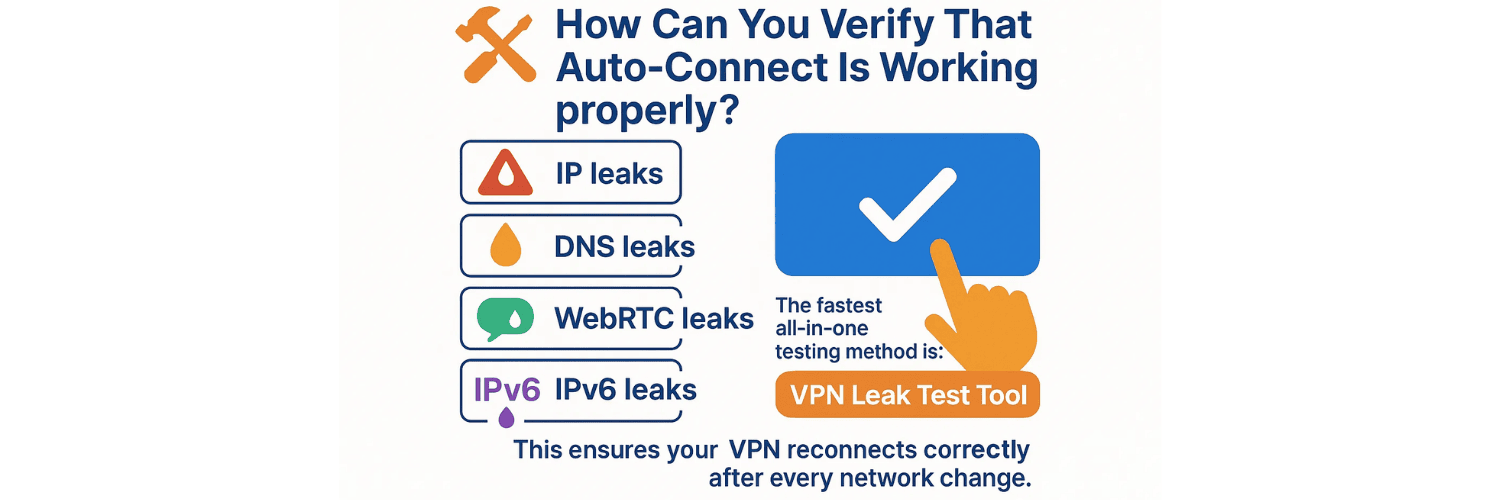
Once auto-connect is enabled, you must test for:
IP leaks
DNS leaks
WebRTC leaks
IPv6 leaks
The fastest all-in-one testing method is:
👉 VPN Leak Test Tool.
This ensures your VPN reconnects correctly after every network change.
📡 What If Auto-Connect Causes Issues with Certain Apps?
Some apps — especially banking, fintech, government, and streaming platforms — detect VPN usage and may block or interrupt logins.
Solutions include:
Using a nearby or stable server
Switching to a dedicated IP
Avoiding network switching during login
Using Split Tunneling (Android only)
A deeper explanation is provided in
👉Can VPNs Cause App Login Issues?.
📌 Should Auto-Connect Always Be Enabled?
For most users, yes. It ensures:
Always-on encryption
No accidental exposure
Protection on public Wi-Fi
Better consistency across apps
If a specific app refuses VPN connections, you might configure exceptions or temporarily disable auto-connect.
Conclusion
VPN auto-connect is one of the simplest and most effective ways to protect your mobile privacy. Both Android and iOS include built-in features like Always-On VPN and Connect On Demand, allowing your VPN to stay active across all network changes.
After enabling auto-connect, always verify your connection using the
👉 VPN Leak Test Tool
to ensure your IP and DNS remain protected.
If you're optimizing your mobile VPN setup, you may also find these guides helpful:
With the correct auto-connect configuration, your VPN becomes a seamless background shield—keeping your privacy intact without requiring any manual effort.
✅ FAQ

1. What is VPN Auto-Connect and why should I enable it?
VPN Auto-Connect is a feature that automatically reconnects your VPN whenever your device joins a network or the connection drops. Enabling it ensures constant encryption, especially on public Wi-Fi or when switching between networks.
2. How does “Always-On VPN” work on Android?
Android’s “Always-On VPN” forces all traffic through the VPN tunnel and blocks connections when the VPN is off. This prevents accidental IP, DNS, or data leakage during network changes—ideal for privacy and security.
3. What does “Connect On Demand” do on iPhone?
iOS “Connect On Demand” reconnects your VPN automatically based on specific triggers such as unsafe networks, specific domains, or Wi-Fi transitions. It ensures seamless protection without manual activation.
4. Does enabling VPN auto-connect drain battery faster?
Auto-connect slightly increases battery usage because the VPN remains active and reconnects quickly. However, using efficient protocols like WireGuard or IKEv2 significantly reduces battery drain.
5. Can VPN auto-connect cause login issues with apps?
Yes. Some apps—especially banking, government, and payment apps—may reject connections from VPN IPs. For details, check the guide “Can VPNs Cause App Login Issues?” available on the site.
6. What is the best VPN protocol for stable auto-connect on Android or iOS?
The most stable and battery-efficient protocols are:
IKEv2/IPSec (best for mobile data switching)
WireGuard (fast & modern)
OpenVPN UDP (very stable but slightly heavier)
7. How do I check if VPN auto-connect is working correctly?
You can test it by:
Turning Wi-Fi off and on
Switching between mobile data & Wi-Fi
Restarting your device
Then verify the new IP and DNS using the leak checker tool on vpntest.pro/test.
8. Why does my VPN disconnect when switching networks?
Some VPNs don’t handle network changes efficiently or use heavy protocols like OpenVPN TCP. Switching to IKEv2 or WireGuard usually solves this issue.
9. Does auto-connect prevent all IP, DNS, or WebRTC leaks?
Not fully. Auto-connect ensures the VPN stays active, but you still need to test for leaks after enabling it. Use the full checklist in “How to Test for VPN Leaks on Mobile” for accurate results.
10. Is VPN auto-connect safe to use on public Wi-Fi?
Yes—it's strongly recommended. Auto-connect ensures your device never sends unencrypted data when joining insecure networks such as cafés, airports, and hotels.
Tags

About VPNTest
Content Specialist with expertise in cybersecurity and online privacy. Sarah has been testing and reviewing VPN services for over 5 years and regularly contributes to leading tech publications.
View all articles by VPNTest →




Never Miss an Article
Subscribe to our newsletter to receive the latest VPN guides, security tips, and industry news directly in your inbox.