

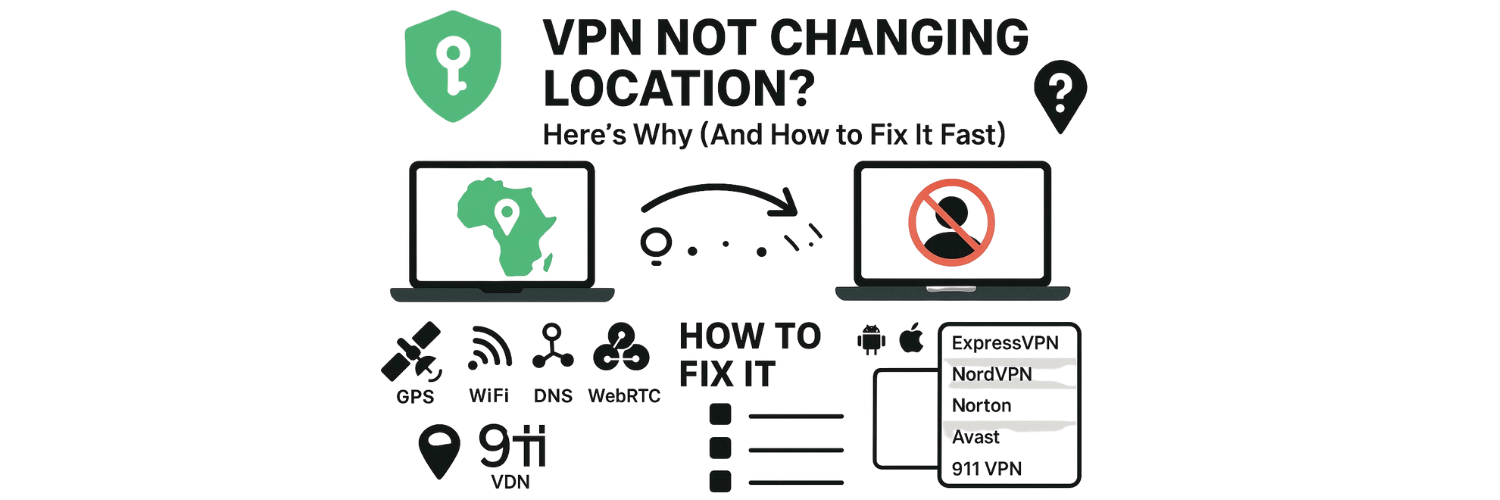
You turn on your VPN, connect to another country, and expect websites to see your new location—but they still recognize where you really are. It’s a common and confusing problem.
A VPN should hide your real IP address by routing your traffic through a secure server in another region. When it doesn’t, something else is exposing your real location—like GPS data, Wi-Fi signals, DNS or WebRTC leaks, or cached app data.
This guide explains how to fix that. You’ll learn step-by-step solutions for ExpressVPN, NordVPN, Norton, Avast, and 911 VPN across Android, iPhone, Windows, and macOS so your VPN shows the location you choose, every time.
How A VPN Changes Your Location (And Why It Sometimes Fails)
Every device connected to the internet has an IP address—a digital label that reveals your approximate location, like a postal code for your connection. When you use a VPN, it replaces your real IP with one from a VPN server in another country. This makes websites and apps believe you’re browsing from that new region instead of your real one.
But your IP isn’t the only clue that reveals where you are. Devices and apps track location through several layers:
IP location – controlled by your VPN.
Browser geolocation – often taken from Wi-Fi networks or GPS.
App or account location – stored by platforms like Google, Netflix, or social media apps.
When these layers don’t align—for example, when your VPN says you’re in Germany, but your browser or GPS still shows the U.S.—websites can detect the mismatch. That’s when your VPN seems like it’s not changing your location.
Next, let’s go through how to test which layer is leaking your real location before fixing it.
How To Verify If Your VPN Is Really Changing Location
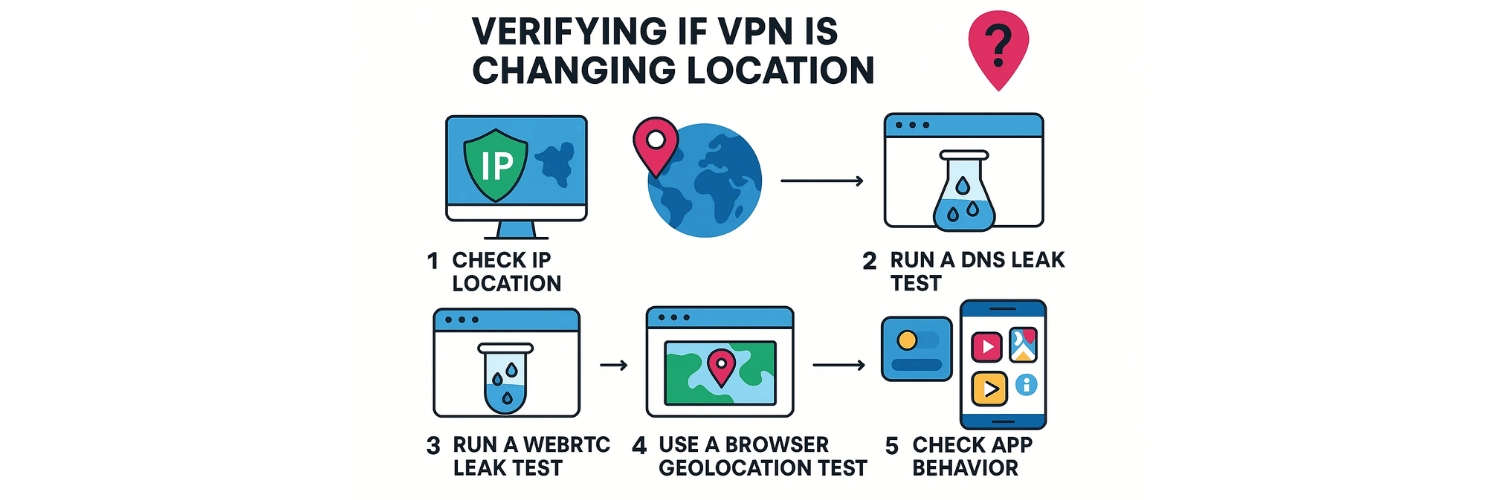
Before you start fixing anything, it helps to confirm whether your VPN is actually changing your location—or if something else is leaking it. Here’s how to check step by step:
Step 1: Check Your IP Location
Go to any trusted IP checker and see which country it shows. If it matches the VPN server you chose, the IP layer is working correctly. If it still shows your real location, the VPN connection may have failed or disconnected.
Step 2: Run a DNS Leak Test
Visit a DNS leak test site and run a full test. All results should show your VPN’s country or IP provider. If you see your internet provider’s DNS, it means your real location is leaking through.
Step 3: Run a WebRTC Leak Test
Some browsers use WebRTC to reveal your local IP. Check this using a WebRTC leak tool. If it shows your real IP, disable WebRTC in your browser settings or with an extension.
Step 4: Use a Browser Geolocation Test
Open a geolocation checker to see where your browser thinks you are. If it still shows your actual city, GPS or Wi-Fi data is overriding your VPN’s IP.
Step 5: Check App Behavior
Apps like Netflix, Google Maps, or YouTube often store location data. Try opening them while connected to the VPN. If they still show your real country or region, cached data or account history may be the issue.
If your IP test passes but your GPS or browser still shows your real area, the problem isn’t the VPN itself—it’s one of these other layers exposing your true location. The next section will show how to identify and fix those leaks.
Common Reasons Why Your VPN Is Not Changing Location
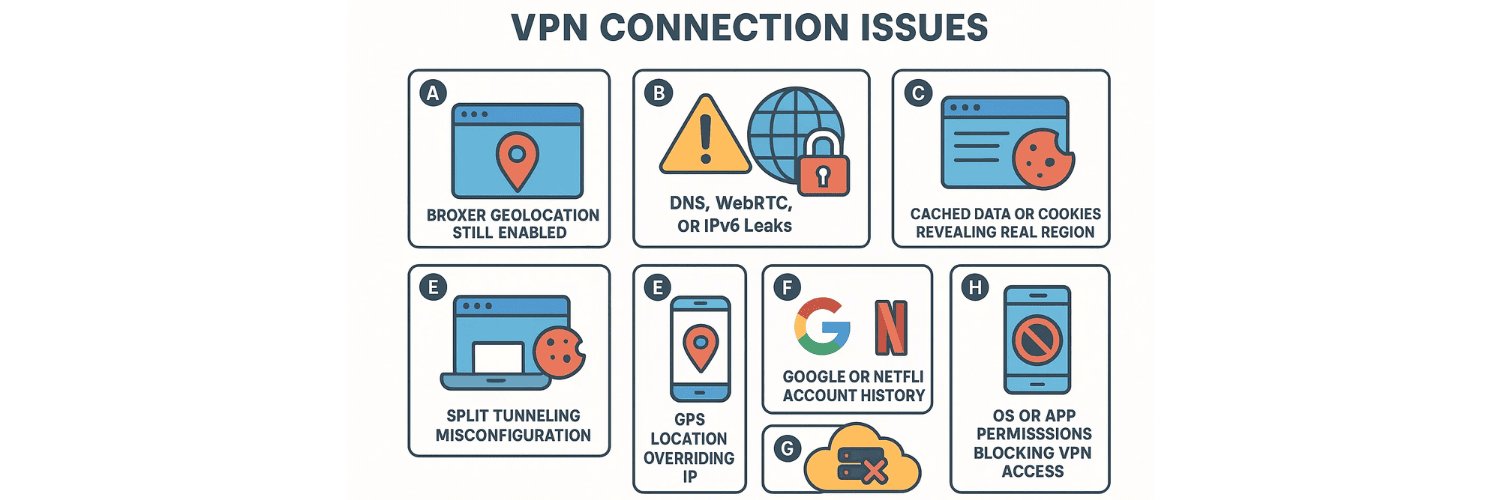
If your VPN is connected but websites still know where you are, something in your setup is leaking data or bypassing the VPN tunnel. Most issues fall into a few common categories:
A. Browser Geolocation Still Enabled
Modern browsers can pinpoint your location using Wi-Fi and GPS signals, even when your VPN is active. As IVPN explained, this happens because browsers use the W3C Geolocation API, which relies on data sources beyond your IP address. If geolocation permissions are still on, sites can request your real location directly from the browser.
B. DNS, WebRTC, or IPv6 Leaks
These are the most frequent technical leaks. A DNS leak happens when your device continues using your internet provider’s DNS instead of your VPN’s, exposing your real region. WebRTC leaks in browsers like Chrome or Firefox can reveal your local IP, and IPv6 leaks occur when the VPN only tunnels IPv4 traffic. Each can make it seem like the VPN isn’t changing your location at all.
C. Cached Data or Cookies Revealing Real Region
Websites and apps often store regional information in cookies, cached files, or saved sessions. Even after you connect to a VPN, this stored data can tell services like Netflix or Amazon your previous country. Clearing cache and cookies before testing usually fixes this.
D. Split Tunneling Misconfiguration
Some VPNs offer split tunneling, which lets certain apps bypass the VPN for speed or convenience. If it’s turned on accidentally, those apps send traffic through your real IP instead of the VPN server—causing inconsistent results across sites.
E. GPS Location Overriding IP
Mobile devices use GPS signals that don’t depend on your internet connection. As users on Reddit pointed out, this means your phone’s apps can show your true city even if the VPN IP says otherwise. Unless GPS is turned off or spoofed, your location stays visible to apps and maps.
F. Google Or Netflix Account History
Platforms like Google and Netflix remember your past location, device ID, and account region. This can override your VPN’s IP, especially if you stay signed in. To test accurately, sign out of your account or use a private browser window before reconnecting.
G. Faulty Server Or Overloaded Node
Sometimes the problem lies with the VPN itself. A faulty or overloaded server may not route traffic correctly, causing IP mismatches. Switching to another city or region often resolves this instantly.
H. OS Or App Permissions Blocking VPN Access
Certain mobile operating systems, antivirus apps, or battery optimizers can block VPN access or restrict background connections. When that happens, the VPN never establishes a full tunnel, leaving your real IP partially exposed.
Understanding which of these issues applies to your situation helps you target the right fix. Next, we’ll go through specific solutions for each case and each VPN provider.
Step-By-Step Fixes To Make Your VPN Change Location Properly
Sometimes, even a reliable VPN can fail to mask your real location. These steps will help you reset your setup and fix the issue—whether you’re using ExpressVPN, NordVPN, Norton, Avast, or 911 VPN.
For All VPN Brands (General Fixes)
Start with these universal fixes before moving to brand-specific ones:
Disconnect and reconnect to a different server or city. This refreshes your IP and rules out a faulty node.
Clear browser cookies and cache to remove old location data that can expose your real country.
Disable location services on your device while connected to the VPN.
Turn off split tunneling so all traffic is routed through the VPN.
Flush the DNS cache on desktop to prevent DNS leaks.
Restart your device and VPN app to reestablish a clean connection.
ExpressVPN Not Changing My Location
If ExpressVPN shows you’re still in the same place:
Change the protocol from Automatic to OpenVPN or Lightway for a stronger tunnel.
Disable IPv6 in your network settings to stop potential leaks.
Try different regional clusters—some servers may be flagged or outdated.
Use Private Browser Mode before testing your IP again.
NordVPN Not Changing Location
If NordVPN isn’t updating your region:
Switch from NordLynx to OpenVPN, as protocol mismatches can cause leaks.
Turn off obfuscated servers unless you’re in a restricted country.
Disable split tunneling to make sure every app goes through the VPN.
Run a DNS leak test, and if your ISP’s DNS appears, manually set NordVPN’s DNS (103.86.96.100 / 103.86.99.100).
Norton VPN Not Changing Location
When Norton Secure VPN seems stuck:
Re-enable auto-connect in settings to ensure the tunnel remains active.
Update the VPN app to the latest version to fix network bugs.
Temporarily disable Norton’s firewall or antivirus integration, as these may interfere with routing.
Clear your system DNS cache and browser cookies before reconnecting.
Avast VPN Is On But Not Changing My Location
If Avast shows “connected” but your location doesn’t change:
Check whether Smart VPN mode is routing only selected traffic.
Manually switch servers instead of using automatic mode.
Turn off device Location Services completely before testing.
Run both an IPv6 and WebRTC leak test to ensure nothing is slipping through.
Want to know how often you should repeat these tests? Read our guide on how often to test your VPN.
911 VPN Not Changing Location
For proxy-based tools like 911 VPN:
Verify your SOCKS5 setup—ensure it’s configured correctly for your browser or system.
Disable WebRTC in the browser to stop local IP leaks.
Avoid proxy-browser overlap (don’t use Chrome’s proxy settings together with 911’s).
Restart IP rotation manually to refresh your session with a new residential IP.
Fixes By Device Type
VPN Not Changing Location On Android
Turn off Google Location Accuracy.
Disable Wi-Fi and Bluetooth scanning.
Use Mock Location app or VPN’s built-in GPS spoofing (Surfshark example).
Clear Google Play Services cache.
Reset Ad ID.
Recheck IP on mobile browser and app.
VPN Not Changing Location On iPhone
Go to Settings → Privacy → Location Services.
Turn off Precise Location for apps.
Reset Location & Privacy.
Disable iCloud Private Relay (common conflict).
Clear Safari cache and sign out of Apple ID if testing.
VPN Not Changing Location On PC or Mac
Disable IPv6.
Flush DNS: ipconfig /flushdns (Windows) or sudo killall -HUP mDNSResponder (Mac).
Disable browser location permissions (borrow from IVPN).
Re-install VPN adapter or update network driver.
VPN Not Changing Netflix Location — What’s Happening

Netflix is tougher to fool than most platforms. Even if your VPN connects to another country, Netflix can still detect your real region using cookies, GPS data, device IDs, and your payment region. These layers help the platform enforce licensing rules, which is why content libraries differ by country.
Here’s how to fix it:
Clear Cookies and App Data
Old cookies or saved sessions can reveal your real country. Clear your browser cache or app data before reconnecting to the VPN.Use VPN Servers Optimized for Streaming
Many VPNs label certain servers as “streaming” or “media.” These are designed to bypass Netflix’s region filters more reliably.Avoid Free or Overcrowded Servers
Netflix frequently blocks shared or overused IPs. Paid, private servers have a better chance of staying undetected.Re-Sign Into Your Account After Changing Server
Always log out and back in once you switch VPN locations. This forces Netflix to refresh your region based on your new IP.
Once your VPN connects through a clean, streaming-optimized server, Netflix should finally show the library that matches your chosen country.
VPN Not Changing Location On Google Or Maps
Google is one of the hardest services to fool with a VPN. That’s because it doesn’t rely on your IP address alone — it uses Wi-Fi networks, GPS signals, and your Google account history to pinpoint your location. Even if your VPN assigns you a new IP, Google can still recognize nearby Wi-Fi routers or saved timeline data and display your real area.
Here’s how to fix it:
Pause Location History and Web & App Activity
Go to your Google Account → Data & Privacy → History Settings, then pause both. This stops Google from continuously logging your movements across devices.Clear Your Maps Timeline
Open Google Maps → Your Timeline → delete location history. Cached location data can override your VPN’s IP and place you back in your original region.Turn Off Precise Location and Wi-Fi Scanning
On Android, go to Settings → Location → Location Services and toggle off Wi-Fi Scanning and Bluetooth Scanning. On iPhone, turn off Precise Location for Maps and browser apps.Use Browser Incognito Mode And Recheck Location
Sign out of your Google account or open an incognito window, then check your IP again. This ensures no saved cookies or sessions interfere with your VPN’s connection.
Once you’ve done these steps, reconnect your VPN and search “What is my location” on Google. If it now matches your chosen VPN country, you’ve successfully stopped Google from tracking your real region
How To Prevent Future Location Mismatches
Once your VPN location is working correctly, a few small habits can help keep it that way.
Always Test After Connecting
Before browsing or streaming, run quick checks for your IP, DNS, and WebRTC. This confirms that your VPN is tunneling traffic correctly and no leaks are exposing your real region.Use Trusted VPN Providers Only
Stick with well-established VPNs that have verified no-log policies and reliable leak protection. Free or unknown services often have weak encryption or unstable servers that fail to hide your location.
Tip: Use VPNTest.Pro to compare providers and find one that fits your needs for speed, security, and IP freshness.
Keep Apps Updated
Outdated VPN or browser versions can cause compatibility issues or leaks. Update regularly to make sure your software supports the latest security and protocol fixes.Don’t Mix Multiple Privacy Tools
Avoid using a VPN, proxy, and Tor at the same time. They can conflict and route your traffic inconsistently, revealing your true IP.Avoid Logging Into Location-Sensitive Accounts While Testing
Accounts like Google or Netflix remember your region and can override VPN settings. Stay signed out or use incognito mode during tests.Use Kill Switch And IPv6 Blocking Features
Enable your VPN’s kill switch to prevent exposure if the connection drops. Turn off IPv6 if your VPN doesn’t support it—this prevents one of the most common location leaks, if it doesn’t support IPv6, your real IP can still leak. Learn more about the difference between IPv4 and IPv6 leaks.
Following these habits keeps your VPN working as intended so your online location always matches the country you choose.
When To Contact VPN Support
If you’ve tried all the fixes and your VPN still doesn’t change your location, it’s time to reach out to support. Here’s when that’s necessary:
Multiple Servers Show The Same IP
If you connect to different countries but your IP checker still shows the same address, the issue may be on the VPN provider’s side. This usually means a misconfigured or blacklisted server.VPN App Fails To Connect Or Drops Frequently
Constant disconnections or failed connections point to a network or protocol issue. Support can review your logs and guide you through manual setup steps.Streaming Services Keep Detecting Your Real Region
If platforms like Netflix or Hulu consistently bypass your VPN, the provider may need to refresh IP ranges or recommend specific servers that still work for streaming.
Most top VPNs have solid support channels:
ExpressVPN offers 24/7 live chat for quick troubleshooting.
NordVPN includes built-in diagnostics and live chat within the app.
Norton and Avast handle requests through ticket systems or support portals.
If none of your local tests solve the issue, sending a detailed report (device type, OS, and test results) helps support pinpoint what’s wrong faster.
Conclusion
If your VPN is not changing location, it’s not always the VPN’s fault — it’s often your GPS, browser settings, or cached data revealing your real position. These hidden layers can quietly override your new IP and make it seem like the VPN isn’t working.
Before switching providers, take a few minutes to run quick IP, DNS, and geolocation tests. Most location problems can be fixed by adjusting settings, clearing data, or choosing a different server.
Once every layer — IP, DNS, browser, and GPS — aligns, your VPN location will finally match the country you choose.
FAQs
Why Is My VPN Connected But Location Still The Same?
The VPN may be leaking data through DNS or WebRTC, or your device’s location services are overriding the VPN.
How Do I Fix VPN Not Changing Location On Android Or iPhone?
Turn off precise location and Wi-Fi scanning, clear app cache, use mock location or GPS spoofing if available, then reconnect your VPN.
Why Is Google Still Showing My Real Location With VPN On?
Google uses Wi-Fi networks, GPS, and account data. Pause Location History, clear Maps data, and disable precise location.
How Can I Check If My VPN Location Has Really Changed?
Visit an IP checker, DNS leak test, and browser geolocation tester. All should display your VPN’s chosen country.
Can Free VPNs Change Location Reliably?
Rarely. Most free VPNs have limited servers, poor encryption, and frequent leaks exposing your real location.
Tags

About VPNTest
Content Specialist with expertise in cybersecurity and online privacy. Sarah has been testing and reviewing VPN services for over 5 years and regularly contributes to leading tech publications.
View all articles by VPNTest →




Never Miss an Article
Subscribe to our newsletter to receive the latest VPN guides, security tips, and industry news directly in your inbox.