
Full VPN Leak Test Tutorial: How to Detect IP, DNS, WebRTC, and IPv6 Leaks Automatically with an Online Testing Tool

VPNTest
Content Specialist
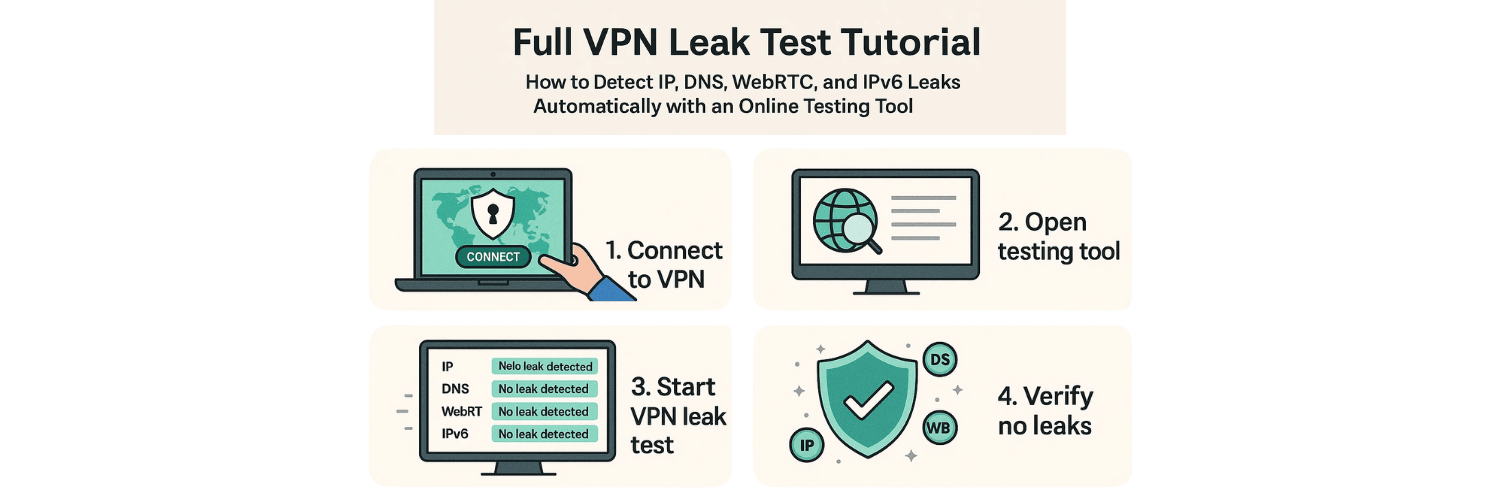
Virtual Private Networks (VPNs) are critical tools for online security and privacy. But simply connecting a VPN isn’t enough — if the VPN is leaking your IP address, DNS queries, WebRTC details, or IPv6 traffic, your data may still be exposed. This tutorial explains a complete process to test for leaks using an automated online tool, ensuring that your VPN truly protects you.
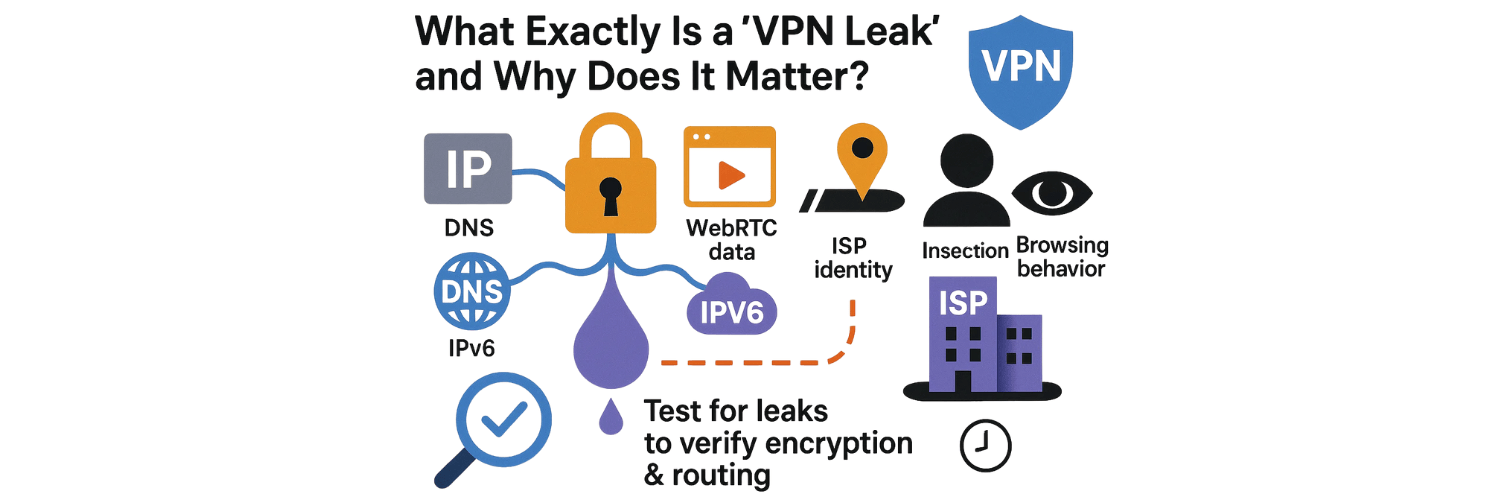
1. What Exactly Is a “VPN Leak” and Why Does It Matter?
A “leak” occurs when your real IP address, DNS queries, WebRTC data, or IPv6 traffic bypasses the encrypted tunnel of your VPN and becomes visible to ISPs, trackers or websites. When that happens, your privacy is compromised: your approximate location, ISP identity or browsing behaviour could be revealed—even though you’re using what you believed to be a secure VPN.
By testing for leaks you make sure that the encryption and routing your VPN claims are actually functioning. A leak undermines the core value of using a VPN.
2. What Types of Leaks Should You Test For?
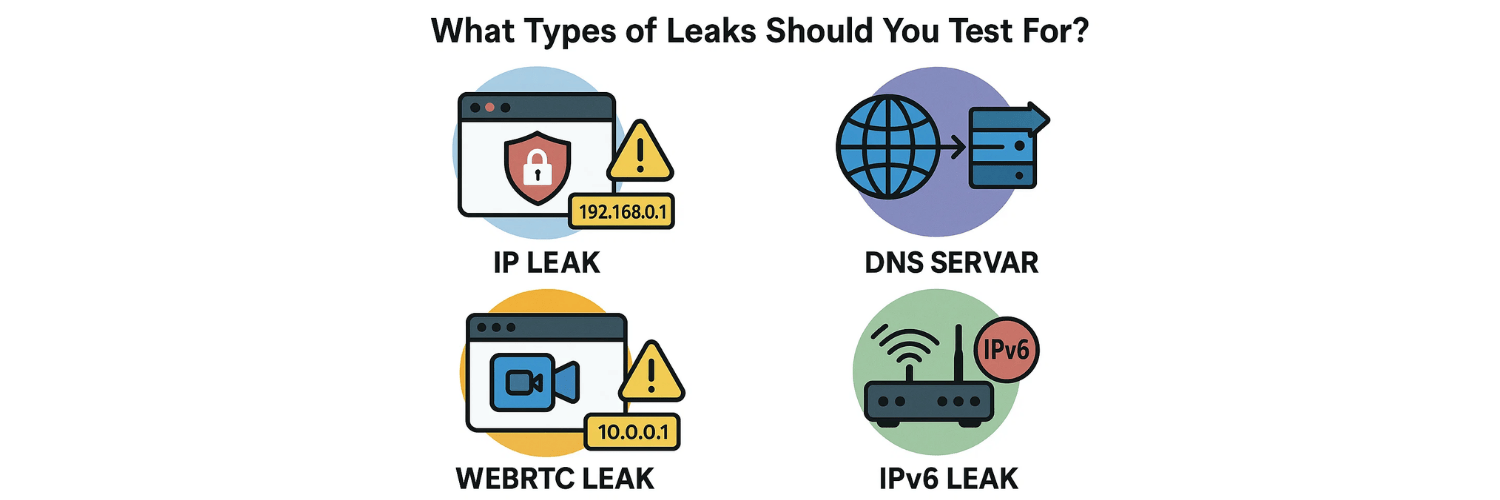
IP Leak – When your public IP address (the one assigned by your ISP) remains exposed or is revealed despite using the VPN.
DNS Leak – When your DNS requests (the translation of domain names to IPs) bypass the VPN tunnel and go to your ISP or another untrusted DNS server.
WebRTC Leak – When your browser uses Web Real-Time Communication (WebRTC) mechanisms to reveal your real or local IP address even while the VPN is active. Many browsers and apps may inadvertently expose this unless properly handled. (See: How to Test for VPN Leaks on Mobile Devices )
IPv6 Leak – When your device or network uses IPv6 internally or externally and your VPN only tunnels IPv4, allowing IPv6 traffic to leak unencrypted.
Each one represents a distinct failure mode, and a comprehensive leak test will measure all of them.
3. How Does an Online Leak-Testing Tool Work?
An automated online leak test tool performs a set of checks:
It queries your current public IP address and checks if it corresponds to the VPN server or your original ISP address.
It checks DNS server responses and identifies whether the DNS requests are routed via the VPN’s DNS or your ISP’s.
It uses WebRTC tests to see whether your browser is exposing any local/private or public IP addresses through WebRTC APIs. (For deeper reading: WebRTC Leak Test – How )
It checks for IPv6 routing leaks: whether IPv6 traffic is being routed outside the VPN tunnel or your VPN fails to handle it.
One such tool is available at the testing platform by VPNTest.Pro, which performs these tests and reports results quickly. (See:VPNTest.Pro Leak Test Tool )
Using this tool, you can detect whether your current VPN configuration maintains proper encryption, routing, and leak protection.
4. What Is the Step-by-Step Process to Run a Full Leak Test?
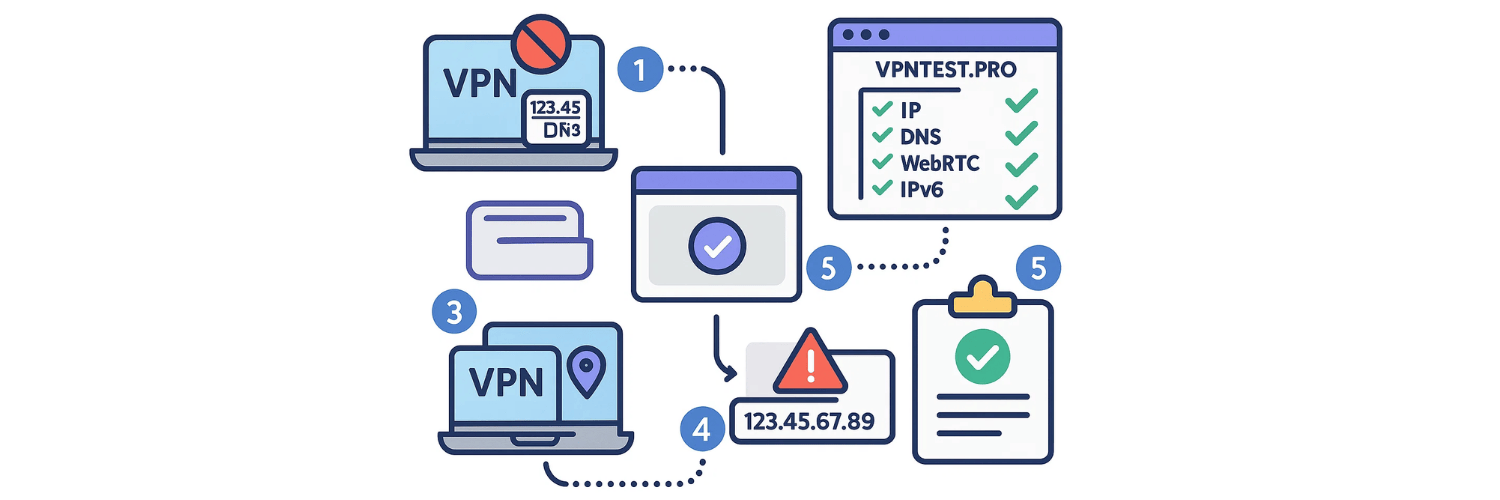
Here’s a detailed workflow:
Disconnect your VPN and note your real public IP address and DNS servers.
Clear your browser cache or use an incognito/private window to avoid cached data leaking old information.
Connect your VPN and choose a server (preferably one you normally use).
Open the leak-testing tool (for example: VPNTest.Pro/test ) and allow it to run all checks: IP, DNS, WebRTC, IPv6.
Review the results. If your IP still matches your real ISP or location, that’s an IP leak. If DNS servers are your ISP’s rather than the VPN’s, that’s a DNS leak. If WebRTC shows your local or public IP, that’s a WebRTC leak. If the tool finds any IPv6 traffic outside the tunnel, that’s an IPv6 leak.
Document the results (screenshots or logs). Then switch VPN servers or protocols and test again to compare.
After adjustments, retest until all leak checks are clean—your IP corresponds to the VPN server, DNS servers correspond to the VPN’s, WebRTC shows no real IP, IPv6 is either properly tunneled or blocked.
In tandem you may also run a speed test to measure whether the VPN is significantly slowing down your connection (See:How VPN Speed Tests Work andVPN Speed Test: How to Measure ).
5. Which Settings or Configurations Can Cause Leak Problems?
Several misconfigurations or VPN limitations can trigger leaks:
VPN Only Tunnels IPv4 Traffic – If your network or ISP uses IPv6, that traffic may bypass and leak.
Browser Uses WebRTC APIs Without Blockers – Unless your VPN or browser blocks WebRTC leaks, your true IP might be exposed.
DNS Requests Sent to Default ISP DNS – If your device uses system default DNS that bypasses VPN’s encrypted channel.
Device Changes Network (Wi-Fi to Mobile Data) Without Re-Establishing Tunnel – This transition can temporarily drop the VPN or revert to the default interface.
Using a Free or Low-Quality VPN That Doesn’t Implement Kill Switch or Leak Prevention – These sometimes let traffic escape during disconnections.
Proper testing identifies these issues and allows you to correct them.
6. What Are the Best Practices to Fix Detected Leaks?
If you detect a leak in any part of the test, apply these remedial actions:
Switch to a VPN protocol with stronger routing and less chance of leaks (e.g., WireGuard or IKEv2 over old protocols).
Use a VPN that properly tunnels IPv6 or disables it entirely in your network settings.
Enable DNS-leak protection in your VPN settings or manually set device DNS to a trusted secure DNS run by the VPN.
Disable or block WebRTC at the browser level (especially useful on desktop or mobile browsers) or use a VPN that automatically blocks WebRTC leaks.
Enable the VPN kill switch / Always-On Mode so that if the VPN drops your traffic doesn’t revert to ISP unencrypted.
Retest after each change to find residual leaks and confirm the fix.
7. How Often Should You Run Leak Tests?
Because networks, systems and VPNs can change over time (updates, server changes, routing changes), you should:
Run a full leak test after the initial setup of your VPN.
Rerun whenever you switch server locations or protocols.
Rerun when your OS, browser or VPN app updates.
Periodically (e.g., quarterly) as part of your privacy hygiene.
Regular testing ensures your protection remains intact.
8. What Role Do Speed Tests Play in Leak-Free VPN Use?
While leak tests focus on visibility of your IP or DNS, speed tests evaluate how much the VPN affects your connection. A VPN that slows your connection drastically might cause fallback or misrouting, which could lead to leaks. For example, if your VPN is unable to handle traffic effectively, your system or apps might revert to non-VPN routing.
The guidesHow VPN Speed Tests Work andVPN Speed Test: How to Measure provide deeper context. Running both leak and speed tests gives you a full assessment of VPN performance: both privacy-safe and efficient.
9. What Advanced Metrics and Indicators Should You Watch?
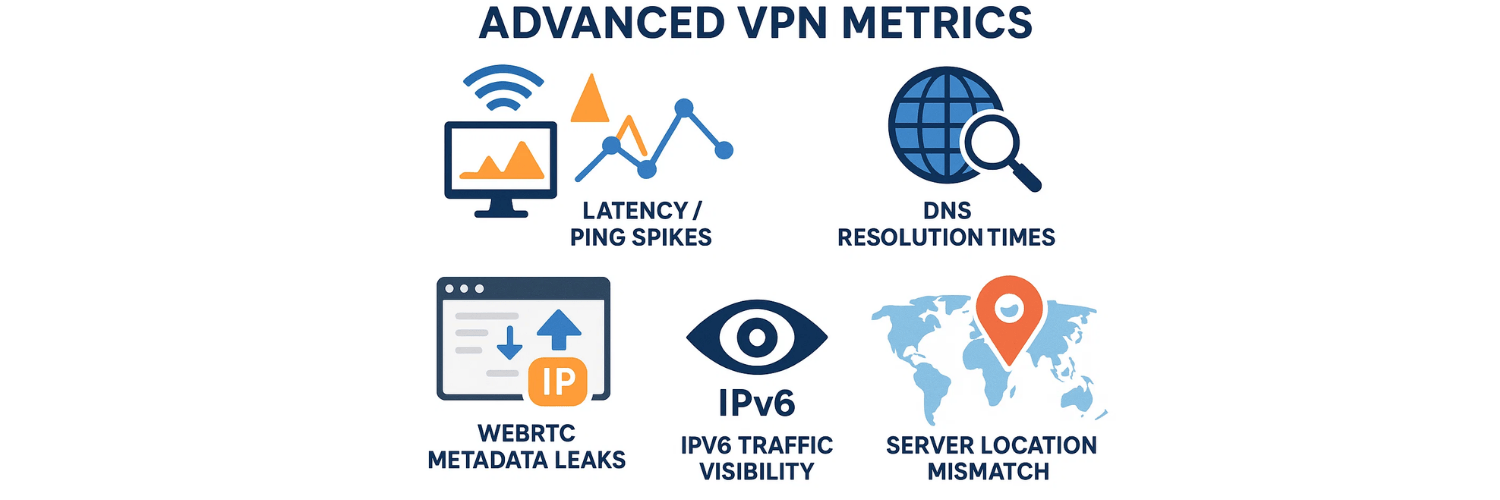
Beyond pass/fail of leaks, watch for:
Latency/ Ping Spikes when using VPN – large jumps may indicate routing inefficiencies.
DNS Resolution Times – if DNS queries are slow, it may indicate misconfiguration or fallback to ISP DNS.
WebRTC Metadata Leaks – sometimes your browser can leak metadata like local or device IPs even if public IP is masked.
IPv6 Traffic Visibility – If IPv6 addresses appear in your result, your VPN may not be covering that protocol.
Server Location Mismatch – If your IP appears from an unexpected region, you may be connected to a suboptimal or shared server, increasing risk of detection.
By tracking these metrics you can elevate your VPN from “just working” to “optimally secure”.
10. What Tool Should You Use for Automatic Testing?
The online platform available at VPNTest.Pro’s Test Tool performs all the major leak tests (IP, DNS, WebRTC, IPv6) in one unified interface. It allows you to:
Automatically detect your current IP and compare with VPN server IP
Check whether DNS requests are being routed through VPN or ISP
Run WebRTC tests – verifying whether your browser or device exposes local or public IPs
Check IPv6 issues – ensuring your VPN covers IPv6 or blocks it
Generate a summarized pass/fail report.
Using such an automated tool significantly simplifies the process and makes it accessible for both technical and non-technical users.
Conclusion
Running a full VPN leak test is essential if you want to ensure your VPN is delivering real privacy and not just a promise. By testing for IP, DNS, WebRTC and IPv6 leaks—and combining that with performance (speed) checks—you gain a full visibility into how your VPN behaves under real-world conditions.
Remember: leaks aren’t just rare bugs—they are common misconfigurations or design limitations. Regular testing, correct settings and using a high-quality VPN make a big difference in whether you are truly private online.
Use the guides and tools listed above as your foundation, test regularly, and stay ahead of potential exposures. A well-tested VPN means you can browse, stream, or work with confidence that your data remains protected.
FAQs
1. What is a VPN leak and how does it expose my real identity?
A VPN leak occurs when IP, DNS, WebRTC, or IPv6 traffic bypasses the VPN tunnel. This exposes your ISP-assigned IP, DNS requests, or device metadata, compromising privacy.
2. How can I run a complete VPN leak test automatically?
You can use an online testing tool like VPNTest.Pro which checks IP, DNS, WebRTC, and IPv6 leak vectors simultaneously and gives a full pass/fail privacy report.
3. What is the most common VPN leak type users experience?
DNS leaks are the most frequent; they occur when the VPN fails to route DNS queries through its own encrypted resolvers, sending them instead to your ISP.
4. How do WebRTC leaks happen even when my VPN is on?
Browsers use WebRTC STUN requests that can reveal internal or public IPs. Some VPNs don’t block this, but browser settings or extensions can disable WebRTC leaks.
5. Can VPN protocol choice affect leak risk?
Yes. Older protocols like PPTP or L2TP/IPSec are more prone to routing leaks. Modern protocols like WireGuard and IKEv2 provide better leak protection and stability.
6. Why do IPv6 leaks occur even when IPv4 is protected?
Some VPNs only tunnel IPv4 traffic. If your network supports IPv6, your device may send IPv6 packets outside the VPN, exposing your identity and location.
7. How can I fix DNS leaks permanently?
Enable DNS leak protection in your VPN app, force device DNS to the VPN provider’s DNS servers, or disable ISP DNS through system networking settings.
8. Can switching Wi-Fi and mobile networks cause leaks?
Yes. Network switching can break or drop the VPN tunnel. Always-On VPN or Kill Switch features prevent fallback to unsecured connections.
9. Should I test VPN leak protection regularly?
Yes — especially after VPN updates, OS updates, server changes, or switching VPN protocols. Quarterly leak testing ensures ongoing privacy.
10. Does VPN speed affect leak behavior?
Indirectly. Slow or unstable VPN servers can cause fallback routing or delayed DNS resolution. (See: How VPN Speed Tests Work and VPN Speed Test: How to Measure.)
Tags

About VPNTest
Content Specialist with expertise in cybersecurity and online privacy. Sarah has been testing and reviewing VPN services for over 5 years and regularly contributes to leading tech publications.
View all articles by VPNTest →

Never Miss an Article
Subscribe to our newsletter to receive the latest VPN guides, security tips, and industry news directly in your inbox.