

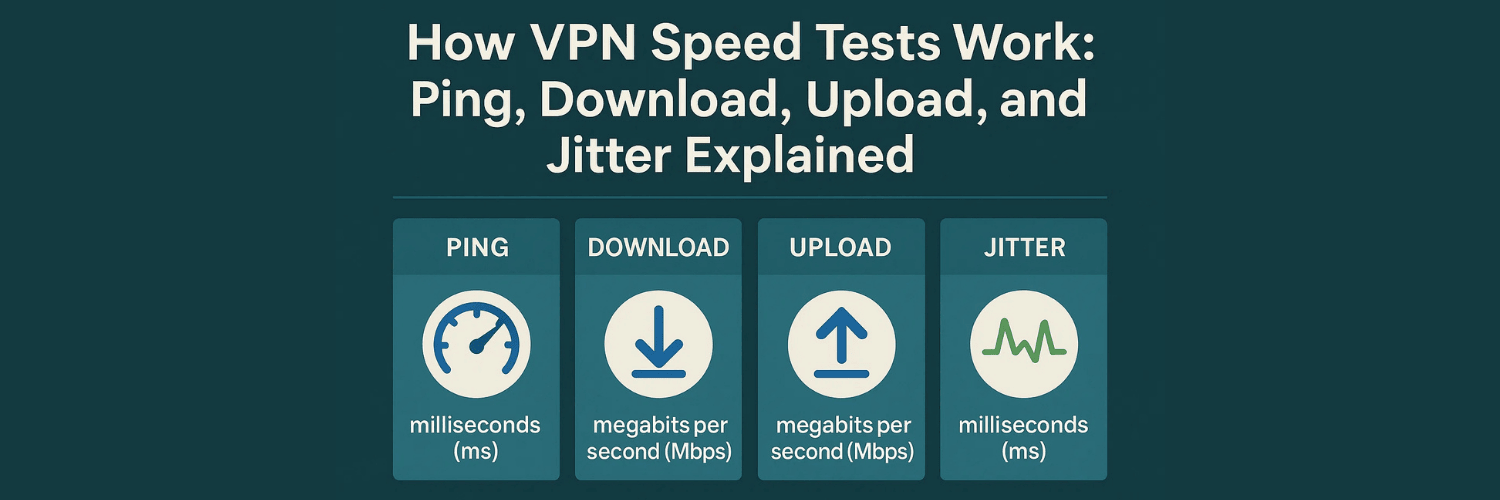
When you run a VPN speed test, it measures ping (latency), download throughput, upload throughput, and jitter to gauge your connection’s performance. Each metric tells a different story about your network quality. Ping (round-trip latency) measures how long a small packet takes to go to a server and back, in milliseconds. Download speed and upload speed measure how many megabits per second you can receive and send, respectively. Jitter is the variability in ping over time – essentially how consistent your latency is. High jitter (for example, above ~30 ms) causes erratic delays, harming real-time apps.
Download speed (Mbps) affects activities like streaming video, browsing, and downloading files. Upload speed (Mbps) matters for video calls, cloud backups, and sending large files. Latency/ping (ms) affects how snappy or laggy interactive apps feel – low ping means near-instant responses. Jitter (ms) indicates stability: high jitter causes uneven frame rates or choppy audio/video in calls. (In practice, many speed tests report these values so you can compare performance with and without the VPN.) Packet loss is also often displayed; even small packet loss (a percent or two) can cause slowdowns because lost packets must be retransmitted.
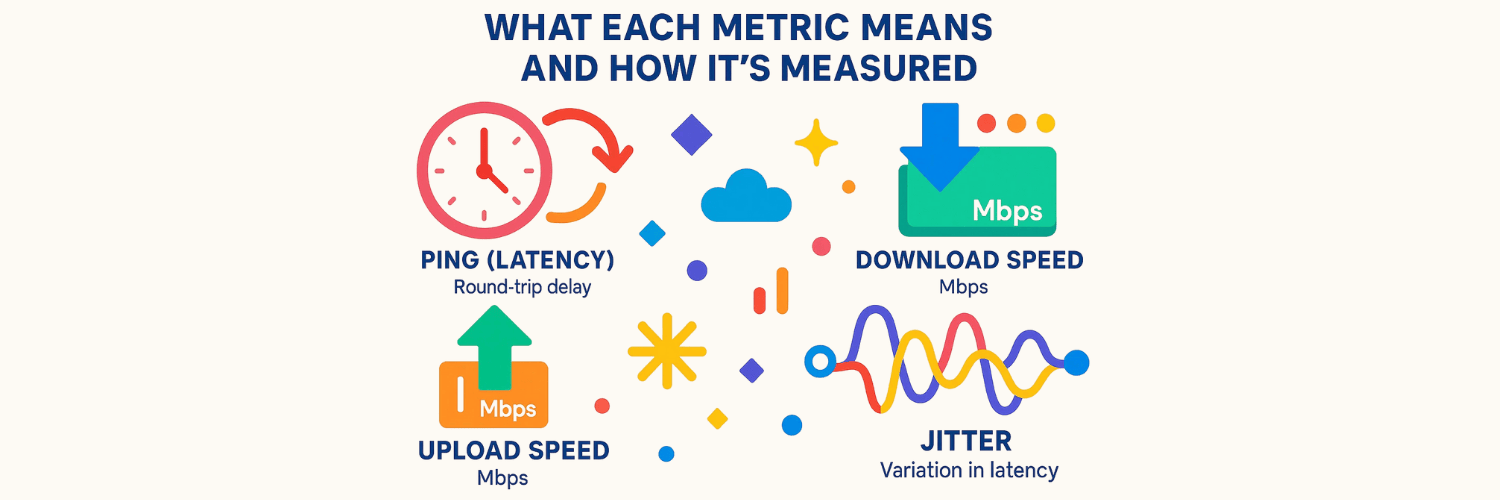
What Each Metric Means and How It’s Measured
Ping (Latency) – Round-trip delay. Using tools like ping (ICMP echo), it measures the time for a tiny packet to reach a server and return, in milliseconds. Lower is better. High latency causes noticeable lag. In a speed test, ping is simply reported from the client to the test server.
Download Speed – Throughput in Mbps from the internet to you. Speed tests typically download multiple data threads from a nearby server to saturate your line. The reported value is the average megabits per second achieved while downloading the test data. Higher is better for bulk transfers and streaming.
Upload Speed – Throughput in Mbps from you to the internet. Similarly, speed tests upload data to a server to measure sustained outbound bandwidth. High upload rates improve video conferencing (sending your video/audio) and cloud backups.
Jitter – Variation in latency. It’s computed as the fluctuation in the time between each packet’s arrival. For example, if consecutive pings alternate between 20 ms and 40 ms, jitter is high. A stable network has low jitter. In speed test results, jitter is given in ms; values above roughly 30–50 ms are usually considered high and can cause “choppiness” in voice/video calls.
Collectively, these metrics provide a broad view of connection quality. Latency (ping) and jitter are quality measures important for responsiveness, while download/upload are capacity measures. For example, a video call requires both sufficient upload speed and low jitter; a torrent needs mostly high download speed.
How Using a VPN Affects These Metrics
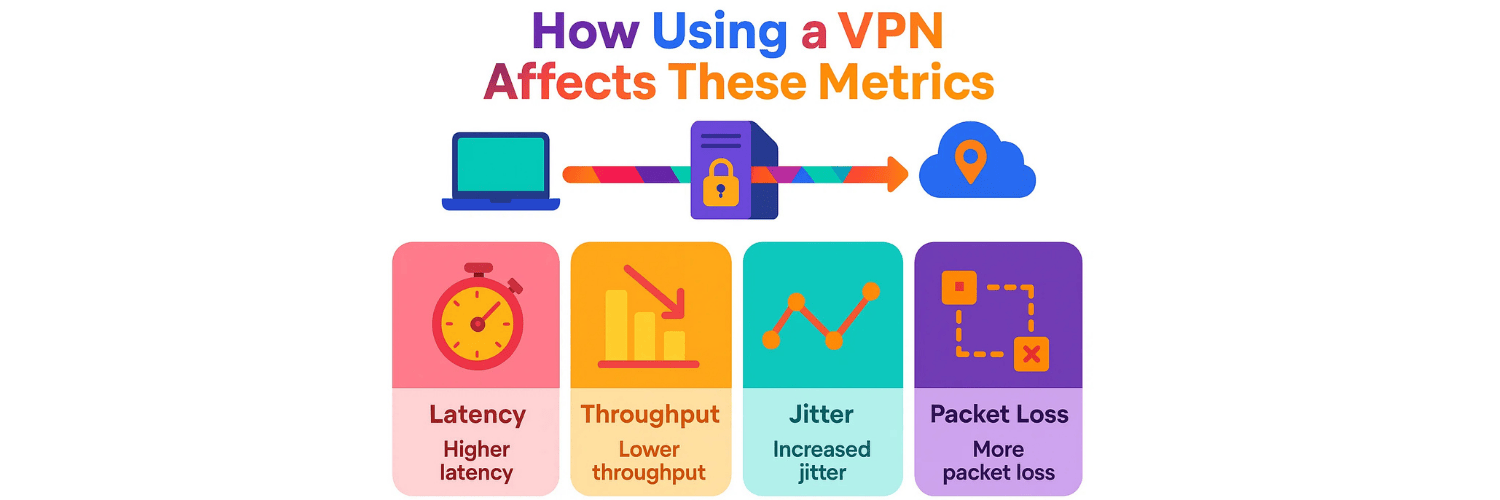
Using a VPN adds an encrypted tunnel and an extra hop, so it inevitably increases latency and can reduce throughput. In a typical (single-hop) VPN scenario, your data goes from your device to the VPN server and then to the destination. The resulting ping is roughly the sum of those two legs.
Encryption overhead itself adds processing delay. Strong VPN encryption “takes time” and thus adds latency. Heavier ciphers (e.g. AES-256) typically add a bit more delay than lighter ones. This encryption work can vary per packet, which may also slightly increase jitter. In practice, a fast modern VPN (WireGuard, IKEv2) might add only a few extra milliseconds on a local connection, but a distant VPN server (or one under load) can raise ping by tens or even hundreds of milliseconds.
On throughput, a VPN can reduce your download/upload speeds. The encrypted tunnel adds extra bytes to each packet (VPN protocol headers), so the net payload per packet is smaller. If fragmentation occurs (packet size exceeds the network MTU), it can cut effective bandwidth by double-digit percentages. Also, if the VPN server’s own bandwidth is lower than your ISP’s, your speed is capped by the slower link. In short, the VPN can become the bottleneck. In high-quality setups (strong servers, modern protocol) the speed hit might be modest, but expect some reduction compared to a direct connection.
For jitter and packet loss, a VPN can worsen these if the path through the VPN server is unstable or congested. Every additional hop or encryption step introduces potential for queuing delays or packet drops. Overloaded VPN servers, or those spanning long distances, can cause more variability in packet timing. In extreme cases (especially with multi-hop VPNs that chain several servers), jitter can rise and packet loss may appear if the tunnel isn’t reliable. However, a VPN can sometimes improve jitter or loss if your ISP was throttling or had a poor route – by choosing a better VPN path, you might actually stabilize a flaky connection.
In summary, VPNs trade performance for privacy/encapsulation. Expect higher latency and slightly lower speeds. Conversely, using a fast VPN protocol (like WireGuard or an efficient IPSec) and choosing a nearby, lightly-loaded server can minimize the impact on these metrics.
Typical Performance Thresholds by Use-Case
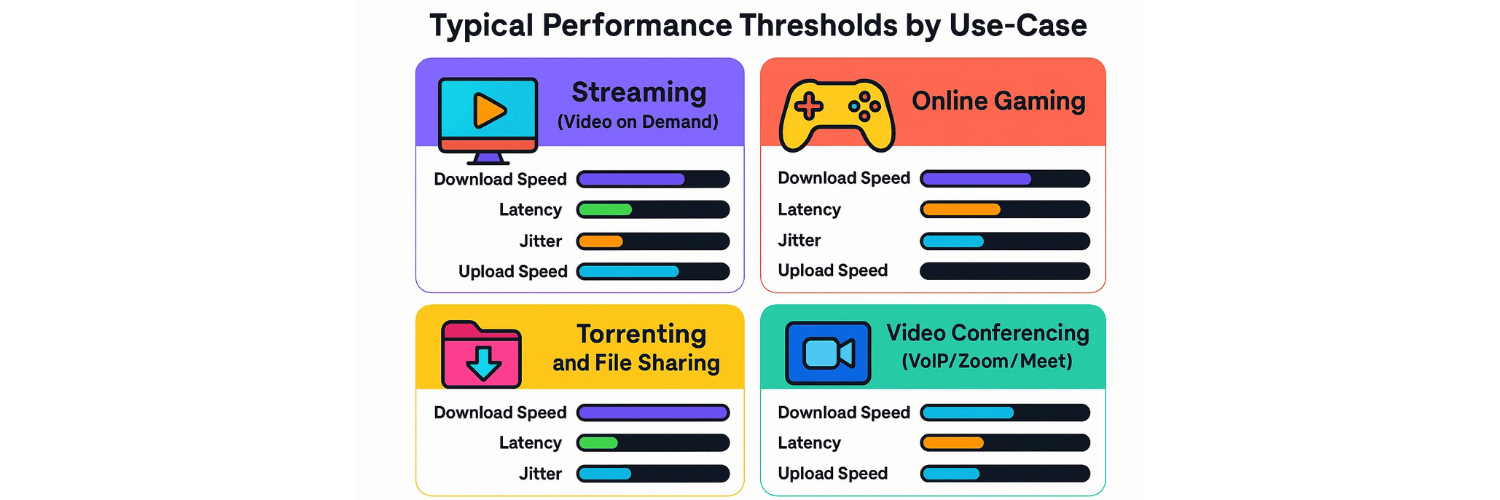
Streaming (Video on Demand): Streaming is download-heavy but forgiving on latency. For HD streaming, any download speed well above 5–10 Mbps is good. Latency is less critical; even ping up to ~150 ms is usually fine for video, and jitter under ~50 ms is acceptable. Packet loss should be minimal (<1–2%). Upload speed is mostly irrelevant unless you’re live streaming.
Online Gaming: Gaming is extremely latency-sensitive and needs stable jitter. Ping/latency of 20–40 ms is ideal, under 100 ms is still playable. Jitter should be very low (under 20–30 ms ideally). Download speeds don’t need to be massive, but at least 25–50 Mbps is good for smooth updates and play. Upload speed should be ~10 Mbps or higher for competitive play. Packet loss must be near zero.
Torrenting and File Sharing: P2P downloads prioritize raw throughput. You want the highest possible download speed, often hundreds of Mbps. Latency is less important, jitter isn’t critical, but upload speed helps with seeding. Packet loss should be very low.
Video Conferencing (VoIP/Zoom/Meet): Real-time calls need balanced download/upload and low latency/jitter. Around 3–5 Mbps up/down is sufficient. Latency under 150 ms and jitter under 30–40 ms is important. Packet loss should be kept below 1–2% to avoid glitches.
How Packet Loss and Jitter Affect Real-Time Traffic
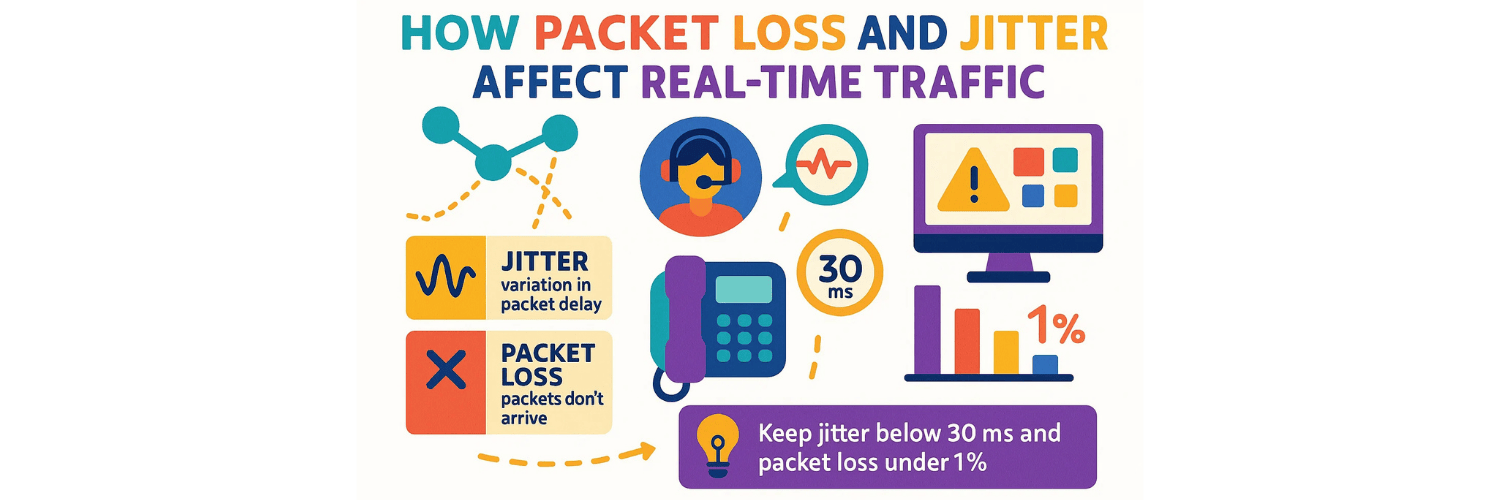
Packet loss and jitter can severely degrade live audio/video. Jitter is the variation in packet arrival times; packet loss is when some packets simply don’t arrive. Both are harmful for VoIP and gaming if too high. When jitter is high or packets are lost, receivers often have to buffer or drop out-of-order data. Every lost packet may need retransmission (if using TCP) or just results in missing audio/video frames (if using UDP).
VoIP call quality noticeably suffers once jitter exceeds ~30 ms. Similarly, packet loss above 1–2% can cause video frames to freeze and audio to garble. Real-time protocols often use small buffers to minimize latency, so they cannot easily compensate for jitter by delaying playback. The result is dropped or out-of-order data.
Practical tip: Keep jitter below 30 ms and packet loss under 1% for clear calls and smooth video. In gaming, unpredictable packet delays (jitter) can cause lag spikes or rubber-banding.
Interpreting VPN Speed Test Results and Their Limitations
VPN speed tests give useful data but should be interpreted carefully. A single test is a snapshot influenced by many factors: your local network load, time-of-day, the VPN server’s current load, and even Wi-Fi quality. Run multiple tests and average them for reliability. Always test with VPN off first to establish a baseline.
Limitations: Most online tests focus on raw throughput and ping to a single server. They may not show real-world performance for all use cases. Tests often use multi-threaded downloads, which may differ from how apps behave. The test server’s location also matters: a nearby server shows low latency, but a distant server may reflect your real experience more accurately.
In short, interpret VPN speed test results as relative indicators, not absolutes. Expect a small performance drop on VPN. If drops are extreme, try different servers or protocols. Look at all metrics, not just download speed.
Practical Tips for Power Users
Choose nearby servers to minimize latency.
Use modern protocols like WireGuard or IKEv2 for better performance.
Optimize MTU/MSS to avoid packet fragmentation.
Prefer wired (Ethernet) over Wi-Fi to reduce jitter.
Close background apps during testing.
Use router QoS to prioritize real-time traffic.
Run multiple tests at different times for accuracy.
Compare VPN-on vs VPN-off results to measure real impact.
Conclusion
VPN speed tests measure ping, download/upload bandwidth, jitter, and sometimes packet loss. Each metric has a clear meaning: ping in milliseconds (lower is better), throughput in Mbps (higher is better), jitter in ms (lower is better). Using a VPN typically increases latency and slightly reduces speed, but with a good setup and protocol, the impact can be minimal.
For streaming, focus on download speed; for gaming, prioritize low ping/jitter; for torrents, maximize throughput; for video calls, balance upload/download and keep latency stable. Always keep packet loss under 1–2% for best results.
When interpreting speed tests, remember they are diagnostic tools. Expect some overhead but optimize by choosing the right server, protocol, and network setup. That way, you can enjoy privacy without sacrificing too much performance.
FAQs: Optimizing VPN Performance
1. How does my choice of VPN protocol affect speed and latency?
Protocols differ in overhead. UDP-based protocols like WireGuard and IKEv2 are usually faster and lower-latency than TCP-based tunnels.
2. Why do I see higher ping when connected to a VPN?
Because your traffic is routed through an extra hop (the VPN server), adding distance and processing time.
3. Can VPNs affect my jitter and packet loss?
Yes. Busy or distant VPN servers can increase jitter or even cause packet drops. Choosing stable servers helps.
4. Does multi-hop (double VPN) double the latency?
Roughly, yes. Each additional hop adds more delay and overhead.
5. How can I improve my VPN’s download and upload speeds?
Pick fast servers, use WireGuard or IKEv2, optimize MTU, and use Ethernet instead of Wi-Fi.
6. What is MTU and how does it impact VPN performance?
MTU is the maximum packet size. If too high, packets fragment, reducing speed. Adjust MTU/MSS to avoid fragmentation.
7. Why does my VPN sometimes show faster upload than download (or vice versa)?
It depends on server load and network routing. Each direction can be affected differently.
8. How often should I test my VPN speed?
Test under typical conditions and at different times. Always compare VPN on/off using the same server.
9. Does packet prioritization (QoS) help when using a VPN?
Yes. QoS settings on your router can prioritize voice/video traffic, reducing jitter.
10. What else can I do to optimize VPN performance for gaming or streaming?
Use servers close to the game/streaming servers, disable unused features like IPv6 if unsupported, and use split tunneling when possible.
Tags

About VPNTest
Content Specialist with expertise in cybersecurity and online privacy. Sarah has been testing and reviewing VPN services for over 5 years and regularly contributes to leading tech publications.
View all articles by VPNTest →




Never Miss an Article
Subscribe to our newsletter to receive the latest VPN guides, security tips, and industry news directly in your inbox.