

When choosing a VPN, most people focus on privacy, encryption, or bypassing geo-restrictions. However, speed is just as critical. Whether you’re streaming Netflix, gaming online, working remotely, or simply browsing the web, a slow VPN can ruin your experience.
Running a VPN speed test is the only reliable way to understand how your VPN performs in real-world conditions. But speed isn’t just about download numbers—you need to look at latency, upload speeds, and even server distance. This guide will explain how VPN speed tests work, what metrics to pay attention to, and how to optimize your VPN for maximum performance.
What Is a VPN Speed Test?
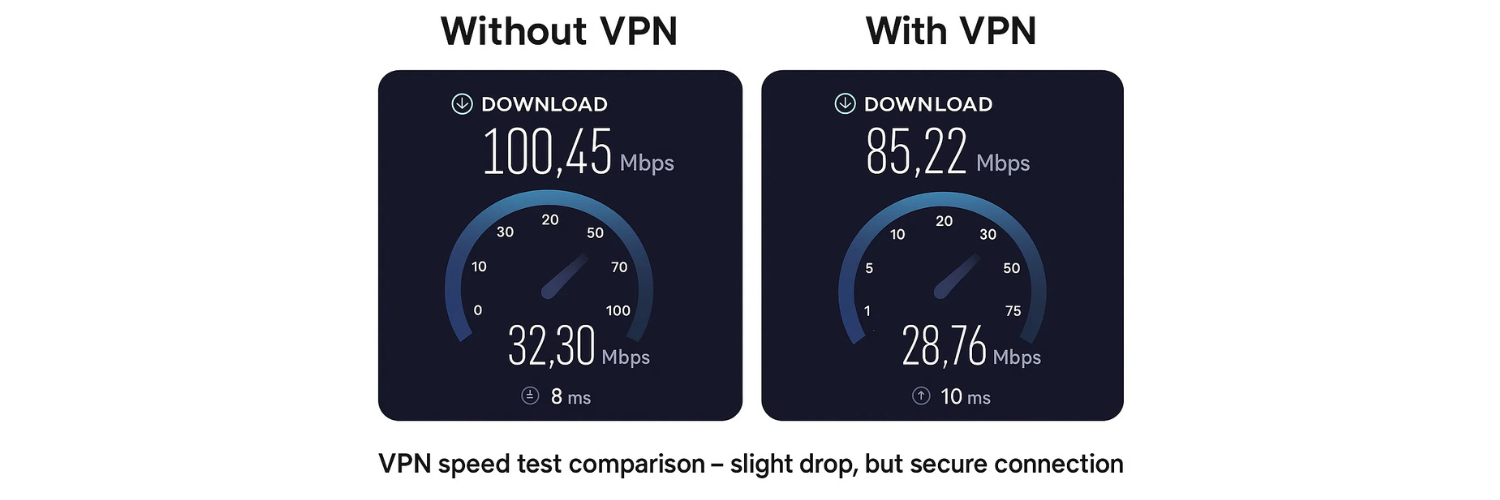
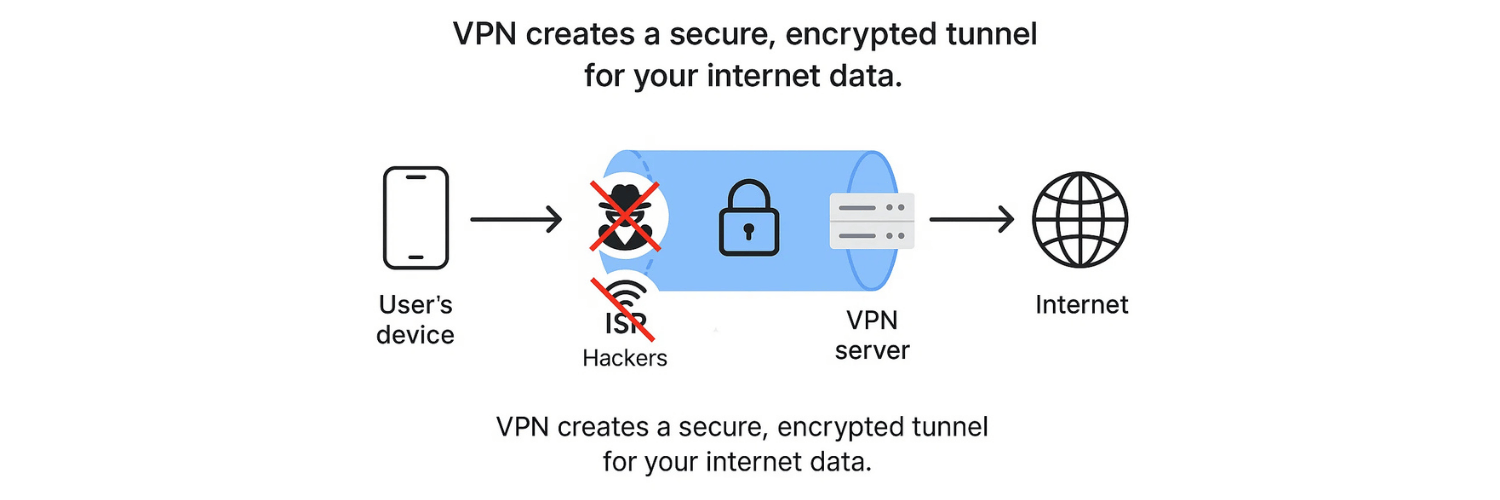
A VPN speed test measures how fast your internet connection performs while routed through a VPN server. Just like regular internet speed tests, it evaluates your download speed, upload speed, and ping (latency). The difference is that with a VPN, all of your data is encrypted and rerouted, which often reduces speed slightly.
By running speed tests with and without a VPN, you can see how much performance overhead the VPN introduces. A reliable VPN provider should minimize this difference, allowing you to browse, stream, and work with little to no slowdown.
Key Metrics in a VPN Speed Test
1. Download Speed
Download speed measures how quickly you can receive data from the internet. It affects streaming, browsing, and downloading files. A slow download speed means buffering, pixelated videos, and sluggish browsing.
2. Upload Speed
Upload speed measures how fast you can send data. It’s crucial for activities like video calls, cloud backups, and sending large attachments. Remote workers especially need stable upload speeds for smooth communication.
3. Latency (Ping)
Latency, measured in milliseconds (ms), is the time it takes for data to travel between your device and the VPN server. Lower latency equals faster response times, which is vital for gaming, trading, and video conferencing.
4. Jitter
Jitter refers to the variation in latency. If your connection is inconsistent, you’ll experience lag, robotic audio on calls, and unstable video streams.
5. Packet Loss
Sometimes data packets don’t reach their destination. Even a small percentage of packet loss can cause connection issues, especially during online gaming or VoIP calls.
How to Run a VPN Speed Test
1.Choose a Reliable Speed Test Tool
Websites like Speedtest.net, Fast.com, or your VPN provider’s built-in speed test can be used.2.Test Without VPN
First, run a baseline test on your normal internet connection. Record the download, upload, and ping results.3.Connect to Your VPN
Select a VPN server (nearby or distant, depending on what you want to test).4.Run the Test Again
Compare your results to the baseline. Expect a small drop, but not a massive slowdown.5.Repeat with Different Servers
Test multiple VPN locations to see how distance and server load affect performance.
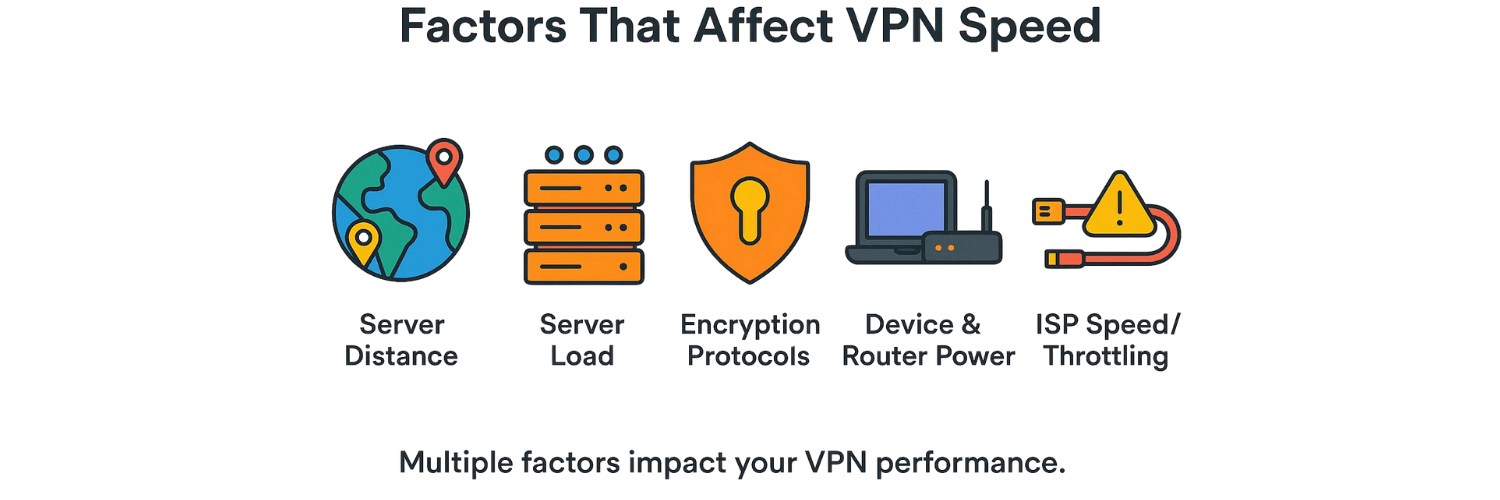
Factors That Affect VPN Speed
1. Server Distance
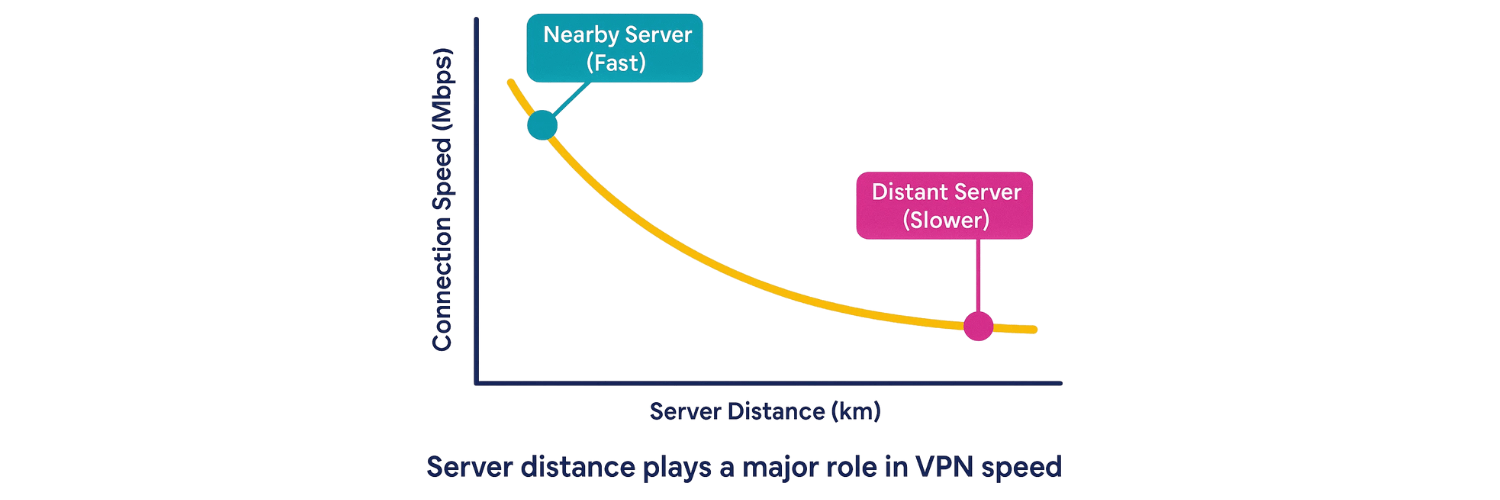
The farther away the server, the longer the data must travel. Choosing a nearby VPN server often improves speed.
2. Server Load
Overcrowded servers with too many users can slow down performance. Some VPNs display server load percentages so you can pick less congested ones.
3. Encryption Strength
Stronger encryption ensures better security but requires more processing power. Some VPNs allow you to choose between protocols like OpenVPN, IKEv2, or WireGuard, balancing speed and safety.
4. Your Device & Router
Older devices or underpowered routers may struggle to handle encrypted traffic, causing unnecessary slowdowns.
5. Your ISP’s Speed & Throttling
If your base internet is slow or your ISP throttles VPN connections, your VPN speed will suffer.
1. Choose the Closest Server to Your Physical Location
The distance between your device and the VPN server directly impacts speed. The farther the data has to travel, the higher the latency and the slower your connection. By selecting a VPN server geographically closer to you, you minimize this travel distance, improving both download and upload performance.
For example, if you’re located in London, connecting to a server in the UK or nearby countries like France or Germany will usually provide faster results than choosing one in the United States or Asia. Save distant servers for when you need to bypass geo-restrictions, but for general browsing and work, always stick to the closest option.
2. Switch VPN Protocols (e.g., WireGuard for Faster Performance)
VPN protocols determine how your data is encrypted and transmitted. Traditional protocols like OpenVPN (UDP/TCP) are secure but can sometimes be slower due to heavy encryption overhead. Newer protocols such as WireGuard are designed to be faster while maintaining strong security standards.
Many VPN providers now let you choose between multiple protocols in their settings. If you notice sluggish speeds, experiment with different options. WireGuard is generally the fastest, while IKEv2 is a great choice for mobile devices that frequently switch between Wi-Fi and cellular networks.
3. Use a Wired Connection Instead of Wi-Fi
Wi-Fi signals can be unstable due to interference, distance from the router, or network congestion. This instability often reduces VPN performance, especially when streaming or gaming. Connecting your device directly to your router via an Ethernet cable eliminates these issues, providing a more stable and faster connection.
If a wired connection isn’t possible, ensure your Wi-Fi network is optimized. Place your router in a central location, minimize interference from other devices, and consider upgrading to a dual-band or mesh Wi-Fi system for better coverage.
4. Pick a Less Crowded Server if Your VPN Displays Load Stats
Some VPN providers show server load percentages—how many users are currently connected to a particular server. Overloaded servers can significantly slow down your connection, even if they’re geographically close.
If you notice sluggish speeds, switch to a server with fewer active users. For example, instead of connecting to the default U.S. server (which may be crowded), try an alternative city server within the same region. This small adjustment can dramatically improve performance.
5. Update Your VPN App to the Latest Version for Performance Improvements
VPN providers frequently release software updates that improve performance, fix bugs, and introduce new protocols or optimizations. Using an outdated VPN app may leave you with slower speeds and weaker stability.
Make it a habit to keep your VPN software updated on all devices. Automatic updates are ideal, but if your provider doesn’t support them, manually check for updates at least once a month to ensure you’re benefiting from the latest improvements.
6. Restart Your Device or Router to Clear Network Congestion
Over time, routers and devices can accumulate minor glitches, cache buildup, and network congestion that slow down performance. Restarting your router refreshes the connection with your ISP, often restoring full speeds. Similarly, rebooting your device clears background processes that may interfere with VPN performance.
If you consistently experience slow speeds, try a full reset: disconnect the VPN, restart your device and router, then reconnect. This simple step can often resolve issues that seem like VPN problems but are actually caused by local network congestion.
When to Use VPN Speed Tests
Before streaming movies or live events abroad.
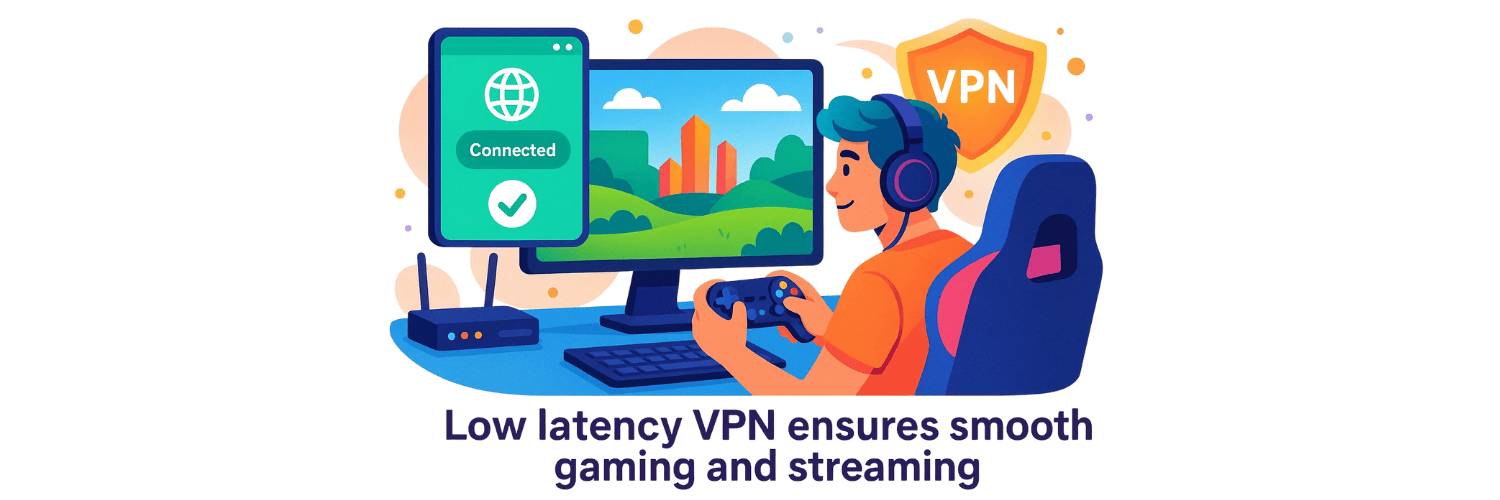
While gaming to ensure low ping.
Before making financial trades online.
While working remotely with cloud tools or video calls.
To troubleshoot slow VPN performance.
Understanding Results: What Is a Good VPN Speed?
Download Speed: 25 Mbps+ for smooth 4K streaming.
Upload Speed: 5–10 Mbps for video calls and file sharing.
Ping: Below 100 ms for gaming and real-time communication.
If your VPN significantly lowers your speeds compared to your ISP baseline, it may be time to switch to a better service.
Conclusion: Test, Compare, and Optimize
Running a VPN speed test is essential for ensuring that your VPN provides both privacy and performance. By understanding download speed, upload speed, latency, and server factors, you can make smarter decisions when choosing servers and protocols. The best VPNs today offer blazing fast connections with minimal speed loss, ensuring your online activities remain secure without frustrating slowdowns.
Whether you’re streaming, working remotely, or gaming online, a regular speed test helps you get the most out of your VPN.
FAQs about VPN Speed Tests
1. Does a VPN always slow down your internet speed?
Yes, using a VPN often causes a slight drop in speed because of encryption and rerouting traffic through servers. However, a good VPN with optimized servers and fast protocols can minimize the slowdown, making it barely noticeable.
2. How much speed loss is normal when using a VPN?
A drop of 10–20% is generally considered normal. If you experience more than a 40–50% drop, try switching servers, changing protocols, or checking your base internet speed.
3. Which VPN protocol is the fastest?
WireGuard is currently the fastest VPN protocol, offering excellent speed with strong encryption. OpenVPN (UDP mode) and IKEv2 are also fast, but WireGuard is usually the top choice for streaming and gaming.
4. Why does server distance affect VPN speed?
The farther the VPN server is from your physical location, the longer data takes to travel. This increases latency (ping) and may lower download/upload speeds. Choosing a server close to you usually improves performance.
5. Can a VPN actually improve internet speed?
Sometimes, yes. If your ISP throttles (slows down) certain activities like streaming or torrenting, a VPN can bypass those restrictions and give you a faster, more stable connection.
6. How do I run a VPN speed test correctly?
Run a speed test before and after turning on your VPN. Compare download speed, upload speed, and ping. Use reliable tools like Speedtest.net, Fast.com, or vpntest.pro for accurate results.
7. Does using Wi-Fi vs. Ethernet affect VPN speed?
Yes. A wired Ethernet connection is usually faster and more stable than Wi-Fi, especially when using a VPN. Wi-Fi interference, distance from the router, and other devices can slow down your VPN speeds.
8. Why does my VPN work fast on one device but slow on another?
Device performance matters. Older smartphones or low-powered routers may struggle with VPN encryption, causing slower speeds. Using a modern device or a VPN router with strong hardware can fix this.
9. How often should I test my VPN speed?
It’s a good idea to test speeds whenever you notice lag, buffering, or connection drops. Regular testing helps identify whether issues come from your VPN, ISP, or network setup.
10. What’s the best VPN speed test tool?
Tools like vpntest.pro, Speedtest.net, and Fast.com are reliable. vpntest.pro is especially useful since it checks not only speed but also DNS leaks and WebRTC leaks, ensuring both performance and security.
Tags

About VPNTest
Content Specialist with expertise in cybersecurity and online privacy. Sarah has been testing and reviewing VPN services for over 5 years and regularly contributes to leading tech publications.
View all articles by VPNTest →




Never Miss an Article
Subscribe to our newsletter to receive the latest VPN guides, security tips, and industry news directly in your inbox.