


Using a Virtual Private Network (VPN) can protect your data and privacy, but it often comes with a trade-off: slower internet speeds. This article explores three core technical reasons for this slowdown and provides practical tips to optimize VPN performance. We assume readers understand basic networking concepts like latency (delay), throughput (bandwidth), and encryption.
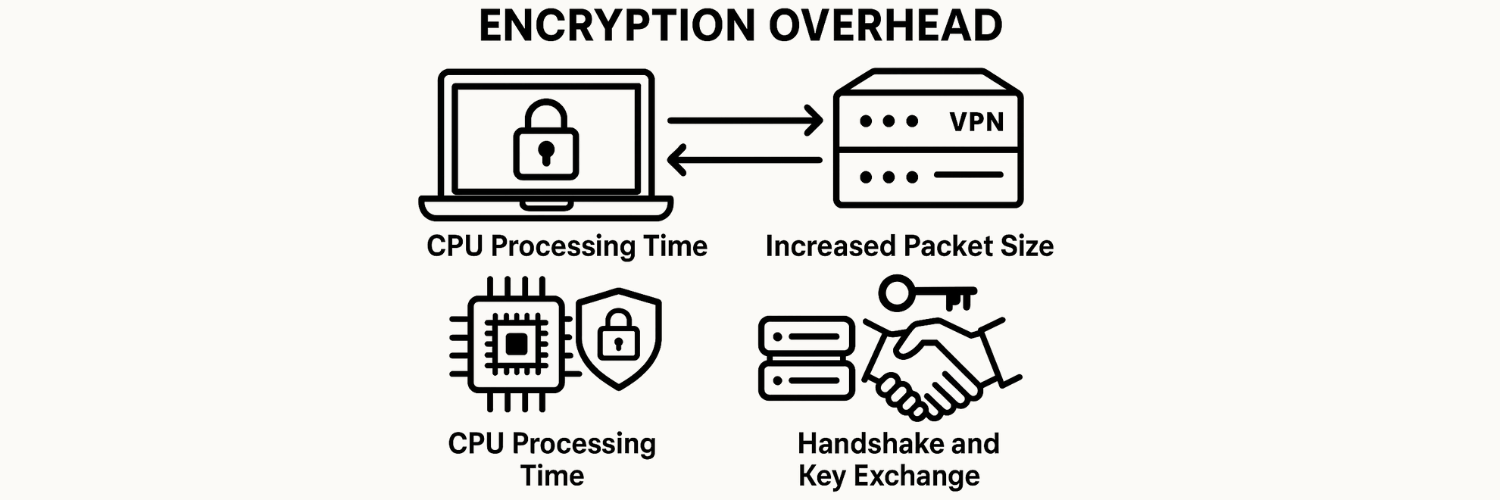
Encryption Overhead
VPNs encrypt all data sent between your device and the VPN server. Encryption adds security but also consumes computational resources and adds extra data.
CPU Processing Time: Every packet of data must be encrypted before sending and decrypted upon receipt. Strong encryption algorithms (e.g. AES-256 or ChaCha20) ensure security but use CPU cycles to perform cryptographic operations. On devices without hardware acceleration (like Intel/AMD AES-NI or ARM Crypto extensions), the CPU must handle these operations in software. This can become a bottleneck: if your CPU is busy encrypting/decrypting, fewer resources are available for processing other network tasks, which can throttle throughput and increase latency.
Increased Packet Size (Data Overhead): Encryption often adds extra bytes to each packet. For example, modern VPN protocols include headers, initialization vectors (IVs), and message authentication codes (MACs) or authentication tags. An AES-GCM encrypted packet might carry an extra 16–32 bytes (128–256 bits) of cryptographic overhead. Larger packets mean more data to transmit for the same payload, effectively reducing usable bandwidth. Additionally, packet padding or alignment requirements can inflate packet size. This slightly increases transmission time for each packet.
Handshake and Key Exchange: Establishing a VPN connection requires a cryptographic handshake (such as a TLS/SSL or IKE exchange). During the handshake, the client and server negotiate encryption keys and parameters. This handshake involves several round trips and cryptographic computations, which introduces latency before any data can flow. While this handshake occurs only when the connection is initiated (not per packet), the time taken (often tens to hundreds of milliseconds) can delay applications that make frequent new connections.
Encryption overhead therefore affects VPN speed in two ways: first, by using CPU resources which can limit throughput, and second, by adding data overhead and initial handshake latency. For high-speed internet connections, encryption can become the limiting factor if the device or VPN server cannot keep up with data processing.
Suboptimal Routing Paths
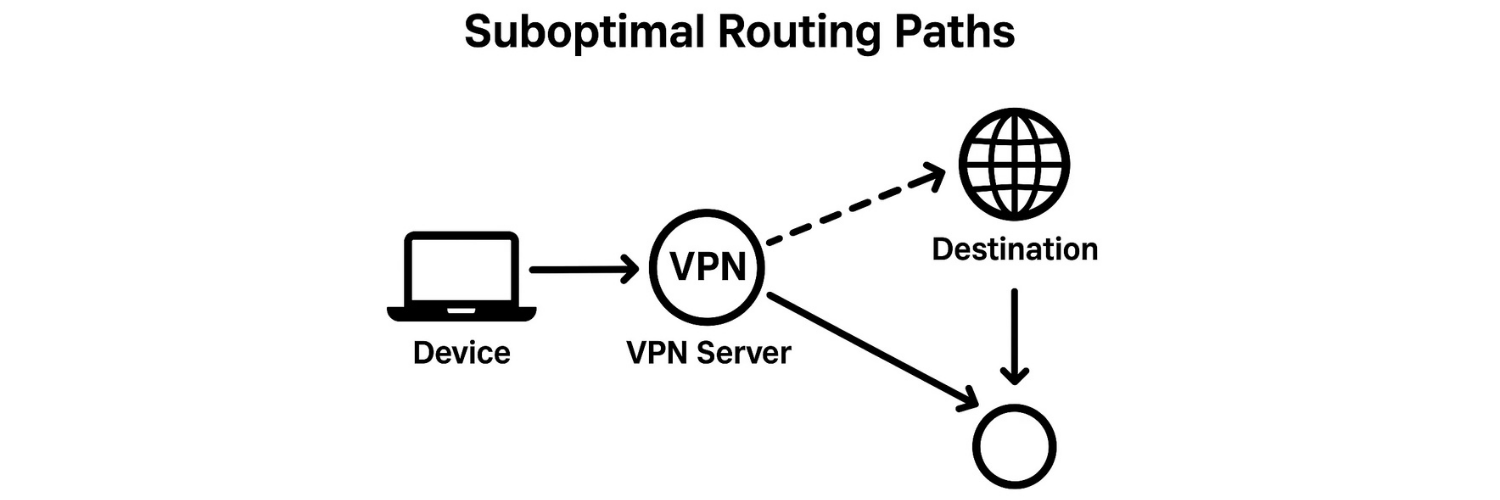
A second major reason VPNs can slow down traffic is routing inefficiency. When you use a VPN, all your internet traffic is routed through the VPN server, which may be geographically far from both you and your final destination. This can introduce latency and reduce performance in several ways:
Increased Distance and Hops: Normally, data packets travel directly from your device to a website or service. With a VPN, packets first go to the VPN server, then from that server to the destination. If the VPN server is far away (for example, in another country), the data traverses a much longer path. This longer path means more network hops (each router or intermediary adds some delay) and generally higher round-trip times (RTTs). Even if raw bandwidth capacity is high, increased latency can slow down applications (especially those sensitive to delay, such as gaming or VoIP).
Unnatural Path Selection: Internet routing is based on complex policies and peering agreements between ISPs. Sometimes the direct route from your region to a destination is fast, but routing your traffic through a VPN imposes a fixed exit point that might not align well with optimal paths. For example, you might be in Europe connecting to a European website; routing through a U.S. VPN server forces packets to cross the Atlantic twice. This additional lag (often tens of milliseconds each way) degrades performance. Even within the same region, the VPN server’s network may route traffic suboptimally, causing unnecessary detours.
Internet Congestion on VPN Routes: VPN traffic can be affected by congestion in the provider’s backbone network. Since all your traffic goes through the VPN provider’s infrastructure, any congestion or capacity limits on that path will impact you. Local ISPs might have efficient, high-capacity routes to certain destinations, but the VPN forces all data through the provider’s nodes. If the VPN server’s route to the internet is slower or more congested than your normal ISP route, your speed drops.
Example – DNS and Multi-Hop: Some VPNs use remote DNS servers or multiple server hops which can add even more delay. For instance, a double-VPN setup (chain of two servers) means extra routing and encryption overhead on each hop. This multi-hop approach significantly increases latency (more round trips and processing) and should only be used when maximum anonymity is needed, not speed.
In summary, suboptimal routing via a VPN server can significantly increase latency and sometimes reduce throughput. The extra distance, extra hops, and potential congestion on the VPN provider’s network all contribute to slower perceived internet speed.
VPN Server Load

The performance of the VPN server itself is another critical factor. When a VPN server is heavily loaded or limited in resources, every client connected to it can experience reduced speeds. Key points include:
Shared Resource Contention: VPN servers often handle many connections simultaneously. Each user’s encrypted traffic competes for the server’s CPU, memory, and network bandwidth. If too many users are connected at the same time or if the server’s hardware is underpowered, each connection may be slower. For example, if a server has a 1 Gbps network interface but 20 users are saturating it, each user might only get an average of 50 Mbps, assuming perfect fairness. In reality, some users may hog more resources, making others slower.
CPU and Encryption: On the server side, the CPU must encrypt/decrypt data for all users. High encryption ciphers and protocols that require frequent re-keying can strain the CPU. If the server CPU is maxed out, throughput for each session will drop. This is especially true if the server doesn’t have hardware acceleration or if it is a shared virtual server on commodity hardware.
Bandwidth Throttling or Limits: Some VPN providers impose bandwidth caps or shape traffic during peak times. This means even if your personal connection is fast, the server might limit throughput per user to manage overall load. Throttling can occur either through manual policies or automated network management.
Network Saturation: The VPN server’s own network connection might become a bottleneck. Data has to leave the server and travel to the public internet; if the link is congested (for example, due to many data-intensive users streaming or downloading), individual speeds decrease.
Quality of Hardware: Dedicated high-end VPN servers with gigabit or 10Gbps ports and strong CPUs can handle more load with minimal speed loss. In contrast, a low-cost or overcrowded server will slow down quickly as load increases.
High server load generally increases latency (as packets queue up for processing) and limits throughput (since the finite bandwidth and CPU are spread across users). This is why sometimes switching to a less busy server or even a different VPN provider can noticeably improve speed.
Performance Optimization Tips
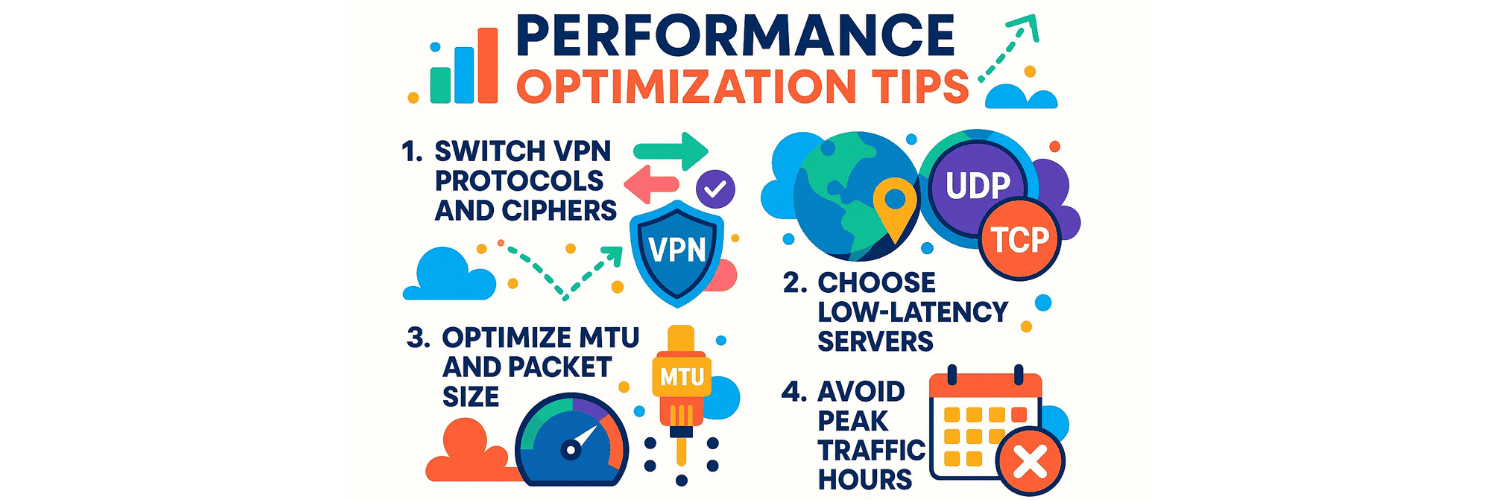
Despite these potential slowdowns, you can often optimize VPN performance without sacrificing security. Here are several practical tips:
1. Switch VPN Protocols and Ciphers
VPN software typically offers multiple protocols. Some are faster but might be less tried-and-true, while others are slower but more compatible.
Use UDP over TCP: Whenever possible, select a VPN protocol that uses UDP (User Datagram Protocol) instead of TCP. UDP-based VPNs (like OpenVPN UDP mode, WireGuard, or IKEv2) avoid the additional overhead of TCP’s error-checking and retransmission mechanisms. This usually yields lower latency and higher throughput. TCP over TCP (for example, running OpenVPN over TCP port 443) can lead to “TCP meltdown” where both layers retransmit, reducing performance.
Choose Modern Protocols: Newer protocols like WireGuard or IKEv2/IPSec tend to be faster than older protocols like OpenVPN or L2TP. For example, WireGuard has a lean codebase, efficient encryption, and fast handshakes, resulting in higher throughput and lower latency. If your VPN provider supports it, try WireGuard or IKEv2 with UDP, as they often outperform older protocols in speed tests.
Select Lighter Ciphers (When Appropriate): Within a protocol, the choice of encryption cipher matters. AES-256 is very secure but can be slower on devices without AES hardware support; AES-128 is faster (and often still quite secure with AES-NI). ChaCha20 is another modern cipher that is optimized for speed on devices without specialized crypto hardware. Some VPN clients let you pick the cipher or have automatic options. Choosing a faster cipher can improve throughput, especially on mobile devices or older CPUs.
Use Minimal Authentication Overhead: Some protocols allow trade-offs in authentication strength. For example, reducing SHA-512 to SHA-256 for HMAC (message authentication) slightly lowers CPU use. In general, stick to modern standards but avoid excessively heavy configurations if your priority is speed.
By selecting the most efficient protocol/cipher combination supported by your VPN, you reduce processing delay and may see a significant speed improvement. Always balance this with security requirements.
2. Choose Low-Latency Servers
Not all VPN servers are equal. Server location and load have a major impact on latency.
Geographic Proximity: Choose a VPN server that is geographically closer to you or closer to the internet resources you’re accessing. A server in the same country or region will usually provide lower ping times and higher throughput than one on another continent. Many VPN clients show latency (ping) or load indicators for each server; use this information to pick the lowest-latency option.
Check Server Load: If your VPN software shows how busy a server is (e.g. 30% load, 50% load, etc.), pick one with lighter load. Even a slightly farther server with 20% load might outperform a nearby server at 90% load. Experiment with a few servers and test your speed to find the best choice.
Avoid Saturated Networks: Some public hubs or popular locations can become congested. For example, a VPN server on a busy backbone at peak times can slow down. If you notice slow performance, try a different city or provider. Specialty servers (e.g., optimized for gaming or streaming) can also offer better bandwidth for certain uses.
DNS and ISP Routing: Sometimes your ISP or local network may have fast direct routes to certain destinations. If you use a VPN server far away, you lose that advantage. For region-specific content, use a server close to the content’s location. For general use, nearest country or major city typically works best.
3. Optimize MTU and Packet Size
The Maximum Transmission Unit (MTU) is the largest size of a single packet that can be sent without fragmentation. VPNs add extra headers, which can exceed the MTU of underlying networks, causing fragmentation:
Lower MTU to Prevent Fragmentation: If the packets sent through the VPN are larger than the network’s MTU, they will be fragmented into smaller pieces. Fragmentation introduces overhead (extra headers and reassembly work) and can slow down throughput. Lowering the VPN’s MTU or MSS (Maximum Segment Size) setting on your device ensures each packet stays within the limit. Common MTU values for VPNs range from 1400 to 1500 bytes. Try reducing the MTU by small increments (for example, from 1500 down to 1450 or 1400) and test connectivity. An MTU that is too high causes fragmentation; one too low adds inefficiency. The goal is to find the largest MTU that doesn’t fragment.
Use Path MTU Discovery: Ensure that Path MTU Discovery (PMTUD) is enabled. PMTUD allows devices to detect the smallest MTU along the route and adjust accordingly. If PMTUD fails or is blocked (some networks drop ICMP messages), manual MTU tweaking as above can avoid hidden fragmentation.
TCP MSS Clamping: If using a router or VPN gateway, some support MSS clamping, which automatically adjusts the TCP segment size to fit through the VPN tunnel without fragmentation. This is an advanced option typically found in custom router firmware (like OpenWrt) or enterprise VPN gateways.
Optimizing MTU and avoiding fragmentation can yield higher consistent throughput and lower latency in a VPN, especially for large transfers.
4. Avoid Peak Traffic Hours
Like any network service, VPN performance can degrade during peak usage times.
Understand Peak Times by Region: Internet usage tends to surge during certain hours (e.g. evenings in populated time zones). If you connect to a VPN server in a location where everyone is streaming or gaming after work, the server and its upstream links may be congested. If possible, schedule large downloads or latency-sensitive activities during off-peak hours (early morning or late at night local to the server).
Try Different Time Zones: If a particular region’s servers are slow during your day, try connecting to a server in a region where it is off-peak. For example, if you’re on the West Coast of the USA in the evening, connecting to a lightly loaded server in Asia (where it’s morning) might actually provide better speed.
Monitor and Adapt: Some VPN clients show real-time performance stats. Keep an eye on ping times and throughput at different hours. If you consistently see high latency or low bandwidth during certain periods, adjust your use.
While you often can’t control when others use the internet, being aware of global peak periods and choosing the right server at the right time can help maintain better VPN speeds.
5. Additional Tips for Maximum Throughput
Split Tunneling: If your VPN client supports split tunneling, use it to route only critical traffic through the VPN. For example, keep bandwidth-heavy but non-sensitive tasks (like video streaming on certain services) on the regular ISP connection. This reduces total load on the VPN tunnel.
Quality of Service (QoS) and WAN Acceleration: On some networks (especially business or custom home routers), enable QoS to prioritize VPN packets. WAN acceleration features on advanced routers may also help. However, these are complex and environment-specific.
Update VPN Software and Drivers: Ensure you have the latest VPN client and network drivers. Performance optimizations and bug fixes are often included in updates.
Check Local Network and Hardware: Sometimes the bottleneck is local (e.g. slow Wi-Fi, old router). Make sure your home network can handle the speeds you expect. Also, certain routers can accelerate or offload VPN encryption if configured properly (look for “OpenVPN offloading” or similar features).
By combining these optimizations—protocol choice, server selection, MTU tuning, timing, and others—you can significantly improve VPN throughput and reduce latency, narrowing the speed gap between VPN and non-VPN connections.
Frequently Asked Questions (FAQs)
Q: How does encryption cipher choice affect VPN throughput?
A: The encryption cipher determines how much CPU work is needed per packet. Ciphers like AES-256 are very secure but require more processing (unless hardware accelerated). AES-128 or ChaCha20 can encrypt data faster on most CPUs. Choosing a more efficient cipher (while still secure enough for your needs) can boost throughput on devices that struggle with encryption tasks.
Q: Is using UDP faster than TCP for VPN, and why?
A: Yes, using a VPN over UDP is generally faster. UDP does not have built-in error correction or retransmission, so it adds less overhead. TCP over a VPN can suffer from “TCP-over-TCP” inefficiencies where both layers try to manage lost packets. With UDP, the VPN handles packet loss itself, and TCP-based applications underneath it manage retransmissions more efficiently, resulting in better performance and lower latency.
Q: What is the role of MTU in VPN performance, and how do I adjust it?
A: MTU (Maximum Transmission Unit) is the largest packet size that can travel without fragmentation. VPNs add extra headers, which can push packets over the network’s MTU limit, causing fragmentation that slows down throughput. To optimize, reduce the MTU or TCP MSS on your VPN interface so packets remain unfragmented. Typical VPN MTU values are 1400–1500 bytes; you may need to try a few values to find the highest that doesn’t fragment.
Q: How do I measure if CPU is limiting my VPN speed?
A: Monitor your device’s CPU usage while transferring data over the VPN. If CPU usage is very high (near 100%) during a speed test or large download, the CPU is the bottleneck. You can also compare speeds with and without VPN: if with VPN your CPU maxes out, try switching to a lighter cipher or a different protocol (like WireGuard) to see if speeds improve.
Q: Are modern VPN protocols like WireGuard actually faster than OpenVPN?
A: In most cases, yes. WireGuard is designed with high performance in mind: it has minimal code complexity and uses efficient cryptography, which generally results in higher throughput and lower latency than traditional OpenVPN or IPSec under similar conditions. Many speed tests show WireGuard connections outperforming OpenVPN (especially when OpenVPN uses TLS encryption).
Q: How does the distance to the VPN server quantitatively affect latency?
A: Latency roughly grows with the physical distance and number of hops. On a typical fiber path, every 1000 km can add about 5–10 milliseconds one-way (so 10–20 ms round-trip). Routing through a VPN server adds at least two extra legs: from you to the server and from the server to the destination. So if your normal ping is 30 ms, using a server 2000 km away on the other side of the world might raise that to 80–100 ms or more.
Q: What is split tunneling and how does it help VPN speed?
A: Split tunneling lets you choose which applications or destinations use the VPN and which use the normal internet connection. By sending only sensitive or high-priority traffic through the VPN, you reduce the total load on the VPN tunnel. This can improve speed for the tunneled traffic (since there’s less congestion) and free up bandwidth for other uses. For example, you could stream public video services outside the VPN and reserve the VPN tunnel for work-related traffic.
Q: Can DNS lookups over VPN affect speed?
A: Yes, if your DNS requests go through the VPN, they may be slower if the DNS server is far or busy. Using a fast, local DNS server (or a high-performance DNS service) can reduce the latency of domain resolution. Some VPNs let you specify DNS servers; choose one that is geographically or topologically close to reduce lookup times.
Q: How does packet encapsulation overhead affect real-world bandwidth?
A: Encapsulation adds additional headers around each packet (e.g. an extra IP header, plus any tunnel protocol headers). If your original payload is small, the relative overhead can be significant, meaning more bits transmitted for the same data. In real-world terms, a 100 Mbps raw link might effectively deliver, say, 90 Mbps of actual data after accounting for the extra VPN headers and any necessary retransmissions. The effect is that you might see a 5-10% drop in bandwidth purely from overhead.
Q:Does a VPN kill switch or firewall setting impact speed?
A: Generally no, a kill switch is a passive feature that blocks traffic when the VPN drops. It doesn’t process data during normal use. However, complex firewall rules or VPN drivers on the operating system can introduce slight overhead. Ensure your VPN client and OS are properly configured; unnecessary packet inspection rules can slow down throughput.
Tags

About VPNTest
Content Specialist with expertise in cybersecurity and online privacy. Sarah has been testing and reviewing VPN services for over 5 years and regularly contributes to leading tech publications.
View all articles by VPNTest →Related VPNs





Never Miss an Article
Subscribe to our newsletter to receive the latest VPN guides, security tips, and industry news directly in your inbox.