


If you’re looking into Microsoft Always On VPN, you’re probably trying to understand what it actually does, whether it’s worth setting up, and what you need before deploying it. The truth is, Always On VPN can work very well when the foundations are right, but it also brings its own learning curve. Most guides online are either too technical or skip the real problems administrators face in day-to-day use.
This guide walks you through everything in plain language — the requirements, the setup steps, the cost, and how it compares to tools like Cisco AnyConnect. You’ll also see the issues people run into, why they happen, and when Always On VPN is (and isn’t) the right choice.

What Is Microsoft Always On VPN? (Clear Definition + Quick Answer)
Microsoft Always On VPN is a remote access solution built into Windows 10 and Windows 11 that keeps a secure connection running whenever a device is off the corporate network. Instead of asking users to open a VPN client and connect manually, the tunnel starts on its own and stays active in the background. This is what makes it “always on.”
The system uses two types of tunnels.
The Device Tunnel connects before a user signs in, which gives IT teams constant access for management tasks. The User Tunnel connects after login and handles day-to-day access to internal apps and services. Both can run together when needed.
Always On VPN is the successor to DirectAccess, offering wider compatibility, stronger authentication options, and support for more modern deployment scenarios. It’s included in Windows, so there’s no extra client software to install and no separate licensing to manage.
Always On VPN Architecture: Key Components
Always On VPN appeals to companies that manage a mix of domain-joined, Azure AD-joined, hybrid, and even BYOD devices. It fits well in environments where users move between networks and need a connection that quietly follows them without extra steps. The automatic tunnel removes the chance of someone forgetting to connect, which is one of the most common causes of access issues and security gaps in a distributed workforce.
The other advantage is device management. Because the Device Tunnel connects before a user signs in, IT teams can reach laptops at almost any time. That means software updates, configuration changes, and security checks can still run even when a device is far from the office.
But technology has limits. A frequent complaint in hybrid environments is that connections break on public Wi-Fi, because many cafés, hotels, and airports block the ports required for IKEv2. When that happens, the tunnel never starts and users get stuck with basic “connection problems.” IPv6 can also interfere with the tunnel on some home networks, and administrators often mention that troubleshooting Always On VPN is harder than expected. Small issues—like certificates, CRL availability, or tunnel order—can take time to diagnose.
So while Always On VPN works well for organizations already committed to the Windows ecosystem, it may not be the best match for teams that rely heavily on public networks, have limited PKI experience, or want something easier to support long-term.
Microsoft Always On VPN Requirements (Everything You Need)
Setting up Always On VPN depends on having the right pieces in place. Most of these components already exist in a typical Windows environment, but the VPN won’t work without all of them functioning together. Here’s a clear view of what you need before you start.
Core Infrastructure Requirements
You’ll need a supported version of Windows Server (2016, 2019, 2022, or 2025) with Active Directory Domain Services running. Always On VPN relies heavily on certificates, so a Certificate Authority (PKI) is essential. You'll also need both internal and external DNS, because the client must resolve your VPN gateway from any network.
Authentication runs through an NPS server using RADIUS, and the VPN gateway itself comes from RRAS, which handles IKEv2 and SSTP connections. It’s also important to open the right firewall ports—UDP 500, UDP 4500, and TCP 443—or clients won’t be able to reach the gateway.
These are the core requirements most deployments share, whether you're using on-prem servers, AWS, or a hybrid layout.
Supported Devices And OS
Always On VPN works on Windows 10 and Windows 11 without additional software. It supports a mix of domain-joined, Azure AD-joined, and hybrid devices. It can also work with non-domain or BYOD devices when the right certificates are in place, which is helpful for organizations with flexible device policies.
Network And Certificate Requirements
Certificates are at the center of the system. You’ll need templates for users, devices, RRAS servers, and the NPS server. The client must also reach the CRL (certificate revocation list), whether it’s hosted internally, on a public URL, or through a cloud setup like S3 and CloudFront.
Both Device Tunnel and User Tunnel rely on certificate authentication, so any interruption in PKI—expired templates, missing root CAs, or inaccessible CRLs—will break the connection. Getting the certificate structure right early on saves hours of troubleshooting later.
Always On VPN Setup Step-By-Step (Simple Walkthrough)
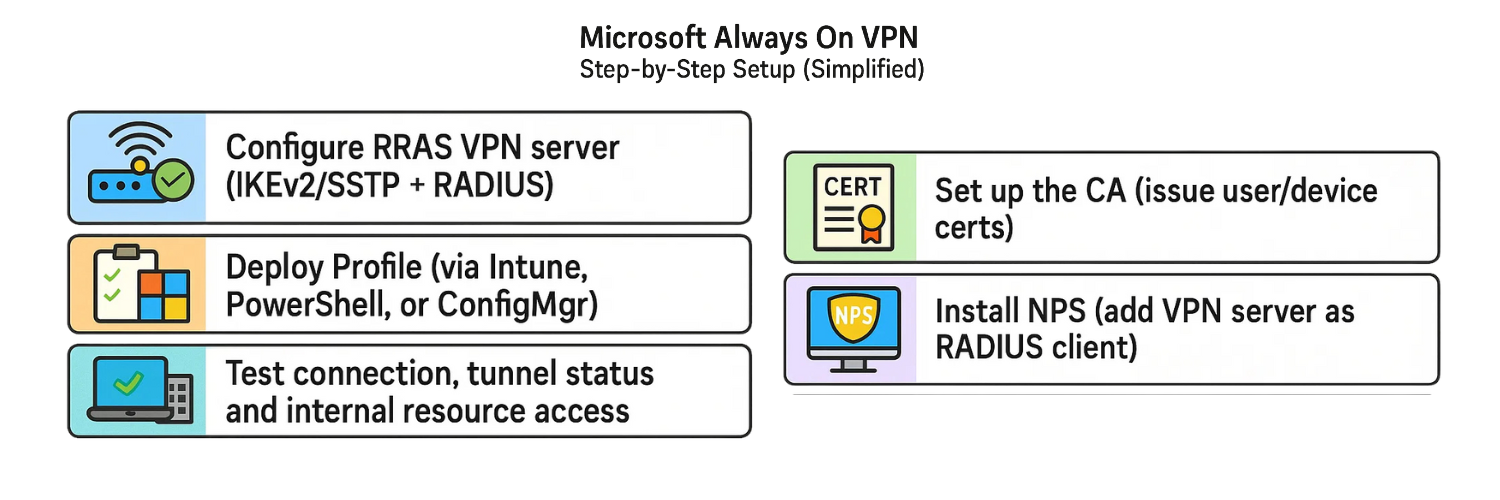
Setting up Always On VPN doesn’t have to feel overwhelming. The process is detailed, but each part has a clear purpose. Here is a straightforward walkthrough that covers the core steps without diving into unnecessary complexity.
Step 1 — Prepare Active Directory And PKI
Start by making sure your identity and certificate foundations are ready. Create or verify your Certificate Authority, then enable auto-enrollment so devices and users receive the certificates they need without manual work. Once auto-enrollment is active, issue certificates for users, devices, NPS, and the RRAS server. These certificates are the backbone of both the Device Tunnel and User Tunnel.
Step 2 — Configure The NPS Server (RADIUS Authentication)
Install the NPS role and register it with Active Directory so it can validate incoming requests. Add your RRAS servers as RADIUS clients, then configure PEAP or EAP depending on your certificate setup. It’s also a good idea to create a dedicated VPN Users group in AD and link your policies to it. This keeps access cleaner and easier to manage.
Step 3 — Configure The RRAS VPN Server
Next, enable RRAS in VPN mode and bind the SSTP certificate that matches your public VPN DNS name. Turn on IKEv2 for environments that support it, since it’s required for the Device Tunnel. Point RRAS to your NPS server so RADIUS can handle authentication. Finally, configure the address pools or DHCP ranges that VPN clients will receive when they connect.
Step 4 — Create User Tunnel And Device Tunnel
You’ll need two profiles: one for the Device Tunnel and one for the User Tunnel.
The Device Tunnel uses IKEv2 and a machine certificate, allowing it to connect before login. This helps IT manage devices anywhere.
The User Tunnel uses SSTP or IKEv2 with a user certificate, and it connects after the user signs in. Both profiles work together without conflict and serve different purposes.Step 5 — Deploy The VPN Profile (XML Or Intune)
Once your tunnels are ready, deploy them to your devices. Intune works well for Azure AD-joined or hybrid machines. Traditional environments can use Group Policy, while larger fleets may prefer SCCM or a PowerShell-based deployment. All these options distribute the XML profile that tells each device how and when to connect.
With these steps lined up, the whole setup becomes a predictable path instead of a guessing game.
Need to double-check if your VPN setup is actually secure? You can use VPNTest.pro to instantly test your VPN for IP, DNS, and WebRTC leaks. It’s free, fast, and doesn’t require any downloads — perfect for confirming whether your Always On VPN is working as expected.
Device Tunnel Vs User Tunnel (Clear Comparison)
Always On VPN uses two separate tunnels, and understanding the difference helps you decide how to configure your environment. Each tunnel serves a specific purpose and relies on different parts of your certificate setup. Here’s a straightforward comparison that shows how they work and why both matter.
Feature
Device Tunnel
User Tunnel
When It Connects
Before login
After login
Protocol
IKEv2 only
IKEv2 + SSTP
Use Cases
Device management, remote administration
User access to apps, internal services, mapped drives
Issues
Breaks on Wi-Fi captive portals or networks that block IKEv2
Depends on user certificates and login timing
The Device Tunnel gives IT teams a reliable way to reach machines through certificate authentication, even when no one is signed in. The User Tunnel handles everyday work once the user logs in and has more flexibility because it supports both IKEv2 and SSTP, which helps on networks that block certain ports. Both tunnels complement each other, and most deployments use them together for a stable experience.
Microsoft Always On VPN Cost Explained
Always On VPN doesn’t come with a separate Microsoft VPN client fee, but the setup isn’t entirely cost-free. The real expense comes from the infrastructure around it. Understanding these pieces upfront helps you budget realistically and avoid surprises later.
You’ll need at least one Windows Server license, and most environments use several. One server usually handles RRAS, another handles NPS, and a third may host the Certificate Authority. Whether these run on physical hardware or virtual machines, each one carries its own cost in licensing and ongoing maintenance.
A Certificate Authority is required for device and user authentication. If you already run PKI, the cost is minimal. If not, you’ll need to account for building the CA, maintaining certificate templates, and ensuring the CRL is always accessible. On cloud platforms like AWS or Azure, CRL hosting may add small storage or traffic charges.
If you plan to use Azure Conditional Access, you’ll need the appropriate licensing—typically part of Microsoft Entra ID P1 or P2. This adds another recurring cost for organizations that haven’t already adopted those plans.
Hardware or virtual machine resources also factor into pricing. RRAS and NPS aren’t heavy workloads, but they still require stable servers, networking, and monitoring. Cloud deployments add load balancer and VM operating costs. On-prem environments add electricity, rack space, and hardware lifecycle planning.
Finally, there’s IT labor cost. Always On VPN relies on PKI, RADIUS, certificates, DNS, and firewall rules working together. Setting it up takes time, and supporting it requires staff familiar with certificate authentication and tunnel protocols. The tunnel itself may be free, but the expertise isn’t.
Overall, the pricing is manageable for organizations already using Windows Server and Azure AD, but it still requires planning. The good news: once the infrastructure is ready, you don’t pay anything extra for the VPN client itself.
Microsoft Always On VPN Troubleshooting & Common Issues
Always On VPN can run into issues even when the setup looks correct. Most problems appear on home networks, hybrid environments, or public Wi-Fi. Here are the issues admins see most often:
IKEv2 blocked on public Wi-Fi: Many networks block UDP 500/4500, stopping IKEv2 entirely. The User Tunnel (SSTP over TCP 443) usually connects without problems.
IPv6 conflicts: Some routers hand out IPv6 settings that break the tunnel. Disabling IPv6 or correcting the network design usually resolves it.
Device Tunnel not reconnecting after sleep: RRAS sometimes fails to re-establish the tunnel after sleep or network changes. A restart is often required.
Certificate errors: Missing root CAs, unreachable CRLs, or wrong templates prevent the tunnel from opening.
You can run quick checks for IP, DNS, and WebRTC leaks using this guide to see how to test a VPN for leaks. It helps you spot hidden issues that might expose your identity even if the tunnel appears connected.
Hybrid deployment confusion: Azure AD–joined and domain-joined devices need different deployment paths (Intune vs GPO/SCCM). Mixing them leads to profile failures.
For detailed fixes and step-by-step solutions, you can read our fullAlways On VPN troubleshooting guide.
Microsoft Always On VPN Security Features (Simple Breakdown)
Always On VPN includes several built-in security layers that work together to control who can connect, how they authenticate, and what traffic is allowed through the tunnel. Here’s a clear look at the features that matter most in real deployments.
Authentication Options
Always On VPN supports a range of authentication methods, and most organizations use a mix of them depending on their device strategy.
EAP and PEAP are the standards here, and both work well with certificate-based setups. Windows Hello for Business can also act as the user’s authentication method, replacing passwords with PINs or biometrics tied directly to the user’s identity.Certificate-based authentication remains the most reliable option, since it avoids credential prompts and ties the device or user to a specific certificate. If stronger checks are needed, Azure MFA can add another layer on top, verifying the user before the tunnel is allowed to open.
Traffic And App Filters
Admins can control how the tunnel behaves by using traffic and app-based filtering.
A per-app VPN allows only certain applications to use the tunnel, keeping other traffic on the normal network path. This helps when you want to limit how much data flows through the VPN or when only specific apps need internal access.Traffic filter lists add another layer by setting rules based on ports, IP ranges, or protocols. Combined with Conditional Access, you can set policies that decide when a device may connect, which apps are allowed, and what level of authentication is required.
Encryption And Protocols
Always On VPN relies primarily on two secure protocols.
IKEv2 is fast and works well when networks allow UDP 500 and 4500. It’s required for the Device Tunnel and is the standard for certificate authentication.
SSTP, on the other hand, runs over TLS/SSL using port 443, which helps users connect on restrictive networks such as public Wi-Fi.Both protocols provide strong encryption, and switching between them based on the network gives the tunnel a better chance of staying stable in different environments.
High Availability And Scalability Options
A stable Always On VPN setup depends on more than certificates and tunnels — it needs an architecture that can handle failures, heavy traffic, and peak usage without breaking. Microsoft’s built-in features combined with cloud platforms like AWS make this possible. Here’s a clear breakdown of the options that matter.
Load Balancing Options
Load balancing spreads VPN connections across multiple servers so no single machine becomes a bottleneck.
Network Load Balancers (NLBs) are the most common approach. They distribute both SSTP and IKEv2 traffic evenly and keep the service running even if one RRAS server fails. NLBs also work well with hybrid or cloud deployments.Clustering is another option. Remote Access clustering lets multiple RRAS servers act as a single high-availability unit. If one server goes down, the others take over without interrupting the active tunnels. This helps organizations running larger workloads or needing predictable uptime.
Multi-Region Failover (AWS Example)
AWS makes it possible to build a setup that survives even a full region outage. Route 53 health checks monitor your VPN endpoints and switch traffic to a backup region automatically whenever the primary region fails. This keeps users connected without manual intervention.
For the VPN servers themselves, NLB failover ensures that clients always reach an active RRAS node. Each region can run its own NLB, and Route 53 decides which one should handle traffic.
Finally, the CRL (Certificate Revocation List) must stay available. Using S3 + CloudFront keeps the CRL accessible globally, even if one bucket goes down. This prevents certificate errors from blocking tunnels during outages.
Capacity Planning Tips
Planning capacity ahead of time keeps the VPN responsive during peak hours.
The first question is how many tunnels per server you need to support. Each client creates two tunnels — one for the Device Tunnel and another for the User Tunnel — so the numbers add up quickly. Make sure your RRAS servers have enough headroom to handle both.Next, consider network throughput. Even though VPN traffic is compressed and encrypted, some organizations route all user traffic through the VPN (force tunneling), which increases load dramatically. Monitor your current bandwidth patterns and choose server sizes that can sustain heavy throughput without slowing down.
A well-planned architecture doesn’t just keep Always On VPN online — it keeps it predictable, even as the organization grows.
Microsoft Always On VPN Vs Cisco AnyConnect (Honest Comparison)
Many teams compare Always On VPN with Cisco AnyConnect when deciding how to support remote access. Both tools are proven, but they serve different needs. Here’s a clear, honest comparison based on deployment, cost, reliability, and long-term flexibility.
Ease Of Deployment
Always On VPN takes more work to set up. It depends on PKI, NPS, certificates, DNS, firewalls, and two separate tunnels. Getting everything aligned is possible, but it requires time and careful planning.
Cisco AnyConnect has a simpler onboarding process. You install the client, configure the VPN profile, and you’re done. There’s far less infrastructure to coordinate, and troubleshooting is usually easier because the client provides clearer feedback.
Cost
Always On VPN can be cheaper if your organization already runs Windows Server, Active Directory, and PKI. There’s no extra cost for the VPN client, and many businesses already have the required pieces in place.
Cisco AnyConnect requires additional licensing. The price varies depending on the number of users and the security features you enable. For companies starting from scratch, this can increase overall cost.
Cross-Platform Support
Always On VPN works only on Windows 10 and Windows 11. There is no official support for macOS, Linux, Android, or iOS. This limits flexibility for organizations with mixed device fleets.
Cisco AnyConnect supports Windows, macOS, Linux, iOS, and Android. If you need the same VPN experience across multiple platforms, Cisco is the easier choice.
Reliability
Always On VPN is stable on controlled networks but can struggle in the real world. Device Tunnel issues, IPv6 surprises, and public Wi-Fi blocking IKEv2 are common pain points. SSTP helps, but only on the User Tunnel.
Cisco AnyConnect tends to behave more consistently, especially on public networks. Its fallback mechanisms are smoother, and it usually reconnects quicker after sleep or network changes.
Security Options
Both tools support strong authentication, including MFA, certificate-based access, and policies that align with Zero Trust principles. Cisco adds more granular controls through its broader security ecosystem, but for most companies, both options meet modern security needs.
The short version:
Always On VPN works well for Windows-only environments that want lower cost and tight integration with AD.
Cisco AnyConnect is better for mixed-device fleets, simpler onboarding, and more predictable reliability on public networks.
Is Always On VPN Near End Of Life? (What Microsoft Signals)
A common question among IT teams is whether Always On VPN is heading toward retirement. Microsoft hasn’t announced an end-of-life date, but there are clear signals about the direction they’re moving in.
DirectAccess — the predecessor to Always On VPN — is already on the path to end of life. It still works, but its future is limited, and Microsoft no longer recommends deploying it for new environments. This shift pushed many organizations toward Always On VPN as the supported replacement for Windows remote access.
At the same time, Microsoft is building momentum around Entra Private Access, a Zero Trust–aligned remote access model that replaces traditional VPN behavior with identity-based access. This is where Microsoft is investing most of its long-term energy. It doesn’t replace Always On VPN today, but it shows where their roadmap is heading.
Despite that shift, Always On VPN remains fully supported on Windows 10 and Windows 11, and there is no official retirement timeline. For now, it stays part of the standard Windows remote access stack, and organizations can deploy it with confidence knowing it isn’t deprecated.
Looking forward, Microsoft’s broader strategy leans toward Zero Trust and cloud-driven access rather than classic VPN tunnels. That doesn’t end Always On VPN right away, but it does suggest that long-term planning should include evaluating Entra Private Access and similar modern access solutions.
Alternatives To Always On VPN (If You Need Something Simpler)
If Always On VPN feels too heavy or complex for your setup, several tools offer an easier path:
Cisco AnyConnect — stable, cross-platform, and straightforward to deploy.
Zscaler ZPA — cloud-based Zero Trust access without traditional tunnels.
Palo Alto GlobalProtect — strong security controls and broad device support.
Microsoft Entra Private Access — Microsoft’s modern Zero Trust direction.
Cloudflare Zero Trust — lightweight, fast, and built for browser-based access.
These options fit teams that want fewer moving parts or need broad OS support beyond Windows. If you want a deeper comparison of non-Microsoft options, you can check our guide on the alternatives to Always On VPN for clearer direction based on different environments.
Conclusion
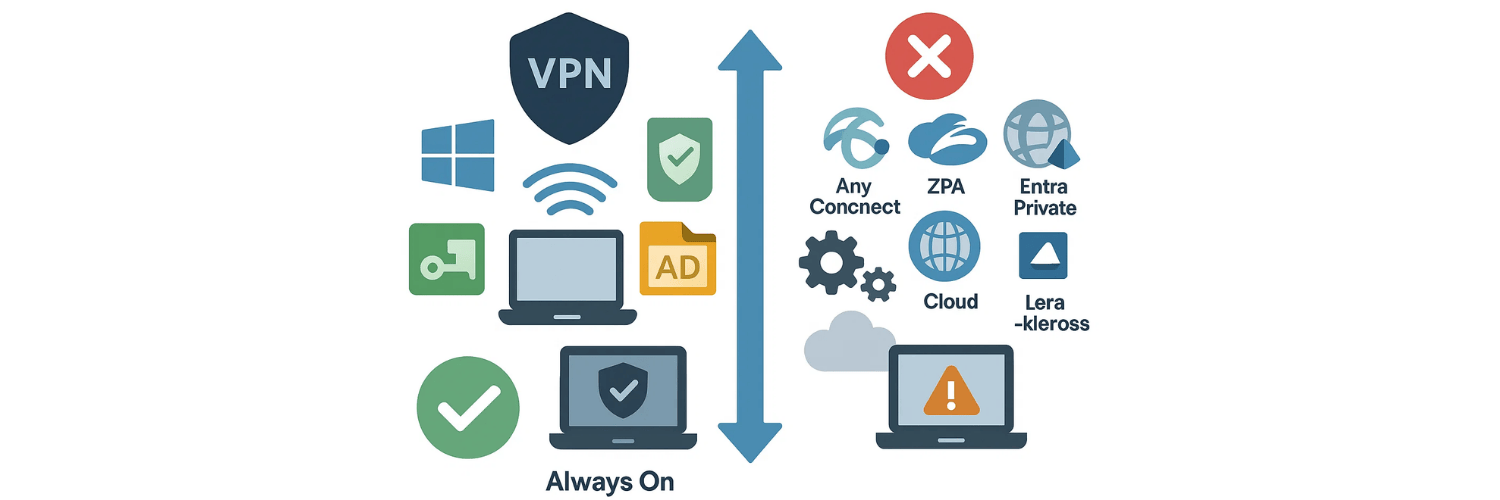
Always On VPN works well when your environment is mostly Windows, you already use AD and PKI, and you want a built-in solution that connects devices automatically. It gives you strong control, certificate-based security, and reliable access for managed laptops.
It’s not the best fit if you need cross-platform support, simpler deployment, or fewer moving parts. In those cases, tools like AnyConnect, ZPA, GlobalProtect, or Entra Private Access offer a cleaner experience with less troubleshooting.
The key is matching the solution to your setup. If your infrastructure is ready for Always On VPN, it can run smoothly. If not, modern Zero Trust tools may save you time and stress in the long run.
FAQs
How do I check if my Microsoft Always On VPN is working?
You can use rasdial, check your VPN IP, or try accessing internal resources. For a quick check of leaks, try VPNTest.pro to test IP, DNS, and WebRTC protection
What Are The Requirements For Always On VPN?
You need Windows Server (2016 or newer), Active Directory, DNS, a Certificate Authority, an NPS server for RADIUS, an RRAS VPN server, and the correct firewall ports open for IKEv2 and SSTP.
Does Always On VPN Work On Windows 10 And Windows 11?
Yes. Always On VPN is fully supported on both Windows 10 and Windows 11, including domain-joined, Azure AD-joined, hybrid, and BYOD devices.
How Do Device Tunnel And User Tunnel Work?
The Device Tunnel connects before the user signs in and uses IKEv2 with a machine certificate.
The User Tunnel connects after login and can use either SSTP or IKEv2 with a user certificate.
How Much Does Always On VPN Cost?
There’s no extra cost for the VPN client, but you pay for Windows Server licenses, PKI infrastructure, hardware or VM resources, and admin time. Azure Conditional Access may require additional licensing.
Is Always On VPN Better Than Cisco AnyConnect?
It depends on your needs. Always On VPN is cheaper for Windows-only environments. Cisco AnyConnect is easier to deploy, works on more platforms, and tends to be more stable on public networks.
Is Always On VPN Going Away Or Reaching End Of Life?
No. Microsoft hasn’t announced an end-of-life date. It remains supported on Windows 10 and 11. However, Microsoft is guiding long-term strategy toward Entra Private Access and Zero Trust models.
Why Does Always On VPN Fail On Public Wi-Fi?
Many public networks block UDP ports 500 and 4500, which breaks IKEv2. SSTP (over TCP 443) usually works, but only on the User Tunnel.
What Causes IKEv2 Or SSTP Connection Errors?
Common causes include blocked ports, IPv6 issues, certificate problems, unreachable CRL paths, or RRAS not responding after sleep. Checking PKI health and network conditions usually reveals the source.
Can I Use Always On VPN In A Hybrid Azure AD Environment?
Yes. It works with domain-joined, Azure AD-joined, and hybrid devices. You can deploy profiles via Intune, GPO, SCCM, or PowerShell depending on your identity model.
Tags

About VPNTest
Content Specialist with expertise in cybersecurity and online privacy. Sarah has been testing and reviewing VPN services for over 5 years and regularly contributes to leading tech publications.
View all articles by VPNTest →




Never Miss an Article
Subscribe to our newsletter to receive the latest VPN guides, security tips, and industry news directly in your inbox.