


School Chromebooks are designed to keep learning environments focused, so it’s normal to run into blocked websites. But sometimes filters mistakenly block useful resources — like a research tool, a news site, or a study article.
If you’re trying to figure out how to unblock websites on a school Chromebook without a VPN, you’re in the right place. Below are safe, simple, and effective methods that work on most Chromebooks, along with deeper explanations competitors often skip.
Note: This guide is for educational, safe, and responsible use. Always follow your school’s internet rules. These methods are meant to help you access study material, research websites, and safe content—not anything inappropriate or harmful.

Quick Summary: Fastest Ways to Unblock Websites Without VPN
Use a web proxy (KProxy, Proxysite, etc.)
Use Google Translate to load webpages
Access the site using its IP address
Shorten the URL using Bitly or TinyURL
Use Google’s cached version
Use Reader Mode
Use HTML-to-PDF converters
Read pages through Google Docs
Switch HTTP ↔ HTTPS
Change DNS (Smart DNS)
Use hotspot or mobile data
Try offline versions via Wayback Machine
Use authorized proxy extensions (if allowed)
Why Schools Block Websites in the First Place

Understanding how filters work helps you choose the right workaround.
Schools usually block websites using:
1. DNS filters
Schools often block websites at the DNS level. This means the domain name itself (for example, example.com) is blocked. When you type the URL, the DNS server refuses to resolve it.
Why it happens: DNS filtering is fast, cheap, and easy for schools to manage.
What usually works: Switching to another DNS service (like 1.1.1.1 or 8.8.8.8) or accessing the site using its raw IP address.
2. Network-level firewall filters
These filters sit on the school’s Wi-Fi network and scan all traffic. They can block:
specific URLs
keywords (like “proxy” or “games”)
full IP address ranges
Why it happens: Firewalls are designed to block categories of websites, not just single domains.
What usually works: URL shorteners, Google Translate, cached pages, or proxy sites.
3. ChromeOS enterprise policies
Managed Chromebooks receive restrictions directly from the admin console. These rules can block:
specific websites
installation of Chrome extensions
changing DNS settings
using developer tools
Why it happens: Schools use Google Admin tools to keep devices controlled and safe.
What usually works: Browser-based tools (like Google Translate, cached pages, Wayback Machine) because they don’t depend on device settings.
4. SSL inspection
Some schools use deep-packet inspection to decrypt HTTPS traffic. This lets them scan the contents of the page before deciding whether to block it.
Why it happens: It adds an extra security layer to prevent harmful or unsafe content.
What usually works: Using cached versions, HTML-to-PDF converters, or Wayback Machine, because they don’t require the page to load normally.
Why this matters
Each blocking method needs a different type of workaround. Knowing which filter you’re dealing with helps you pick the method with the best chance of working.
Examples:
DNS filter → changing DNS or using the IP address
URL filter → URL shorteners, Google Translate
SSL inspection → cached pages or PDF converters
Extension block → browser-based tools still work
Understanding the type of block gives you a major advantage when choosing the right method.
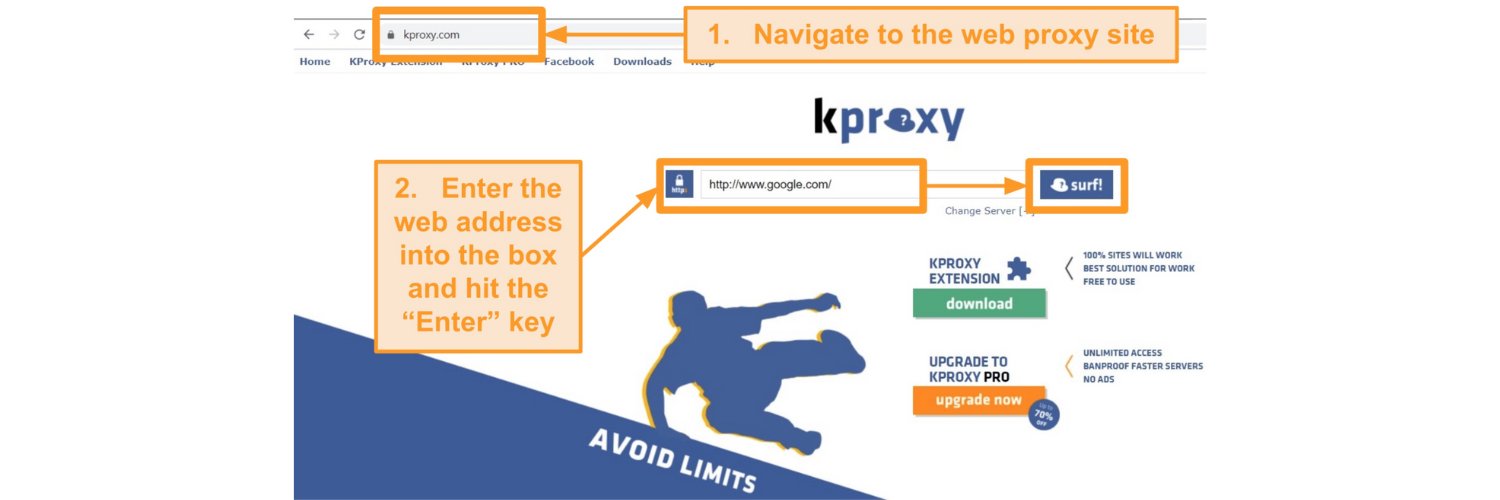
Use A Web Proxy Site (Fastest & Easiest)
A web proxy loads the website for you, so the school filter only sees the proxy — not the actual website.
Try:
hide.me (web version)
How to use:
Open a proxy site
Paste your blocked URL
Click Go
If the proxy itself is blocked, search:
"free online web proxy new domain"
Many proxy providers rotate domains weekly.
Use Google Translate as a hidden browser
Google Translate loads webpages inside its translation frame, which often bypasses restrictive filters.
Steps:
Open translate.google.com
Paste the URL
Pick any language
Click “Translate”
This uses a Google domain, which schools almost never block.
Extra tip:
Choose English → English to avoid actual translation — it still loads the page.
Use the IP address instead of the URL
This works when schools block domain names but forget to block the IP.
Steps:
On another device, run:
ping website.com
Copy the IP (e.g., 104.26.10.3) and paste it into Chrome.
Pro Tip:
To check whether your IP is visible later, use our IP Test tool.
Use a URL shortener to bypass filters
Basic filters block example.com but not shortened links.
Try:
Paste → Shorten → Open.
Competitor-missed insight:
Shorteners also hide URL parameters (like tracking IDs) which sometimes trigger school filters.
Load cached or simplified content
Google Cached Page
This shows Google’s saved snapshot.
Use:
cached:website.com
or via search results → menu → Cached
Reader Mode
Reader Mode removes scripts that trigger filters.
Great for articles, blogs, and news websites.
Use Developer Tools (for Understanding the Block)
Not for bypassing — for diagnosing.
Press Ctrl + Shift + I
Open Network
Reload page
Look for red-blocked requests
This helps you identify:
DNS blocks
keyword-based blocks
HTTPS inspection alerts
Once you know what type of block it is, you can pick the right method.
Try the Wayback Machine (Perfect for Research)
Great for reading older versions of articles.
Visit archive.org/web
Paste URL
Pick a saved snapshot
Useful when modern versions are blocked but older ones aren't.
Convert the page to a PDF instantly
If all you need is text, this method always works.
Try:
Paste the URL → Download PDF → Open it offline.
Use Google Docs as a safe reader
If you can access the site on your phone or home Wi-Fi:
Copy the text
Paste into a Google Doc
Open on the Chromebook
Google Docs is always allowed, so it’s a guaranteed way to read content.
Switch between HTTPS and HTTP
Sometimes only one protocol is blocked.
Try both:
http://example.com
https://example.com
Don’t log into anything on HTTP.
Change DNS to Smart DNS (chromebook-friendly method)
Many school networks rely on DNS blocks.
Changing DNS works if the Chromebook allows network settings (varies by school).
Try switching to:
1.1.1.1 (Cloudflare)
8.8.8.8 (Google DNS)
This can remove DNS-level blocks without breaking anything.
After switching, test your IP →https://vpntest.pro/test
Chromebook Settings Students Overlook
Many blocks happen because of local Chrome browser settings, not just school filters.
You can check:
1. Site permissions
Settings → Privacy & Security → Site Settings
Sometimes blocked scripts can be allowed manually.
2. Clear ChromeOS policy cache
Clearing cached restrictions can fix false blocks.
Steps:
Sign out
Press Ctrl + Shift + Refresh
Restart
3. Check the "Allow sites to load insecure content” flag
Some educational tools get blocked because they use mixed content.
Try Chrome Extensions (If Not Restricted)
Useful if you’re on a personal Chromebook.
Reliable ones:
Hola
Browsec
Ultrasurf
Managed Chromebooks usually block installation.
Switch to Mobile Hotspot (Highest Success Rate)
Using your phone’s hotspot bypasses the entire school network.
Great for loading study resources that Wi-Fi blocks.
Only use if allowed.
8 Mistakes That Make Sites MORE Likely to Be Blocked
Avoid these to reduce future blocks:
Opening too many blocked URLs repeatedly
Visiting known proxy sites directly
Using sketchy Chrome extensions
Trying “VPN Chrome Extensions” (schools flag these)
Logging into personal accounts from blocked pages
Using incognito mode too often (looks suspicious to filters)
Rapid refreshing or mass-loading pages
Typing blocked keywords in URL bars
This helps you maintain long-term safe access to educational tools. Schools use strict VPN and network policies to protect devices. If you want to understand how VPN usage works inside academic environments, read our full guide on VPNs for schools for a deeper breakdown.
Comparison Table: How to Unblock Websites on a School Chromebook Without VPN
Method | Difficulty | Success Rate | Admin Rights Needed? | Full Access? |
Web Proxy | Easy | High | No | Yes |
Google Translate | Easy | High | No | Yes |
IP Address | Medium | Low–Medium | No | Yes |
URL Shortener | Easy | Medium | No | Yes |
Google Cached Page | Easy | Medium | No | No (read-only) |
Reader Mode | Easy | Medium | No | Partial |
Developer Tools | Advanced | Low | No | No |
Wayback Machine | Easy | Medium | No | No (old versions) |
HTML-to-PDF | Easy | Medium | No | No |
Google Docs Method | Easy | High | No | No |
HTTP/HTTPS Switch | Easy | Low | No | Sometimes |
Smart DNS | Medium | Medium | Maybe | Yes |
Proxy Extensions | Easy | Medium | Yes (if allowed) | Yes |
Mobile Hotspot | Easy | Very High | No | Yes |
Tor Browser | Hard | High | Yes | Yes |
What To Do If NONE of the Methods Work
Try these:
1. Ask for temporary access
Schools often whitelist study-related websites.
2. Use offline versions
Many educational sites offer offline copies.
3. Use Google’s “Text-Only” view
Run:
view-source:https://example.com
or
textise.net → paste URL
4. Use your phone for content and transfer it via Google Docs
This keeps everything accessible on your Chromebook while staying within safe and approved tools your school already allows.
Final Thoughts
You don’t need a VPN to access safe, educational websites on a school Chromebook. With tools like Google Translate, web proxies, URL shorteners, cached pages, Smart DNS, and Google Docs, you can view what you need without breaking policies or risking your device.
Always stay safe, stay responsible, and follow school guidelines.
FAQs
1. What’s the safest way to unblock websites on a school Chromebook?
The safest and lowest-risk methods are Google Translate and Google’s cached pages. Both use trusted Google tools, don’t require installs, and don’t change your Chromebook settings. They simply load the content in a different way, which avoids triggering school filters. These methods keep your device secure and stay within the boundaries of normal browsing.
2. Why does my school block useful websites?
Most schools use automated filtering systems that categorize websites in bulk. These systems sometimes over-block, meaning an educational site can be marked the same way as a distracting or unsafe one. It isn’t targeted or personal — the filters are just cautious and often block everything in a category instead of evaluating each site individually.
3. Can extensions unblock websites?
Extensions can help, but only if your Chromebook allows new extensions to be installed. On managed school Chromebooks, extension installs are usually restricted. If extensions are allowed, tools like proxy-based extensions may work — but avoid random “unblocker” extensions, as many contain malware or fake permissions. Stick to tools from trusted publishers only.
4. What method works even if everything else fails?
Two methods usually work regardless of how strict the filters are:
Using your phone’s mobile hotspot (if allowed)
Using HTML-to-PDF converters to load the page externally
Hotspot bypasses the entire school network, and PDF tools fetch the webpage for you remotely. Both work even when DNS filters, firewalls, or SSL inspection block the main site.
5. Is Smart DNS the same as a VPN?
No. A Smart DNS only reroutes your DNS queries, which can bypass certain domain-level blocks. A VPN, on the other hand, encrypts your traffic and hides your IP address. Smart DNS won’t change your location or hide your identity — it simply changes how websites are resolved. This makes Smart DNS lighter and sometimes easier to use on restricted devices.
6. How can I check if my IP or DNS changed correctly?
You can test everything in one click using our tool here: https://vpntest.pro/test
It shows your current IP address, DNS resolver, and whether anything is leaking. If you switched DNS, changed networks, or tried a proxy, this tool instantly confirms whether the changes are working.
Tags

About VPNTest
Content Specialist with expertise in cybersecurity and online privacy. Sarah has been testing and reviewing VPN services for over 5 years and regularly contributes to leading tech publications.
View all articles by VPNTest →


Never Miss an Article
Subscribe to our newsletter to receive the latest VPN guides, security tips, and industry news directly in your inbox.