

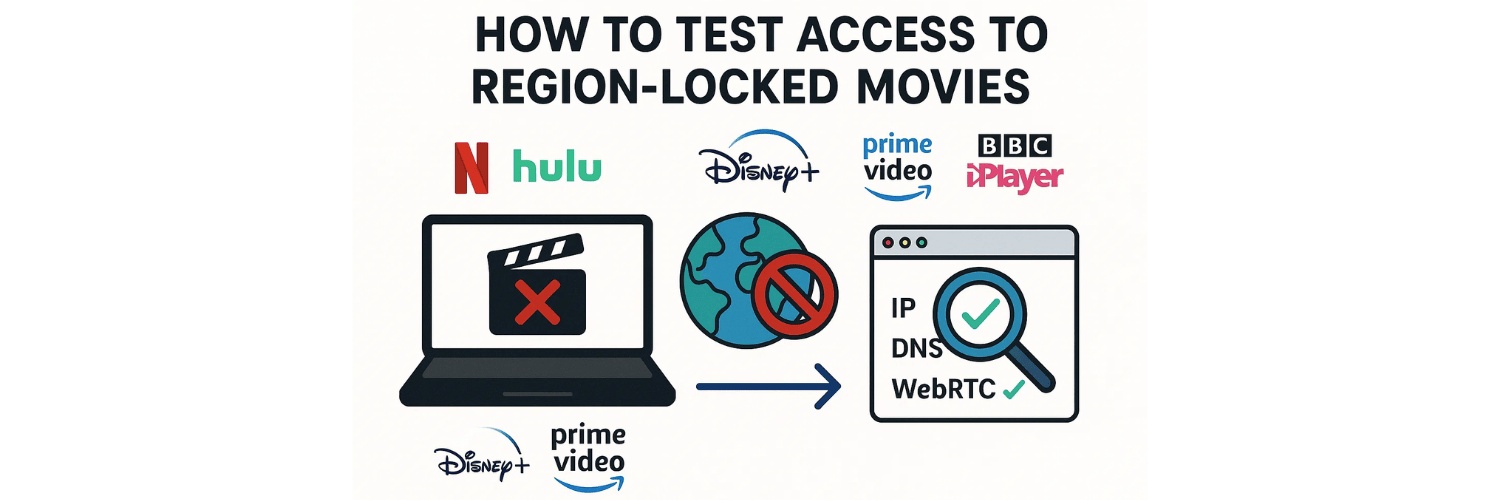
Streaming services like Netflix, Hulu, Disney+, Prime Video, and BBC iPlayer restrict movies based on your location. These geo-blocks can prevent you from watching titles available only in specific countries. If you’ve changed your IP or are using tools to access another region, you must test whether the movie truly unlocks before streaming.
This guide explains how to test access, why region errors appear, and how to use online testing tools to confirm your IP, DNS, and WebRTC are aligned with the region you want.
Why Are Some Movies Region-Locked in the First Place?
Region-locking is caused by:
Content licensing agreements
Distribution rights
Local legal restrictions
Different release dates per country
Exclusive partnerships (e.g., HBO vs Netflix)
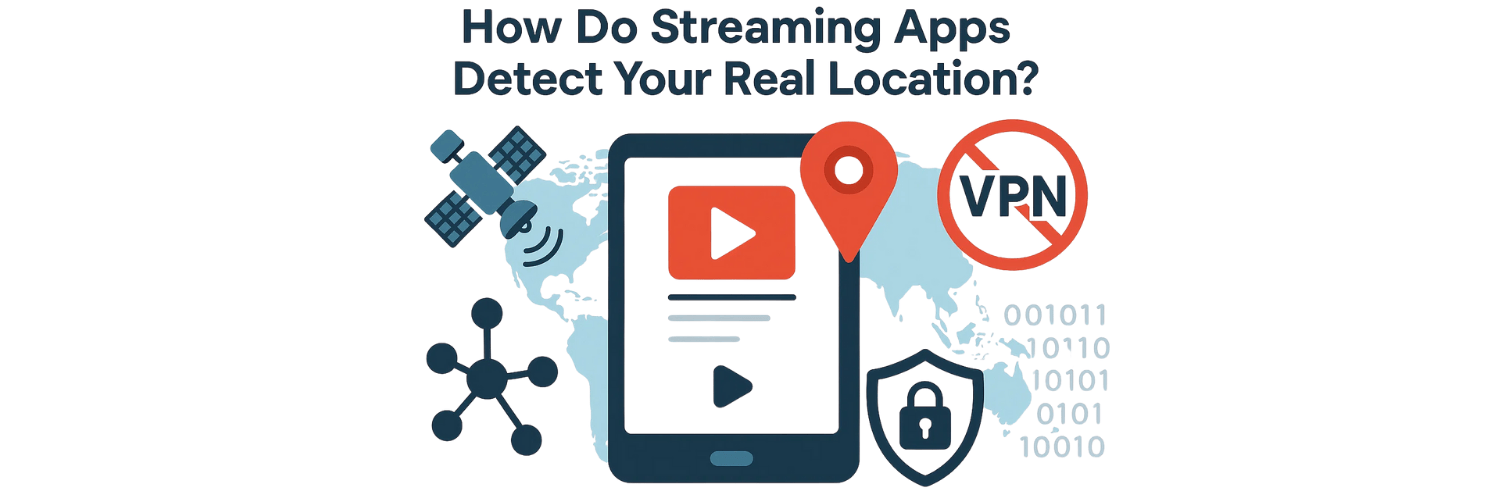
Streaming services detect your region by checking:
Your IP address
Your DNS resolver
Your browser WebRTC info
Your device’s timezone
Your billing country
Your GPS (mobile devices)
If these signals don’t match, access to region-restricted content can fail.
How Do Streaming Apps Detect Your Real Location?
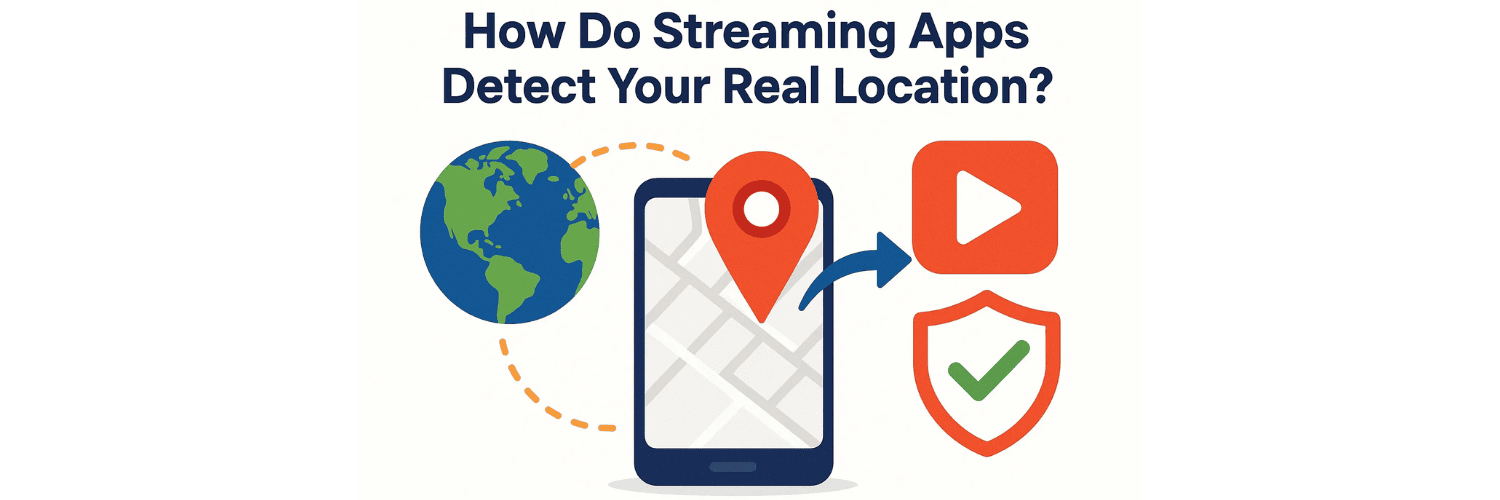
When you open a movie on a streaming service, the platform checks:
Your IP address country
DNS requests (are they resolved locally or abroad?)
WebRTC leaks (browser reveals real IP)
IPv6 leaks (some servers only mask IPv4)
GPS location (mainly on Android/iOS)
Payment method region
App data or cache stored on device
If any of these reveal the wrong country, you will see:
“This title is not available in your region.”
“You appear to be using an unblocker or proxy.”
“Error Code: M7111-5059 (Netflix).”
This is why proper testing is essential.
How Can You Confirm Your IP Shows the Correct Country?
Before testing any movie, confirm that your connection reflects the correct region using a trusted online tool like vpntest.pro/test.
Steps:
Visit vpntest.pro/test.
Check:
Displayed Country
IP address
DNS server locations
WebRTC IP
IPv6 status
Compare them with your target country.
If:
IP = United States
DNS = Romania
WebRTC = Real IP
Then streaming apps will block you immediately.
If all values match the target country (e.g., Canada, Japan, UK), then you can proceed to the next stage.
What Happens If Your IP and DNS Don’t Match?

This mismatch is the #1 reason region-locked content fails.
Example:
IP location: France
DNS resolver: Germany
Streaming apps interpret this as suspicious traffic, leading to blocking.
The fix is:
Use Unified DNS servers from the same region
Clear DNS cache
Disable smart DNS services
Avoid mixed IPv4/IPv6 connection problems
You can easily detect these mismatches on vpntest.pro/test.
How Do You Test Access to Region-Locked Movies on Netflix?
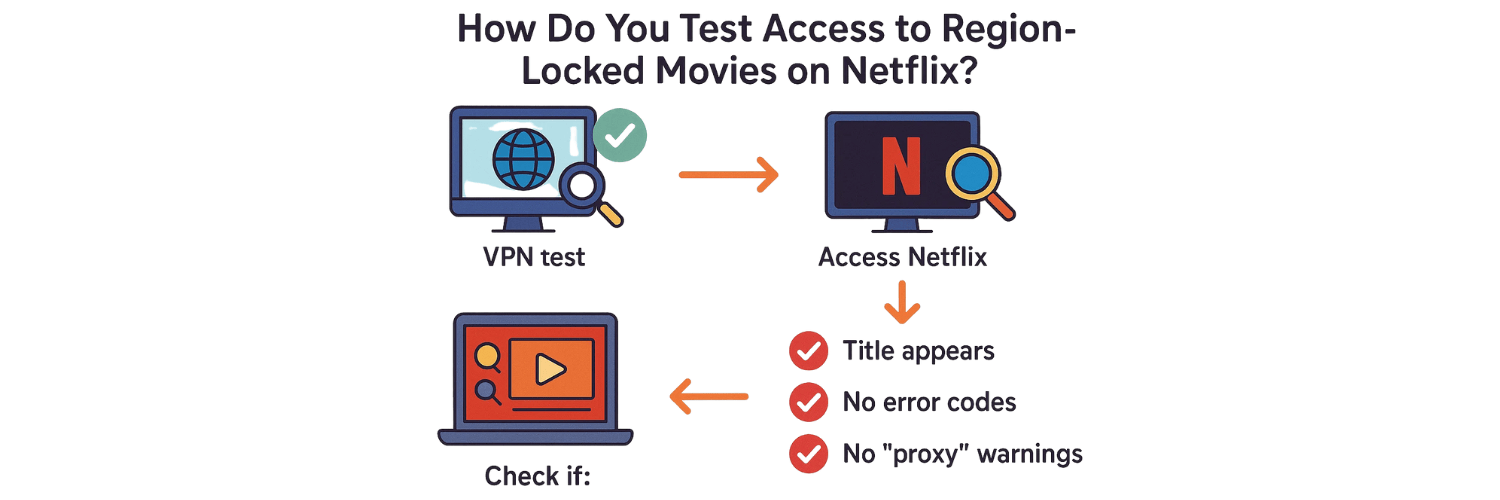
Steps for Netflix Testing:
Confirm your IP details at vpntest.pro/test
Visit Netflix.com/title/ID (if you know the title URL)
Alternatively, search for the movie in Netflix search
Check if:
The title appears
It loads without error codes
Playback starts without “proxy” warnings
Most Common Failure Codes:
M7111-5059 – Proxy/unblocker detected
NSES-404 – Title not available in your region
If you see these, your IP or DNS is leaking.
How Do You Test Access for Disney+ and Hulu?
For Disney+ and Hulu:
Confirm IP region at vpntest.pro/test
Log into your app or browser
Try opening a region-specific exclusive
Look for these error messages:
“Service unavailable in your region”
“You appear to be in a region where we do not operate”
“Access denied due to location settings”
Disney+ is very strict with DNS leaks. Even one mismatch stops playback.
How Do You Test Access to BBC iPlayer and UK Services?
UK apps like BBC iPlayer require:
UK IP
UK DNS
No WebRTC leaks
To test access:
Run checks on vpntest.pro/test
Visit BBC iPlayer
Try playing a UK-only show
Check if playback starts — if it does, your region test succeeded
If not, your location is being leaked.
How Do You Test Access to Region-Locked Movies on Mobile Apps?
Mobile devices add more location signals:
GPS
Device region settings
Time zone
App cache
Follow this process:
Confirm IP on vpntest.pro/test
Set your device region to the target country
Set time zone to the target region
Disable location (GPS)
Clear app cache
Reopen the streaming app
Search for the region-locked title
If the movie loads, the test passed.
What Are the Most Common Reasons Region Tests Fail?
Here are the top causes:
❌ DNS leak
Your DNS requests reveal your real country.
❌ WebRTC leak
Your browser exposes your real IP.
❌ IPv6 leak
Some tools don’t mask IPv6 traffic.
❌ Mixed routing
Your IP is in one country, DNS in another.
❌ Server already blocked
Streaming apps block thousands of IP ranges.
❌ Cached data reveals old region
Apps store your previous location.
All of these can be identified with vpntest.pro/test instantly.
How Can You Confirm the Movie Will Stay Unlocked During Streaming?
Some tools change IP mid-stream. If your IP switches:
Movie stops
Error code appears
Playback freezes
To test stability:
Keep vpntest.pro/test open in another tab
Start the movie
Refresh the test every 10–15 minutes
Check if IP stays consistent
If the IP fluctuates, the movie may get blocked mid-watch.
Final Thoughts
Testing access to region-locked movies requires verifying your connection from multiple angles—not just your IP. Tools like vpntest.pro/test help ensure your IP, DNS, WebRTC, and IPv6 are aligned with the region you want to access.
Once your connection is leak-free and stable, streaming platforms are far more likely to allow playback of region-exclusive content without errors.
10 Most Asked FAQs
1. Why does Netflix still block me even if my IP shows the correct country?
Because your DNS or WebRTC may still be leaking your real region.
2. How can I check if my IP truly changed?
Use an online tool like vpntest.pro/test to verify all IP and DNS values.
3. Why do region-locked movies disappear after refreshing the app?
This happens when your connection switches IP mid-session.
4. Why does Disney+ detect my location even after I change my IP?
Disney+ is sensitive to DNS leaks and cached data.
5. Do mobile streaming apps check GPS?
Yes, some Android/iOS apps use GPS as an additional location signal.
6. Why do some titles appear but won’t play?
The app detects mismatched DNS or WebRTC information.
7. How often should I test my connection?
Before every new region switch, and during long streaming sessions.
8. Why does my browser show a different country than my device?
Your browser may expose WebRTC IP that the device doesn’t.
9. How do I fix the “proxy detected” error?
Remove DNS leaks, disable WebRTC, clear cache, and retest at vpntest.pro/test.
10. Why is UK content the hardest to unlock?
BBC iPlayer has extremely strict location checks.
Tags

About VPNTest
Content Specialist with expertise in cybersecurity and online privacy. Sarah has been testing and reviewing VPN services for over 5 years and regularly contributes to leading tech publications.
View all articles by VPNTest →Related VPNs


Never Miss an Article
Subscribe to our newsletter to receive the latest VPN guides, security tips, and industry news directly in your inbox.