

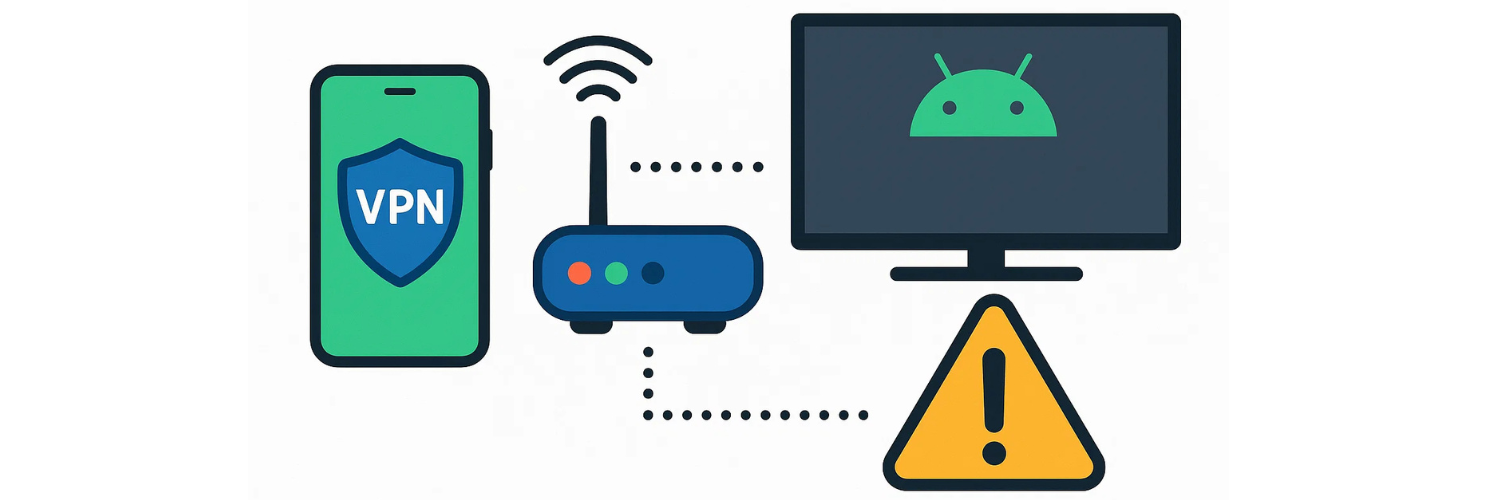
If you want your VPN to stay active all the time on your Android phone or Android TV—even after reboot—you need Always-On VPN.
This guide walks you through what it is, how to set it up, how to troubleshoot issues, and what to expect depending on your Android version.

What Is Always-On VPN on Android?
Always-On VPN is a built-in Android feature (Android 7.0+) that forces your device to stay connected to a VPN at all times.
There’s also an optional "Block connections without VPN" setting (available on Android 8.0+), which acts like a kill switch. If your VPN drops for any reason, your internet will stop working until the VPN reconnects. This prevents leaks.
Why Use Always-On VPN?
Keeps your connection encrypted 24/7
Prevents data leaks during drops
Secures public Wi-Fi use
Blocks apps from bypassing the VPN
Helps with location spoofing and privacy
If you’re serious about privacy, Always-On VPN is the minimum you should set up.
What Happens If VPN Disconnects Without Always-On?
If your VPN disconnects and you don’t have Always-On enabled, your device quietly switches back to your regular internet connection. That means your real IP and data are exposed without any warning.
Always-On VPN keeps the tunnel active at all times. If the connection drops, it instantly reconnects—or blocks all traffic if you’ve enabled that option. No gaps, no leaks.
How to Set Up Always-On VPN on Android
Works with Android 7.0 and above
Step 1: Install Your VPN App
Use a VPN app that supports Always-On (most major ones like ProtonVPN, NordVPN, PureVPN, and OpenVPN do). Install the app from Google Play and log in. Make sure you’re using an Always On VPN Android app that supports kill switch and background connection—some basic apps don’t.
Not sure which VPN app supports Always-On VPN reliably? Compare top Android VPNs here to pick one that fits your needs.
Step 2: Enable Always-On in Android Settings
Open your Android device's Settings
Go to Network & Internet → VPN
Tap the gear icon next to your VPN app
Toggle Always-On VPN
(Optional but recommended) Toggle Block connections without VPN
Once enabled, the VPN will start at boot and stay connected as long as the device is on.
Note: You must disconnect the VPN before you can change these settings.
Can You Use Always-On VPN Without a VPN App?
Yes, you can use Always-On VPN without installing your VPN provider’s app—if they support manual setup (like OpenVPN or IKEv2).
You’ll need to:
Go to Settings > Network & Internet > VPN
Tap “Add VPN”
Enter all server, username, and protocol details manually
But here's the catch:
You’ll miss out on useful features like kill switch, split tunneling, or automatic server switching. So unless you know what you're doing, the app is usually the better choice.
How to Set Up Always-On VPN on Android TV
If you’re using an Always On VPN Android TV setup, OpenVPN for Android is one of the few apps that can handle boot-time connection reliably. Android TV doesn’t handle Always-On VPN the same way phones do. Here’s the breakdown:
If You’re Using Android TV 10–13
These versions allow background services
VPN apps like OpenVPN for Android and WG Tunnel can auto-connect at boot (even without Always-On VPN)
If You’re Using Android TV 14–15
Background activities are blocked
Google removed "Always-On VPN" from many devices
VPN apps can’t auto-start at boot unless rooted or specially configured
Workaround
Some apps still reconnect quickly once the system is up. You can use automation tools or launchers to trigger the VPN when a certain app is opened (e.g., YouTube or Netflix).
Device-Specific Issues You Should Know About
Some Android device brands make things harder:
Huawei / Xiaomi / OnePlus: aggressive battery settings often kill VPN apps in the background
Fire TV and low-end Android TV boxes: may not support VPN at all, or hide the Always-On setting
Custom Android ROMs: might behave unpredictably with VPN at boot
Tip: Go to your phone or TV’s Battery or App Management settings, and whitelist your VPN app to keep it running in the background.
Can You Schedule or Temporarily Disable Always-On VPN?
Sometimes, you don’t need VPN all the time—like at home.
Here’s how you can control it:
Use Per-App VPN: Exclude trusted apps like YouTube or Google Maps
Tasker or MacroDroid: Set rules like “Disconnect VPN on home Wi-Fi”
VPN App Auto-connect Options: Some apps let you connect only on mobile data or unknown networks
This keeps you secure where it matters, without slowing things down where it doesn’t.
Common Problems and Fixes
VPN shows connected but no network access
Make sure Block connections without VPN isn’t blocking traffic after a failed reconnect
Reboot your device
Clear your VPN app’s cache and data
Try changing VPN protocols (e.g., switch from OpenVPN to WireGuard)
Always-On VPN drains battery
VPNs run in the background constantly. Use lighter protocols (like WireGuard) if your app supports them
Disable "Block connections without VPN" if you’re not on public Wi-Fi often
VPN doesn’t auto-connect at startup (especially on Android TV)
Some VPN apps don’t support auto-launch
Use apps like Tasker or built-in automation tools to trigger VPN on boot
Check for restrictions on background activity in your Android TV's settings
Can You Use Per-App VPN with Always-On?
Yes. Many VPN apps let you choose which apps go through the VPN and which don’t. This is useful for banking or streaming apps that block VPNs.
Can You Use Split Tunneling with Always-On VPN?
Yes—if your VPN app supports split tunneling. This lets you pick which apps go through the VPN and which bypass it. It’s useful for apps that block VPNs (like some banking apps) or need local network access.
Note:
Split tunneling may not work with the “Block connections without VPN” feature enabled.
Always test excluded apps to make sure they behave as expected.
Always-On VPN vs. VPN On Demand
Some VPN apps (like PureVPN) offer VPN On Demand, where the VPN kicks in only when you visit specific sites. It’s useful if you only want protection for certain tasks, but it’s not the same as a true Always-On connection.
VPNs That Support Always-On Best (And Which to Avoid)
You can check VPN rankings here to see which services are most reliable for Android and Android TV. Here’s how top VPNs handle Always-On support:
VPN App | Always-On | Kill Switch | Android TV Support |
Yes | Yes | Limited | |
Yes | Yes | Partial | |
OpenVPN (manual) | Yes | No | Yes |
WireGuard (WG Tunnel) | Yes | No | Yes |
Yes | Yes | Yes | |
Eddie by AirVPN | Limited | Yes | No boot start (yet) |
Pick one that fits your use case—especially if you're on Android TV.
Final Thoughts
Always-On VPN is the simplest way to protect your Android or Android TV all the time—without needing to remember to connect.
If you're using Android 7+ (or TV versions 10–13), setup is quick. On newer TVs (14–15), expect some limits, but workarounds still exist.
No matter what version of Android you use, a properly configured Always-On VPN keeps your data safe, blocks leaks, and gives you peace of mind.
FAQs
1. What is Always-On VPN on Android?
Always-On VPN is a built-in Android feature (available on Android 7.0+) that keeps your VPN connection running at all times—even after you reboot your device. It ensures all internet traffic goes through the VPN.
2. What does “Block connections without VPN” mean?
This setting acts like a kill switch. If your VPN disconnects, it blocks all internet access until the VPN reconnects. It’s the best way to prevent IP leaks and protect your data during connection drops.
3. Does Always-On VPN drain battery on Android?
Yes, it can slightly affect battery life because the VPN runs continuously in the background. Choosing lightweight VPN protocols like WireGuard can reduce battery usage.
4. Why is my Always-On VPN connected but there’s no internet?
This usually happens when the VPN server is down, or the “Block connections without VPN” feature is preventing data from leaking. Try switching servers, clearing app cache, or restarting your device.
5. Can I use Always-On VPN on Android TV?
It depends on your Android TV version. Devices running Android TV 10–13 may allow background VPN activity, but Android TV 14+ restricts it. Some VPN apps work around this, but many can’t auto-connect at boot without special configuration.
Tags

About VPNTest
Content Specialist with expertise in cybersecurity and online privacy. Sarah has been testing and reviewing VPN services for over 5 years and regularly contributes to leading tech publications.
View all articles by VPNTest →Related VPNs

Never Miss an Article
Subscribe to our newsletter to receive the latest VPN guides, security tips, and industry news directly in your inbox.